Blog – iPTV Tips
IPTV on Google TV: Setup, Login and Playback Checks

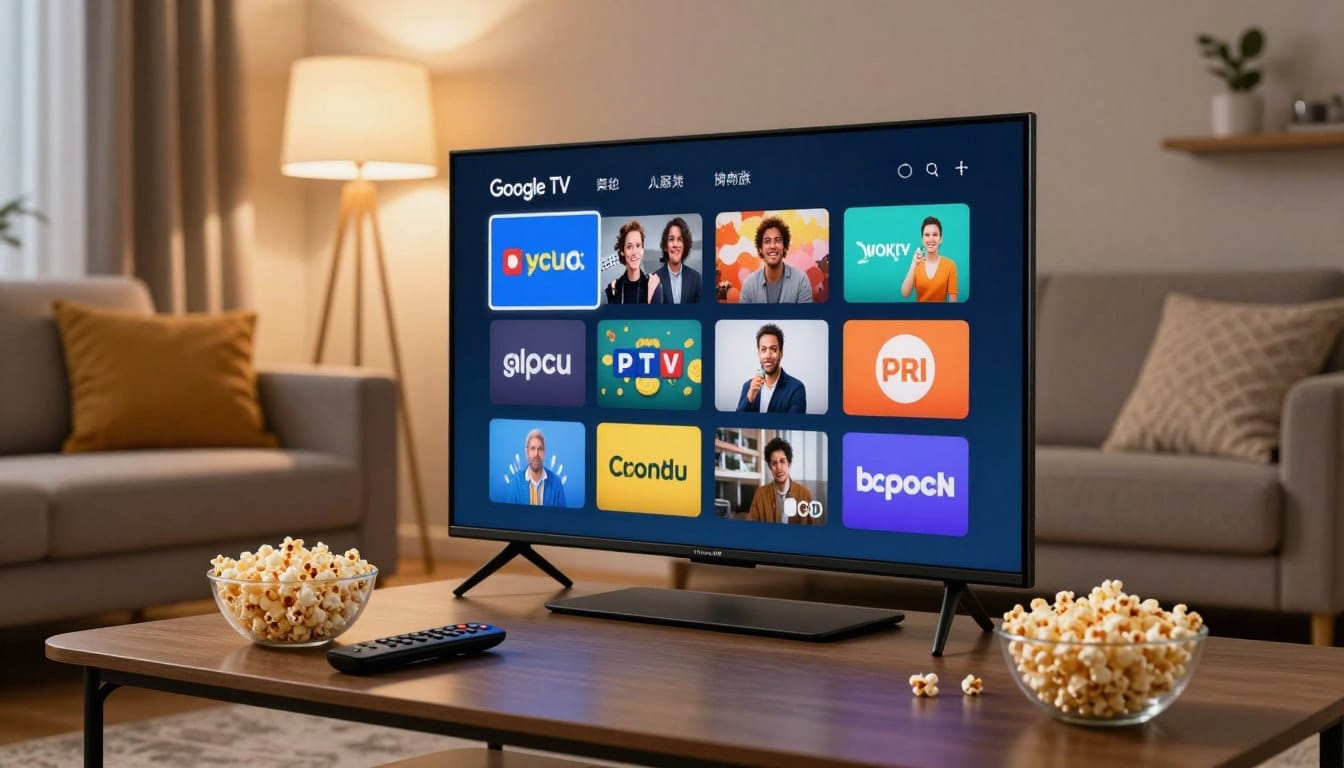
Setting up your streaming experience should be simple and secure. IPTV on Google TV users want to enjoy live content directly through their living room hardware. By following an android tv iptv setup, you can avoid risky third-party files and stick to official methods.
This guide helps you prepare your device for a smooth experience. We will walk through checking your available storage, installing verified players from the official store, and managing necessary permissions. Taking these steps ensures your system remains stable and fast.
You will learn how to handle M3U playlists and Xtream-style credentials separately. We also cover how to perform a quick playback check to confirm everything works perfectly. Let’s get your media library ready for viewing.
Key Takeaways
- Use only official app stores to download your media players.
- Check your device storage before starting the installation process.
- Distinguish clearly between M3U file inputs and Xtream-style login credentials.
- Grant only the necessary permissions to ensure your privacy remains protected.
- Perform a playback test immediately after your initial configuration.
Check Your Google TV or Android TV Device Before Setup
Before you dive into your streaming journey, it is vital to ensure your hardware is ready for the task. Taking a few minutes to verify your system settings will help you avoid common technical hurdles later on.
Confirm the TV platform and software version
First, you need to identify whether your television runs on Google TV or the classic Android TV interface. You can find this information by navigating to your device’s Settings menu and selecting About or Device Preferences.
Keeping your software updated is essential for a smooth android tv iptv setup. Ensure your system is running the latest available firmware version to maintain compatibility with modern streaming applications.
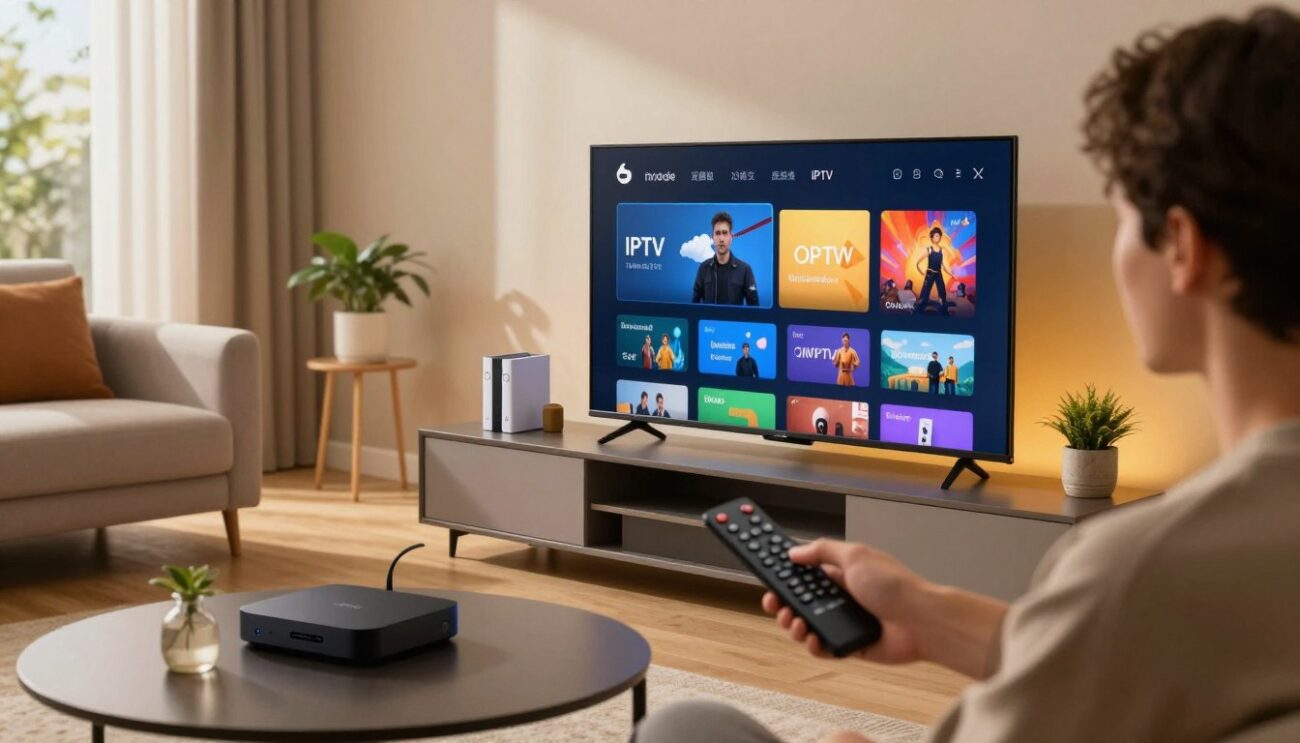
Check internet access, remote control input, and TV compatibility
A stable internet connection is the backbone of any high-quality streaming experience. Use a wired Ethernet connection if possible, or ensure your Wi-Fi signal is strong enough to handle high-definition video streams without buffering.
Verify that your remote control is fully functional and paired correctly with your television. If your remote input is laggy or unresponsive, it will make navigating your chosen google tv iptv player much more difficult.
Review available storage before installing a player
Streaming apps often require significant space for cache and metadata. Check your available storage in the settings menu to ensure you have enough room for the application and its future updates.
If your storage is nearly full, consider removing unused apps or clearing the cache of existing programs. This simple step prevents installation errors and keeps your interface running quickly.
| Check Category | Action Required | Importance |
|---|---|---|
| Software | Update to latest version | High |
| Network | Test speed and stability | Critical |
| Storage | Clear unnecessary files | Medium |
| Input | Verify remote responsiveness | High |
Use Google TV Help for device and network checks
When you encounter persistent issues, it is best to rely on official resources rather than unverified forums. The Google TV Help portal provides comprehensive guides for troubleshooting network connectivity and device performance.
Using these official tools ensures that you are following the most accurate procedures for your specific hardware. Always prioritize documentation provided by the manufacturer to keep your device secure and optimized.
Install an IPTV Player from the Official Google Play Store
Your journey to a better streaming experience begins by visiting the official app store on your television. Using the official store ensures that your google tv iptv player is safe, stable, and optimized for your specific hardware.
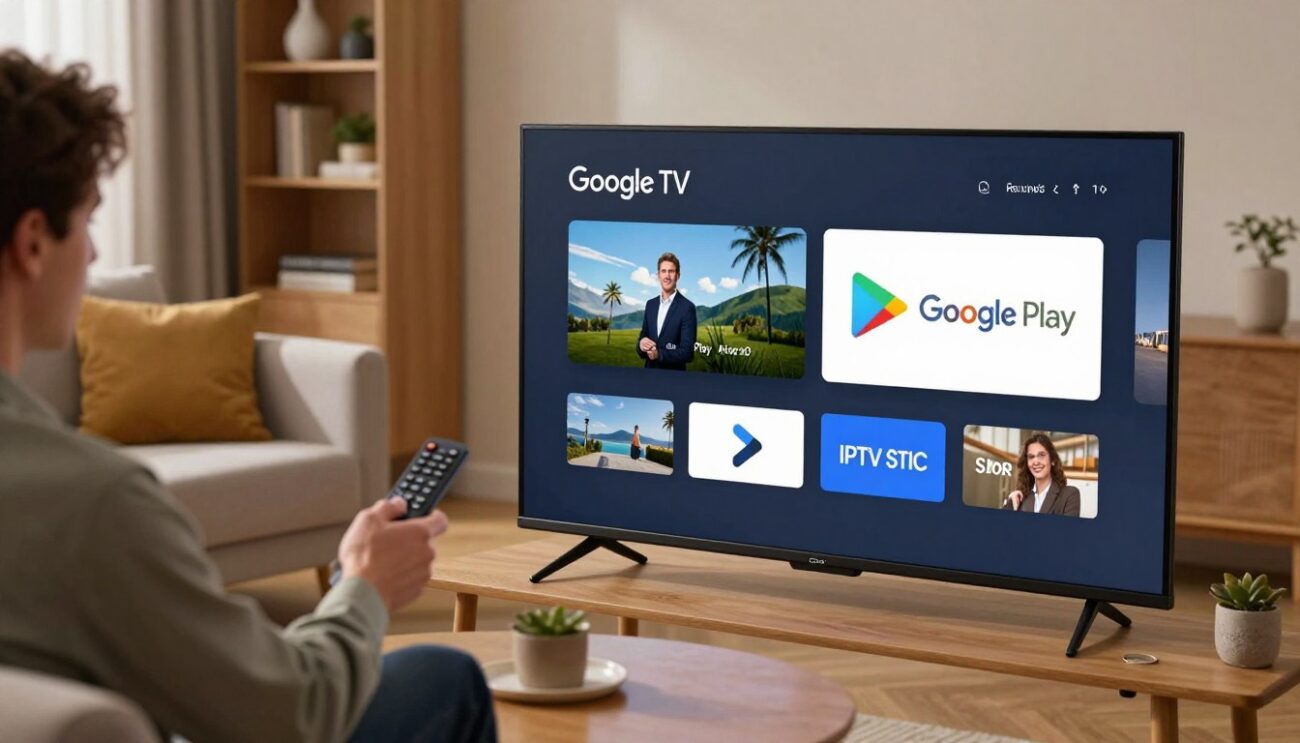
Open Google Play Store on Google TV or Android TV
Navigate to your home screen and locate the Google Play Store icon. You can usually find this in your app list or by using the voice search feature on your remote.
Once the store opens, use the search bar to look for your preferred player. Always ensure you are using the official store interface rather than a web browser to find your software.
Check the app name, publisher, rating, and requested access
Before you click install, take a moment to verify the app details. Check the publisher name to ensure it matches the official developer of the software you intend to use.
Look at the user ratings and read the permissions requested by the app. A legitimate google tv iptv player will only ask for access that is necessary for its core functions, such as network connectivity or storage access.
Install only the player’s official TV-compatible app
Many developers create different versions of their apps for phones and televisions. Always select the version specifically designed for Android TV or Google TV to ensure the interface works correctly with your remote control.
Installing the wrong version can lead to navigation issues or poor video quality. Stick to the official listing to guarantee the best performance.
Review the player’s official documentation before signing in
Most reputable developers provide a help section or a website link within the app store listing. Reading this documentation helps you understand the specific iptv login tv process required for that platform.
Understanding these steps beforehand prevents errors during the setup phase. It also helps you identify which credentials your provider needs to supply for a successful connection.
Why you should avoid sideloaded APK files and unknown download sites
You might be tempted to download files from third-party websites to bypass official stores. However, sideloading APK files poses significant security risks to your device and personal data.
These files often lack the security vetting provided by Google, which can expose your system to malware. Furthermore, sideloaded apps frequently fail to receive automatic updates, leaving your google tv iptv player vulnerable to bugs and compatibility issues over time.
Set Up iptv on google tv and Complete a Verified Login
Once you have installed your chosen player, the next phase involves connecting your account securely. Setting up iptv on google tv requires attention to detail to ensure your stream remains stable and high-quality.
Open the installed player and choose its sign-in method
Launch the application from your home screen to begin the configuration. Most modern players offer multiple ways to connect, such as M3U playlists or Xtream-style API credentials.
Select the method that matches the information provided by your service. Choosing the correct path is essential for a successful iptv login tv experience.
Enter your provider account details carefully
Use the on-screen keyboard to input your credentials exactly as they appear in your welcome email. Even a small typo in a URL or a single missing character in a password will prevent the app from connecting.
Take your time during this step. Double-checking your input now saves you from having to restart the process later.
Verify the service address, username, and password before submitting
Before you hit the submit button, review every field for accuracy. Ensure that the server address includes the correct protocol, such as http or https, and that there are no accidental spaces at the end of your username.
Confirm that the account is authorized for TV playback
Not all accounts are enabled for multiple devices or specific TV platforms. Check your provider’s dashboard to confirm that your subscription is active and authorized for the specific device you are using.
| Method | Primary Requirement | Security Level |
|---|---|---|
| M3U URL | Direct Link | Standard |
| Xtream API | Server, User, Pass | High |
| Local File | USB Storage | Moderate |
What to do when login details fail
If you receive an error message, do not panic. First, verify your internet connection to ensure the device is online. If the issue persists, try re-entering your credentials to rule out simple typing errors.
How to protect passwords when using a TV remote
Entering complex passwords with a remote can be difficult and risky in shared spaces. Consider using a mobile companion app if your player supports it, as this allows you to type credentials on your phone. Always ensure you are not saving sensitive passwords on public or shared Google TV devices.
Add an M3U Playlist as a Separate IPTV Input
If your provider gave you an M3U link, you are just a few steps away from streaming your favorite channels. Using an M3U playlist is a popular method to manage your iptv on google tv experience effectively.
Identify whether your provider supplied an M3U URL or file
Before you begin, check how your provider delivered the service details. Most services provide a direct URL, which is a web address ending in .m3u. Some providers might send a physical file that you need to upload or host elsewhere.
Enter the complete M3U playlist address in the player
Open your google tv iptv player and navigate to the playlist or source management menu. Carefully type the full URL provided by your service. Accuracy is vital here, as even a single missing character will prevent the player from connecting to the server.
Use the correct playlist name and save the source
Once the address is entered, assign a recognizable name to the playlist. This helps you identify the source if you decide to add multiple providers later. After naming it, select the save or confirm button to store the configuration within your app.
Wait for channels and program data to load
After saving, the application will attempt to fetch your channel list and electronic program guide (EPG) data. This process may take a few moments depending on your internet speed. Be patient while the google tv iptv player populates your library.
Check for broken characters, missing symbols, or an incomplete URL
If the channels fail to appear, do not assume the service is broken immediately. Double-check the URL for any accidental spaces, missing slashes, or incorrect symbols. A small typo is the most common reason for a failed connection when setting up iptv on google tv.
| Input Type | Primary Benefit | Setup Difficulty |
|---|---|---|
| M3U URL | Automatic updates | Low |
| M3U File | Offline access | Medium |
| Xtream Codes | Faster loading | Low |
Enter Xtream-Style Server, Username, and Password Details
Configuring your player with specific server details is a standard part of a successful android tv iptv setup. While some users prefer simple file uploads, professional services often provide unique credentials that require a more structured entry method.
Recognize the three fields used by Xtream-style services
When you choose the Xtream-style option in your player, you will notice three distinct input fields. You must provide the server address, your username, and your password separately.
These fields are mandatory for the application to communicate with your provider’s backend. Ensure you have these details ready before you begin the iptv login tv process to avoid unnecessary errors.
Enter the server address separately from the username and password
Always input the server address exactly as provided by your service. This usually looks like a web URL, such as http://example.com:8080.
Do not combine your username or password into the server field. Keeping these entries isolated ensures the application can authenticate your account without confusion.
Check HTTP or HTTPS formatting and port information
Pay close attention to the protocol prefix and the port number at the end of the address. A missing http:// or an incorrect port number will prevent the player from reaching the server.
Double-check that you have included the colon before the port number. Even a small typo in the URL structure can lead to a failed connection attempt.
Save the connection and confirm that the provider list appears
Once you have entered all three fields, select the save or login button. If the credentials are correct, the player will fetch your channel list and program guide data automatically.
If the screen remains blank, verify your internet connection and re-check your login details. A successful iptv login tv will result in your channel categories appearing on the main dashboard.
Understand why M3U and Xtream-style credentials are not interchangeable
It is important to realize that M3U URLs and Xtream-style credentials serve different purposes. An M3U file is a static list, whereas an Xtream-style connection allows for dynamic updates and better server interaction.
| Feature | M3U Playlist | Xtream-Style |
|---|---|---|
| Input Type | Single URL or File | Three Separate Fields |
| Data Updates | Manual Refresh | Automatic Sync |
| Security | Basic | Encrypted Auth |
| Performance | Standard | Optimized |
Review Permissions, Updates, Storage, and Playback Settings
Once you have your player installed, it is time to focus on the fine-tuning that ensures a great experience. Keeping your iptv on google tv environment healthy is the best way to avoid common playback errors and security risks.
Allow only permissions the player needs for its stated function
When you first launch an app, it might ask for access to your files, location, or contacts. You should only grant permissions that are strictly necessary for the app to stream your media.
- Check if the app actually needs access to your photos or contacts.
- Deny requests that seem unrelated to video playback.
- Review your privacy settings in the main system menu regularly.
When a permission request should be declined or investigated
If a player asks for sensitive data like your microphone or contact list without a clear reason, you should be cautious. Always investigate the developer’s reputation before clicking “Allow.” If you feel uncomfortable, it is safer to decline the request or uninstall the app entirely.
Update Google TV, Android TV, and the IPTV player
Software updates are vital for your android tv iptv setup to remain stable. Manufacturers frequently release patches that fix bugs and improve compatibility with new streaming formats.
Check the Google Play Store for pending app updates to ensure you have the latest features. Keeping your operating system current also helps protect your device from security vulnerabilities.
Free storage and restart the device when installation or loading stalls
If your channels are not loading or the app crashes, your device might be running low on storage. You can easily clear space by removing unused apps or clearing the cache of your media player.
A simple restart often fixes temporary glitches that occur during installation. If the problem persists, try unplugging your device for thirty seconds before turning it back on.
Check official player documentation for supported formats and settings
Before you start your first-playback check, consult the official documentation provided by the app developer. This guide will tell you which video formats and audio codecs are supported.
Verify that your settings match the requirements for your specific service. A successful test should confirm that your channels load quickly, the audio is clear, and the video quality remains consistent throughout your viewing session.
Conclusion
Setting up your entertainment hub requires a careful approach to device health and software management. You ensure a stable experience by performing initial network checks and verifying your hardware compatibility before you begin.
Selecting a reliable google tv iptv player from the official store protects your system from security risks. You maintain peak performance by limiting app permissions and keeping your software updated. Managing your storage space prevents playback stutters during your favorite shows.
Whether you use an M3U playlist or Xtream-style credentials, a verified login remains the most important step for success. You gain control over your media library by organizing these inputs correctly within your chosen interface.
You should consult Google help resources if you encounter persistent connectivity issues. Official player documentation often provides specific troubleshooting steps for unique playback formats. Your commitment to these best practices keeps your google tv iptv player running smoothly for years to come.
FAQ
How do I know if my device is ready for an android tv iptv setup?
Before you dive in, you need to confirm whether you are using the Google TV interface or the classic Android TV platform. Head over to your device settings to check the software version and ensure you have a stable internet connection. It is also a smart move to visit Google TV Help to verify your network compatibility and ensure you have enough available storage to install your chosen player without the system lagging.
Where is the safest place to find a google tv iptv player?
You should always stick to the official Google Play Store. When searching for a player, pay close attention to the publisher, user ratings, and the specific permissions the app requests. Avoid “sideloading” unofficial APK files from unknown websites, as these can pose massive security risks to your Google account and may not be optimized for your remote control.
What is the best way to handle an iptv login tv on my big screen?
Using a TV remote to type can be a pain, so take your time entering your username and password. To ensure a verified login, double-check every character for typos. If you are worried about security, some players allow you to hide the password as you type. If your iptv login tv fails, verify with your provider that your account is specifically authorized for TV playback rather than just mobile use.
Should I use an M3U playlist or Xtream-style credentials?
This depends entirely on what your provider gave you, but remember that M3U and Xtream inputs are not interchangeable. An M3U playlist is usually a single, long URL or a downloaded file. Xtream-style setups require three separate pieces of info: the server address, your username, and your password. Most modern apps like TiviMate or IPTV Smarters Pro support both, but you must enter them into the correct sections of the app.
What should I do if my M3U playlist isn’t loading any channels?
First, check for broken characters or missing symbols like dots and slashes in the URL. If the address is perfect but the screen is still blank, consult the official documentation for your player. Sometimes, the app needs a moment to process the program data (EPG). If it still stalls, try restarting your device or clearing the app’s cache to free up some internal storage.
How do I format the server address for an Xtream-style login?
When entering the server address, make sure you include the correct prefix—either HTTP or HTTPS—and the port information (the numbers usually found after a colon at the end of the URL). If you leave these out, the player won’t be able to find the provider’s server, and your iptv login tv attempt will fail.
Are there specific permissions I should worry about?
Generally, a google tv iptv player only needs basic permissions to function, such as access to the internet or storage (if you plan on recording shows). If an app asks for weird permissions—like your contacts or location—you should decline or investigate it. Keeping your Google TV or Android TV system updated is the best way to ensure these permissions and security protocols stay current.
Why does my video keep buffering or failing to play?
After finishing your android tv iptv setup, perform a first-playback check. If the video is choppy, check the official player documentation to see if you need to toggle “Hardware Acceleration” or change the “Buffer Size” in the settings. Also, ensure no other apps are hogging your bandwidth in the background.
I always check my Google TV storage and use official apps because sideloading APKs once crashed my setup.
haha I learned the hard way too after sideloading messed up my TV but since I got my gotoiptv susbcription and used just the official app it’s all smooth now
Does anyone else find using the TV remote to enter long passwords a real test of patience?
I really appreciate how this guide stresses checking for software updates before installing any new IPTV apps.
My guy said check Wi-Fi strength before streaming but my cat usually has faster reflexes than my internet.
The step about naming your M3U playlist is such a simple but helpful organization hack.
I once tried sideloading an IPTV app and instantly regretted it when my TV slowed way down.
Honestly, having separate login methods for M3U and Xtream was confusing at first but now it totally makes sense.
Doing a playback test right after setting up my player made me catch a typo before it drove me nuts.
Setting up my Xtream login took three tries because I kept typing http instead of https, and my remote hates me now.