Blog – iPTV Tips
IPTV on Firestick: A Beginner’s Setup Checklist

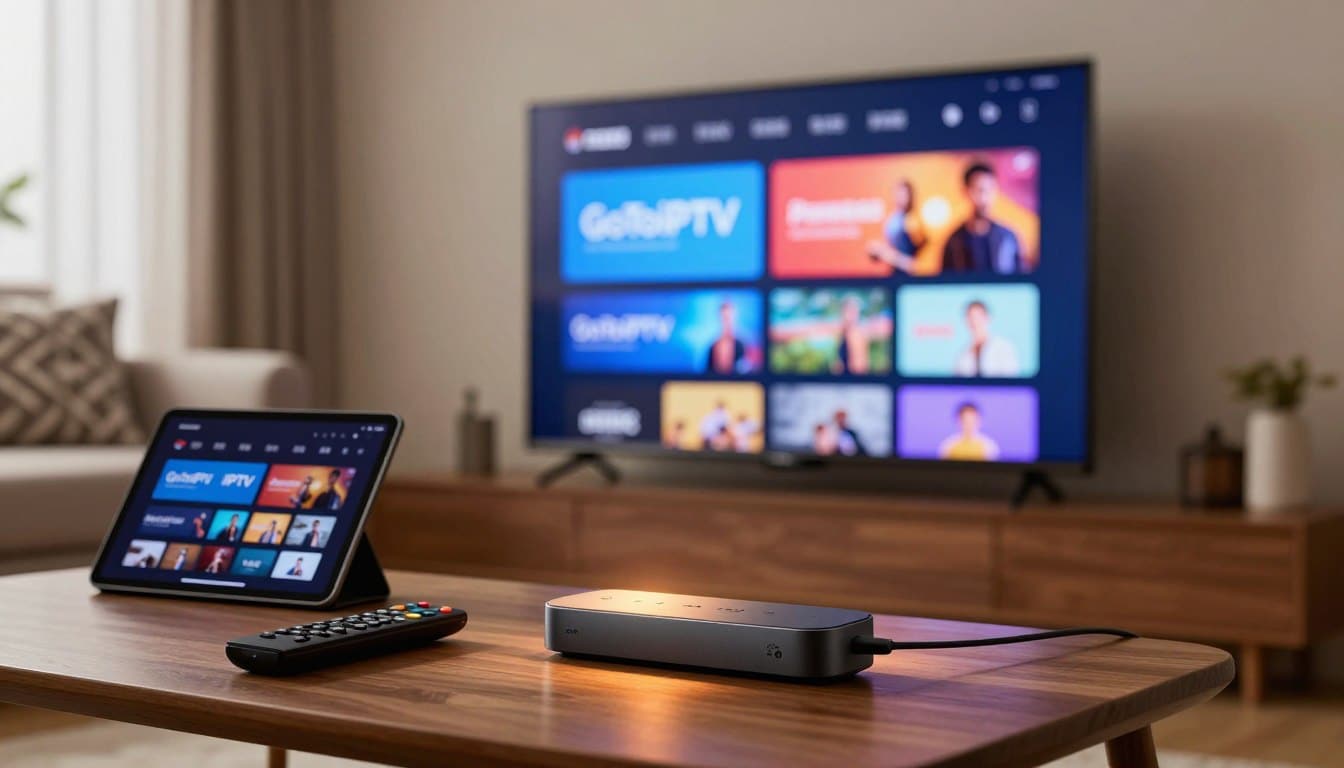
Setting up iptv on firestick is a great way to organize your favorite digital content. Before you begin, you must verify your specific device model and current operating system version. Not every Amazon streaming device supports the same apps or installation methods.
Always check your regional settings to ensure compatibility with the services you plan to use. Taking these small steps first prevents common technical headaches later.
This guide walks you through sourcing legitimate players and entering your provider details safely. You will learn how to test your playback quality and protect your login credentials. We focus on verified documentation to keep your setup process smooth and reliable.
Key Takeaways
- Confirm your specific device model and OS version before starting.
- Only download applications from official, trusted sources.
- Keep your provider-supplied credentials private and secure at all times.
- Test your stream quality immediately after the initial configuration.
- Use official support channels if you encounter unexpected errors.
Check Your Fire TV Device, Region, and Software First
Getting your device prepared is the most important step for a smooth fire tv iptv setup. Before you begin, you must ensure your hardware is fully compatible with the software you intend to use.
Find the exact Fire TV model and Fire OS version
Open Settings, My Fire TV, and About
To start, navigate to the home screen of your device. Use your remote to scroll over to the Settings gear icon on the far right. Select My Fire TV, then click on About to view your system details.
Record the device name, generation, storage, and software version
Write down your specific device name and the current Fire OS version. Knowing your generation and available storage helps you determine if your hardware meets the minimum requirements for high-quality streaming.
Confirm Amazon account and United States region settings
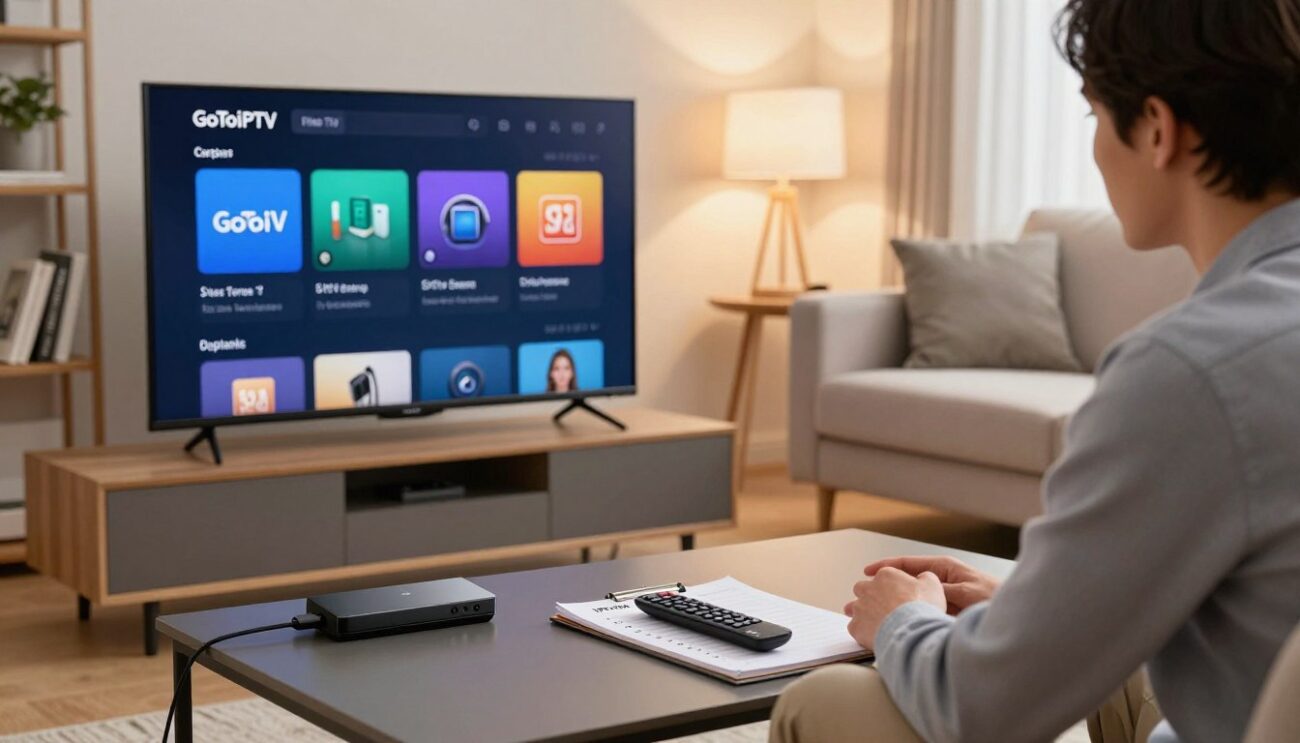
Your Amazon account must be correctly configured for the United States to access the full range of apps. Check your account settings on the Amazon website to verify your region is set to the U.S. This ensures that the Appstore displays content relevant to your location.
Check whether the intended IPTV player is available for your specific device
Compare the Amazon Appstore listing with Amazon’s supported-device information
Always visit the official Amazon Appstore online to see if your chosen player supports your specific model. Do not assume that every app works on every Fire TV stick or cube. Verifying compatibility prevents frustration during the installation process.
Explain why app availability can differ between Fire TV models, software versions, and regions
App availability often changes based on your hardware’s processing power and the version of Fire OS installed. Some older models may lack the necessary updates to run modern, resource-heavy players. Additionally, licensing agreements can restrict certain apps to specific geographic regions.
Capture a real screenshot of the device information screen before publishing
It is a great practice to take a clear photo or screenshot of your device information screen. Remember to mask any private information, such as your serial number or device ID, before sharing it publicly. This helps others verify that your fire tv iptv setup guide is based on real, tested hardware.
Gather the Details You Need for a Fire TV IPTV Setup
Success with your device starts long before you open an app. Taking a few minutes to organize your information ensures that your installation process remains smooth and stress-free.
Get service details from a legitimate provider
Always source your service information directly from a reputable and legitimate provider. This ensures that the data you receive is accurate and secure.
Confirm the provider supplies a compatible app or a supported playlist or portal format
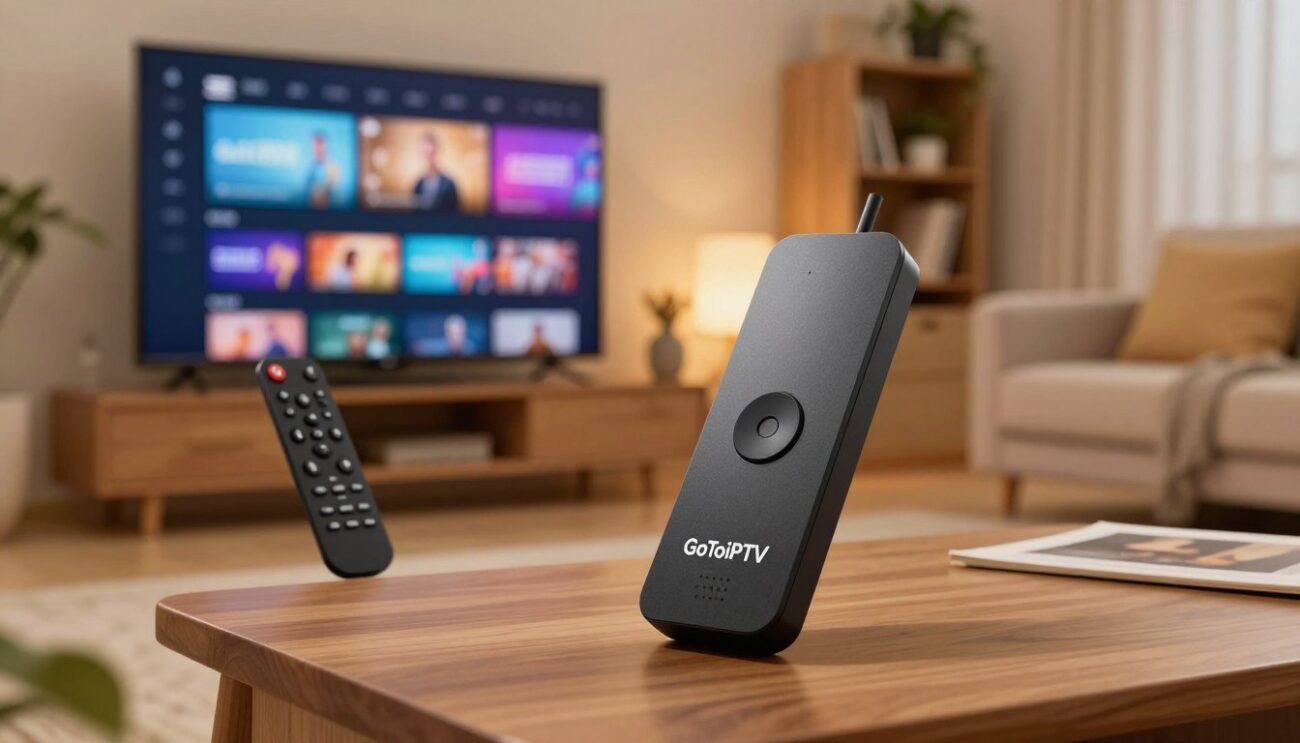
Before you begin, verify that your provider offers a format that works with your specific iptv player firestick setup. Whether they provide a direct playlist URL, a portal address, or an activation code, confirm that your chosen player supports these specific inputs.
Keep the username, password, server address, playlist URL, or activation code available
Write down or save your credentials in a secure location. Having your username, password, and server address ready will save you time when you reach the configuration screen.
Check the provider’s supported devices and account limits
Every service has specific rules regarding how many devices you can use at once. Check your provider’s documentation to understand your account limits and ensure your hardware is fully supported.
Prepare your Firestick remote, power supply, Wi-Fi connection, and Amazon account
Before you start the actual setup, make sure your physical environment is ready. Ensure your Firestick remote has fresh batteries and that your device is connected to a stable Wi-Fi network. You will also need your Amazon account credentials handy to access the official store.
Separate login information from unofficial download links and suspicious instructions
Be very careful when handling your firestick login details. Only enter your credentials into official, trusted applications downloaded from the Amazon Appstore.
Avoid clicking on unofficial download links or following instructions that ask you to bypass security settings. Genuine providers will never ask you to install suspicious software or visit unverified websites to complete your firestick login process.
Install an IPTV Player Through an Official Source
Setting up your device correctly requires using only verified applications from the Amazon Appstore. When you choose an iptv player firestick from an official source, you ensure that the software meets Amazon’s security and performance standards. This approach keeps your device running smoothly and protects your personal data from potential risks.
Search the Amazon Appstore on your Fire TV
Use the Fire TV search tool and check the developer name
Navigate to the search icon on your home screen to begin your search. Type the name of the application you intend to use. Always verify the developer name listed in the results to ensure you are downloading the genuine software rather than a copycat version.
Read the current app listing for compatibility, permissions, and sign-in requirements
Before you commit to a download, take a moment to review the app details page. Check if the software is compatible with your specific Fire TV model. You should also look at the required permissions and sign-in steps to confirm they align with your expectations for iptv on firestick.
Install only the player that is available through an authorized source
Use the on-screen Get or Download button
Once you have confirmed the app is the correct one, look for the “Get” or “Download” button on the screen. Clicking this button initiates the official installation process directly from Amazon’s servers. This is the safest way to add new functionality to your streaming device.
Wait for installation to finish before opening the app
Patience is key during the installation phase. Allow the progress bar to complete fully before you attempt to launch the application. Opening the app prematurely can sometimes lead to configuration errors or incomplete file setups.
Explain when a player is not available for a particular Fire TV model
Do not present sideloading as an official Amazon installation method
Sometimes, you might find that a specific app does not appear in your search results. This usually happens because the app is not compatible with your hardware or is restricted in your region. Please remember that sideloading is not an official installation method and should be avoided to maintain system integrity.
Tell readers to use only provider-recommended alternatives that are lawful and compatible
If your preferred player is missing, do not force an installation through unofficial channels. Instead, reach out to your service provider for a list of lawful and compatible alternatives. Using recommended apps ensures you receive the best support and updates for your iptv on firestick setup.
| Feature | Official Appstore | Sideloading |
|---|---|---|
| Security | High (Verified) | Low (Risky) |
| Updates | Automatic | Manual |
| Compatibility | Guaranteed | Uncertain |
| Support | Full Access | None |
Enter Your IPTV Credentials Carefully
Getting your streaming service up and running requires a few careful steps. Once you have installed your chosen application, you are ready to begin the fire tv iptv setup process. Take your time to ensure every character is entered correctly to avoid connection errors.
Open the installed IPTV player on Fire TV
Navigate to your Fire TV home screen and locate the app you just installed. You can usually find it under the “Apps & Channels” section. Select the icon to launch the player and prepare for your firestick login.
Choose the login method supplied by your provider
Every service provider uses a specific way to verify your account. Look for the login screen that matches the instructions provided by your service.
Enter a username and password without adding spaces
If your provider gave you a standard username and password, type them into the designated fields. Be very careful to avoid adding extra spaces at the beginning or end of your text. Double-check your capitalization, as these fields are almost always case-sensitive.
Use an M3U playlist URL or portal address only when the provider supplied it
Some services require a long M3U URL or a specific portal address. Copy these exactly as they appear in your welcome email or dashboard. Do not attempt to guess these addresses, as they are unique to your specific subscription.
Use an activation code only through the player’s official sign-in screen
If you received an activation code, enter it only within the official sign-in interface of the app. Never enter this code into a third-party website or an unverified browser link. Security is your top priority during this stage.
Handle passwords and privacy safely
Protecting your account information is essential for a smooth experience. Never share your login details with anyone, even if they claim to be from your service provider.
Avoid sharing credentials in screenshots, messages, or public comments
If you need to ask for help, always blur out your username, password, or activation code. Posting these details publicly can lead to your account being suspended or stolen by others.
Do not enter payment details into an unfamiliar app or copied website
Legitimate apps will never ask for your credit card information inside the player. If an app prompts you for payment, stop immediately and verify the source. Only use official payment portals provided by your service’s main website.
Save or submit the account details and wait for the player to sync
After entering your information, click the “Login” or “Submit” button. The app may take a few moments to sync with the server and load your channel list. Be patient while the system verifies your subscription status.
Show a real screenshot with all private credentials hidden
When documenting your setup, always use an image editor to hide sensitive data. Ensure that your account ID, password, and any unique URLs are completely obscured before you share the image.
| Login Method | Best For | Security Level |
|---|---|---|
| Username/Password | Standard Accounts | High |
| M3U URL | Advanced Users | Medium |
| Activation Code | Quick Setup | High |
Test Live TV, On-Demand Content, and Audio on IPTV on Firestick
Now that your credentials are set, it is time to see if everything works as expected. Verifying your iptv on firestick setup ensures that you have a stable connection before you start your favorite show.
Confirm that the account loads without an error
Launch your chosen player and wait for the main dashboard to populate. If the app opens and displays your content list immediately, your login was successful. Always ensure your internet connection is active before launching the application to avoid false error messages.
Test a live channel, an on-demand title, and an electronic program guide when available
Select one live channel to verify the stream starts promptly. Then, navigate to your on-demand library to test a movie or episode. If your provider includes an electronic program guide (EPG), scroll through it to confirm that channel listings and metadata appear correctly.
Check whether video starts, pauses, resumes, and changes quality
While watching, test the basic playback controls. Ensure the video starts without excessive buffering and that the pause and resume functions respond quickly. If the player supports manual quality selection, toggle between settings to see if the stream adjusts accordingly.
Check audio, subtitles, closed captions, and aspect ratio when supported
Verify that the audio is clear and synchronized with the video. If you use subtitles or closed captions, toggle them on to ensure they display correctly. Finally, check that the aspect ratio fills your screen properly without unwanted stretching or cropping.
Separate app problems from network or provider problems
If you encounter issues, you must determine the root cause. Do not assume the service is broken immediately, as local network congestion often causes temporary glitches.
Restart the player and Fire TV before repeating the test
A simple restart often clears temporary cache issues. Close the app completely, then restart your Fire TV device from the settings menu. Once the device reboots, launch the player again to see if the problem persists.
Test the same connection with another legitimate streaming app
If the issue continues, open a known, stable app like Netflix or YouTube. If those apps also struggle, your home network is likely the culprit. If other apps work perfectly, the issue may be specific to your iptv on firestick configuration or the provider’s server.
Record only observable results
When documenting your experience, stick to the facts. Do not invent performance tests, reviews, or channel claims that you have not personally verified. Only report what you see on your screen during your specific testing session.
Do not invent performance tests, reviews, channel claims, or service guarantees
Avoid making broad claims about service speed or channel reliability. Every user experience varies based on location and hardware. Stick to reporting your own observable data to keep your feedback honest and helpful.
Capture real playback screenshots without exposing private account information
If you need to save evidence of your setup, take a screenshot of the playback screen. Always crop or blur any sensitive data, such as your username, IP address, or specific account tokens, before sharing or saving the image.
| Test Category | Action Required | Expected Outcome |
|---|---|---|
| Account Access | Launch App | Dashboard loads |
| Live Stream | Select Channel | Video plays smoothly |
| On-Demand | Play Movie | Audio/Video sync |
| Settings | Toggle Quality | Stream adapts |
Fix Common Fire TV IPTV Setup Problems
If your streaming experience isn’t going as planned, don’t worry, as most common errors have simple solutions. Whether you are struggling with a new iptv player firestick installation or dealing with playback glitches, a systematic approach will help you get back to your favorite content quickly.
Resolve app installation and compatibility errors
Recheck the device model, Fire OS version, region, and Amazon Appstore listing
Before assuming the worst, verify that your hardware meets the requirements. Ensure your device region is set correctly, as some apps are restricted to specific locations. Always confirm that the app is officially listed in the Amazon Appstore for your specific model.
Restart Fire TV and check for available system or app updates
A simple restart often clears up temporary software conflicts. Navigate to your settings menu to check for system updates or app-specific patches. Keeping your software current is the best way to ensure long-term stability.
Resolve sign-in and playlist errors
Re-enter the supplied credentials and verify capitalization
Login failures are frequently caused by simple typos. Double-check your username and password, paying close attention to case-sensitive characters. Using a reliable iptv player firestick interface makes entering these details much easier.
Confirm that the account, playlist URL, or portal address has not expired
If your credentials are correct but you still cannot log in, your service might have lapsed. Verify that your playlist URL or portal address is still active. Contact your provider if you suspect your subscription has reached its expiration date.
Resolve buffering, freezing, or missing channels
Check Wi-Fi signal, router placement, and other network activity
Buffering is often a symptom of a weak network connection. Try moving your router closer to the device or reducing the number of other active devices on your network. A stable connection is essential for high-quality streaming.
Compare results with the provider’s official status or support information
Sometimes the issue lies with the service provider rather than your hardware. Check their official status page to see if there is a known outage. Comparing your results with their support information saves you from making unnecessary changes to your settings.
Use Amazon and player documentation before trying advanced changes
Avoid unknown APK files, altered apps, and instructions that request unnecessary permissions
Always rely on official documentation provided by Amazon or the app developer. Avoid downloading unknown APK files or modified apps, as these can compromise your security. Stay safe by only granting permissions that are strictly necessary for the app to function correctly.
Know Where to Get Reliable Help
When your streaming experience doesn’t go as planned, you need a clear path to the right support team. Knowing whether to reach out to Amazon or your service provider is the first step in resolving any technical hurdle.
Contact Amazon for Fire TV hardware, account, Appstore, or software issues
If your device is acting up or you cannot access the store, Amazon is your primary contact. They handle everything related to the physical hardware and the operating system environment.
Use Amazon’s official Fire TV help pages and support channels
You can find comprehensive guides on the official Amazon support website. These resources are perfect for troubleshooting general connectivity or account-related problems that might affect your fire tv iptv setup.
Contact the IPTV provider for credentials, playlist, billing, or service-access issues
If your device works fine but your channels are missing, the issue likely lies with your service provider. They manage the content stream and your subscription status.
Use the provider’s official website or documented support method
Always use the official contact channels provided by your service. Avoid third-party forums, as they often contain outdated or unverified information regarding your specific account.
Check the IPTV player’s official help documentation for app-specific controls
Sometimes the issue is simply a setting within the app itself. Check the developer’s website for manuals on how to navigate their specific interface or adjust playback settings.
Prepare useful information before requesting support
Support teams can help you much faster if you provide the right details upfront. Being organized ensures you get a quick resolution to your problem.
Include the exact Fire TV model, Fire OS version, app version, and error wording
Always note the specific error message you see on your screen. Providing your device model and software version helps the support agent identify if your firestick login issue is related to a known compatibility bug.
Remove passwords, activation codes, and personal account details from screenshots
Before you send any images to support, double-check them for sensitive data. Never share your private credentials, activation codes, or personal account numbers in a public or email support ticket.
Link to current official Amazon and player documentation before publication
For further reading, you should always refer to the official Amazon Fire TV documentation. Keeping your resources updated ensures that your firestick login process remains secure and efficient.
Conclusion
Setting up your device requires a clear plan to ensure everything runs smoothly. You now have the knowledge to verify your Fire TV model and software version before you begin. This preparation makes your experience with iptv on firestick much more reliable.
Always stick to official sources when you download your player. Using authorized apps protects your device and keeps your streaming environment secure. You should only enter credentials provided by your service partner to maintain your privacy.
Testing your connection with live channels and on-demand content confirms that your setup works as intended. Rely on observable evidence like your own playback results rather than unverified claims. Keep your screenshots private to protect your account details from exposure.
Official documentation from Amazon remains your best resource for hardware or software questions. Reach out to your service provider if you encounter specific billing or playlist issues. Following these steps helps you enjoy a stable and organized way to use iptv on firestick every day.
FAQ
How do I begin my fire tv iptv setup the right way?
Your first step is to verify your specific hardware. Head over to Settings, select My Fire TV, and click About. This is where you’ll find your exact Fire TV model and Fire OS version. Knowing this ensures you don’t waste time trying to install an iptv player firestick app that isn’t compatible with your specific generation or region.
What details do I need from my provider for a firestick login?
You generally need a few specific pieces of info: a username, a password, and a server address or M3U playlist URL. Some services might use an activation code instead. Always make sure you’re getting these details from a legitimate provider and keep them private—never share your login info in public forums or screenshots.
Why can’t I find the IPTV player I want in the Amazon Appstore?
App availability often depends on your United States region settings and your device’s software version. If a player doesn’t appear in the search, it might not be supported on your specific model. Instead of looking for unofficial APK files, check the Amazon Appstore for lawful, compatible alternatives that are officially documented for your device.
Is sideloading the recommended way to install an iptv player firestick?
No, sideloading is not an official Amazon installation method. To keep your device secure and ensure the app works correctly, you should search the Amazon Appstore and use the official Get or Download button. This ensures you’re getting a verified version of the app from the developer.
How do I enter my firestick login credentials without getting an error?
Accuracy is everything here. When typing your username, password, or portal address, be extra careful with capitalization and make sure you aren’t adding any accidental spaces at the end of the text. If your provider gave you an activation code, only enter it through the player’s official sign-in screen to keep your account safe.
What should I do if my IPTV stream starts buffering or freezing?
First, check your Wi-Fi signal and router placement. You can test your connection by opening a different app like Netflix or YouTube. If those work fine, try restarting your Fire TV and the player app. If the issue persists, check your provider’s official status page to see if they are experiencing any service outages.
How can I test if my fire tv iptv setup is actually working correctly?
Once you’re logged in, try loading one live channel and one on-demand title. Check if the Electronic Program Guide (EPG) populates with showtimes. You should also test basic controls like pausing, resuming, and switching audio tracks or subtitles to make sure the player is fully compatible with the stream format.
Who do I contact if I can’t get the app to install or work?
It depends on the problem. If you’re having issues with your Fire TV hardware, Amazon account, or the Appstore, reach out to Amazon Support. If your firestick login isn’t working or your playlist won’t load, you’ll need to contact your IPTV provider directly through their official website.
Is it safe to enter my credit card info into an IPTV player app?
You should be very cautious. Never enter payment details into an unfamiliar app or a website you were redirected to via a suspicious link. Handle all your billing through the provider’s official, secure website rather than inside the player interface itself to protect your financial information.