
Xtream Player: How to Log In With Xtream Codes on Any Device
Updated
An Xtream player is an IPTV app that signs in with three details from your provider: a server URL, a username and a password. This guide shows where to find those Xtream Codes, how to type them without mistakes and what to do when a login fails. Our example is GoTo Player, the free Xtream player we recommend.
GoTo Player is a player only. It does not include, sell or host any channels, movies or series: you sign in with the details from your own IPTV provider.
 3 detailsURL, username, passwordFreeno ads1129312Downloader code
On This Page
What Are Xtream Codes? The 3 Parts of Your Login
Xtream Codes is the everyday name for a provider login made of three parts. Every Xtream player asks for the same three things:
http://example.com:8080You may also see it called an Xtream Codes login, an Xtream login, a provider login or an “Xtream Codes API” login. The server URL is sometimes labelled host, portal URL or DNS. They all mean the same three details.
Your provider sends these details by email or shows them in your customer area. Any Xtream player can use them, so you are free to pick the app you like best on each screen in your home.
What Does an Xtream Player Do?
An Xtream player (some apps say Xtream Codes player) uses your login to ask the server for each part of your subscription separately, then builds a library from it:
Live TV categories and the channels in each one.
The TV guide (EPG), when your provider supplies one.
Movies sorted into categories.
Series with seasons and episodes.
Because each part arrives on its own, a good Xtream player keeps a big library tidy, and your provider’s changes show up quickly: a new category or a fresh episode simply appears the next time the list refreshes.
An M3U playlist works differently: it is one long file that lists every stream. Both are fine, and many providers give you both. The difference matters when you choose how to log in, which the comparison further down explains.
How to Log In to an Xtream Player: GoTo Player Example
This is the whole login in our free IPTV player, which runs on Fire TV, Android TV, Google TV, Android phones and tablets, and Windows:
- 1
Install GoTo Player: Downloader code 1129312 on Fire TV and Android TV, gotoplayer.app/apk on Android phones and tablets, or the Microsoft Store on Windows.
- 2
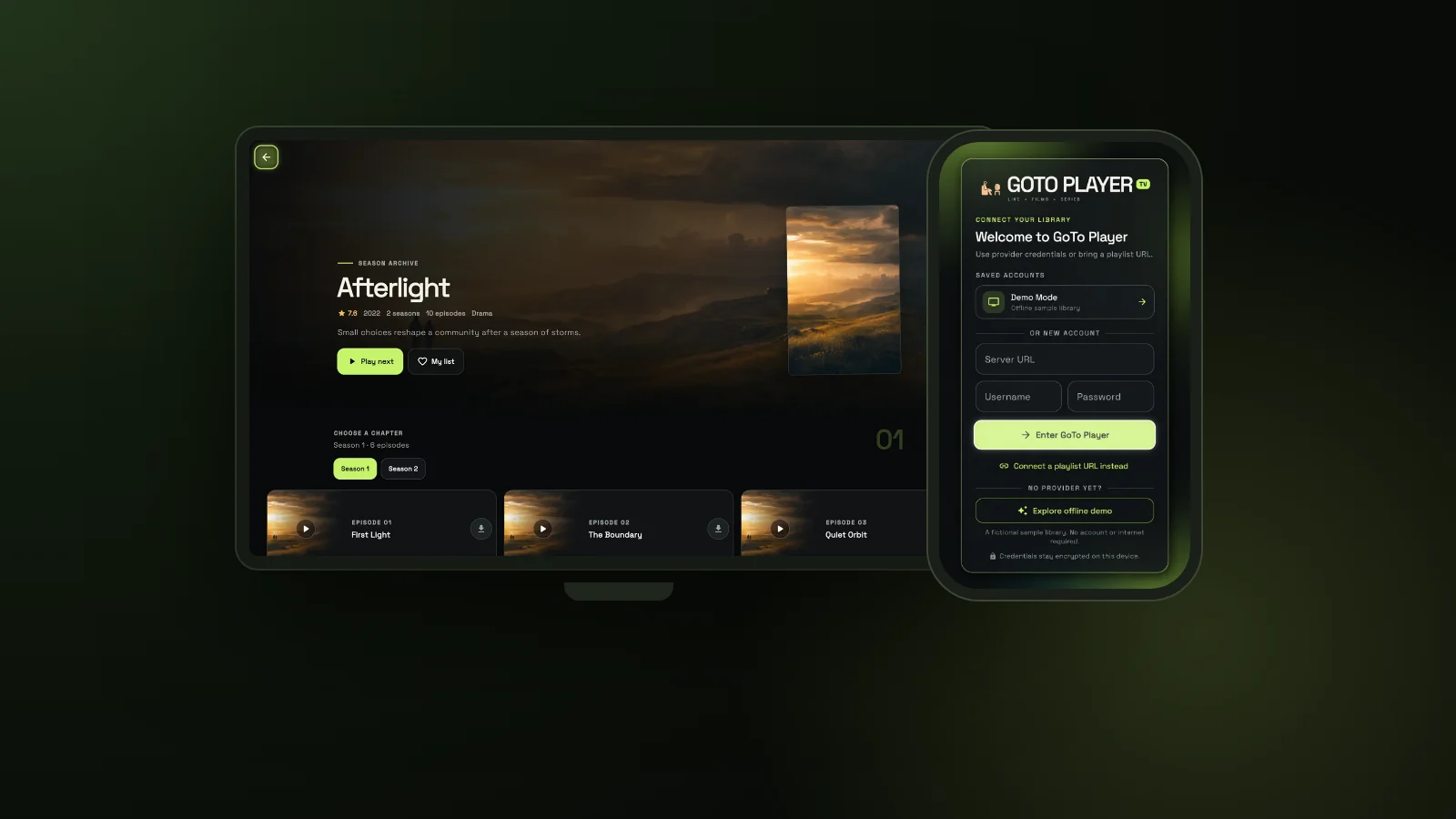
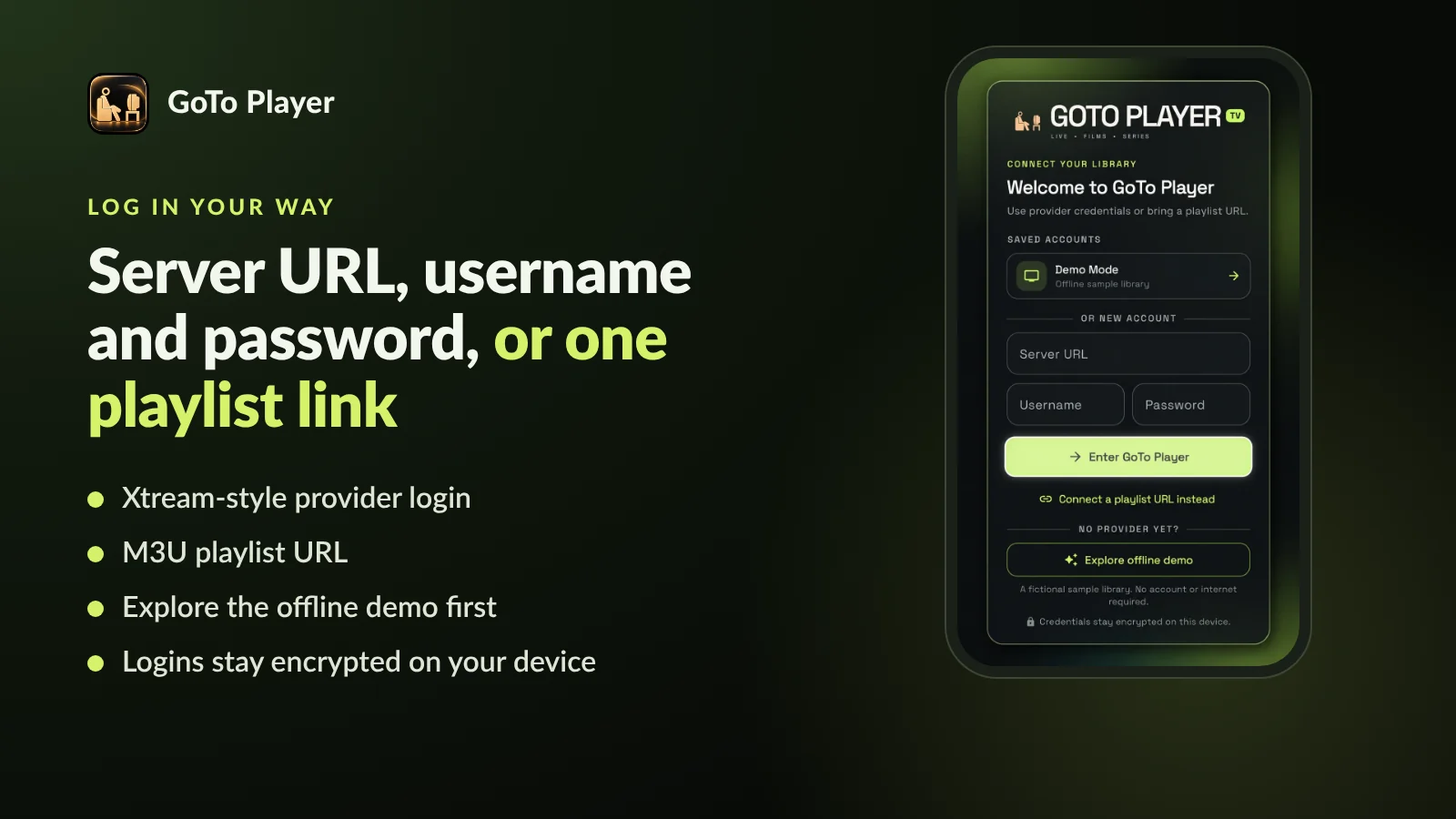
Open the app. The welcome screen says “Use provider credentials or bring a playlist URL”.
- 3
Type the Server URL exactly as your provider wrote it.
- 4
Add your username and password, then press Enter GoTo Player.
- 5
Wait a moment while live TV, the guide, movies and series load.
Saved accounts. GoTo Player keeps your login under Saved accounts, so you type it only once. Have a second provider? Add it as another account and pick the one you want on the welcome screen.
Viewer profiles. The app also has several viewer profiles, each with its own list and viewing history, so everyone at home keeps their own place.
No provider yet? Tap Explore offline demo to try the app with a fictional sample library. No account or internet is needed.
Type Your Xtream Login on Your Phone, Not the Remote
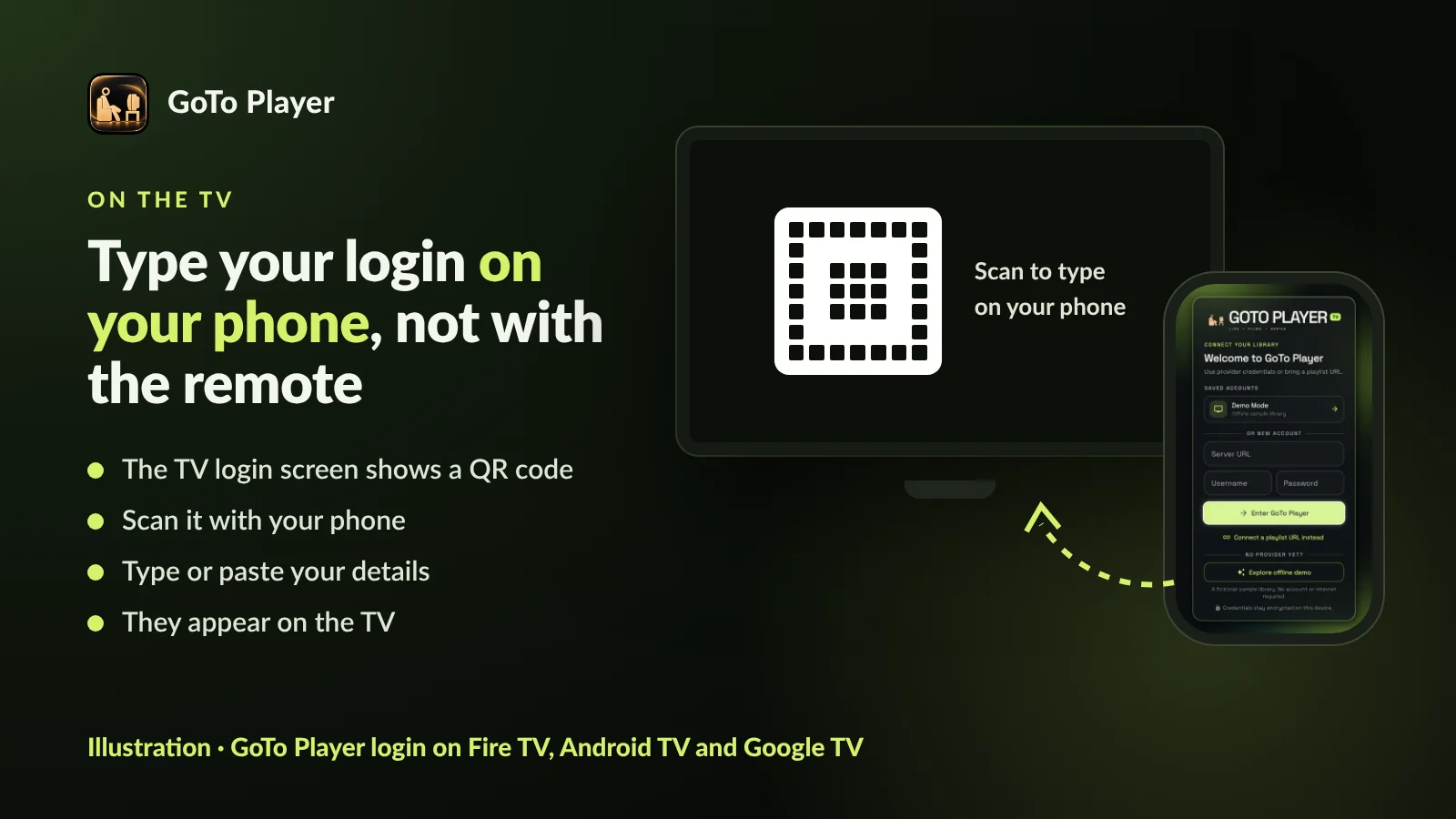
Typing a long server URL with the arrow keys of a remote is slow and easy to get wrong. GoTo Player takes that step away on TVs:
- 1
Open GoTo Player on the TV. The login screen shows a QR code.
- 2
Scan the code with your phone’s camera.
- 3
Type or paste the server URL, username and password on your phone’s keyboard, or paste an M3U link.
- 4
Look at the TV: the details appear there, ready to use.
Setting up a TV? Follow our IPTV player for Firestick guide or the IPTV player for Android TV guide for the full install, then come back here for the login.
The Server URL: Get This Part Right
Many failed logins come down to the server URL. It has three pieces: the scheme (http:// or https://), the host name and, usually, a port number after a colon.
http://example.com:8080→correct: scheme, host and portexample.com:8080→missing http:// at the starthttp://example.com:8080/get.php→extra path: remove everything after the porthttp://example.com: 8080→a space inside: delete it- Copy it exactly from your provider’s email, letter for letter.
- No spaces before, after or inside the address.
- Nothing after the port: no /get.php and no extra folders.
- Keep the port your provider gave you. If none was given, leave it out.
- http or https: use the one your provider wrote, and switch only if they tell you to.
The addresses above use example.com, a placeholder. Your real server URL is in the email from your provider.
Have an M3U Link? Your Xtream Codes Are Inside It
Many providers send an M3U playlist link instead of, or as well as, the three login details. If the link contains get.php, your Xtream Codes are already inside it.
A typical link looks like this: http://example.com:8080/get.php?username=YOURNAME&password=YOURPASS&type=m3u_plus
http://example.com:8080Type those three parts into any Xtream player and you get the full experience: live TV, the guide, movies and series in separate menus. Prefer to keep the playlist? Our M3U player guide shows how to play the link as it is.
Xtream Player vs M3U Playlist: Which Login Is Better?
Both logins come from your provider and both work in GoTo Player. This is how they differ in daily use:
Our advice: if your provider offers an Xtream login, use it in your Xtream player. Keep the M3U link as a backup, or for an app that does not accept provider logins.
What You Get in GoTo Player After Logging In
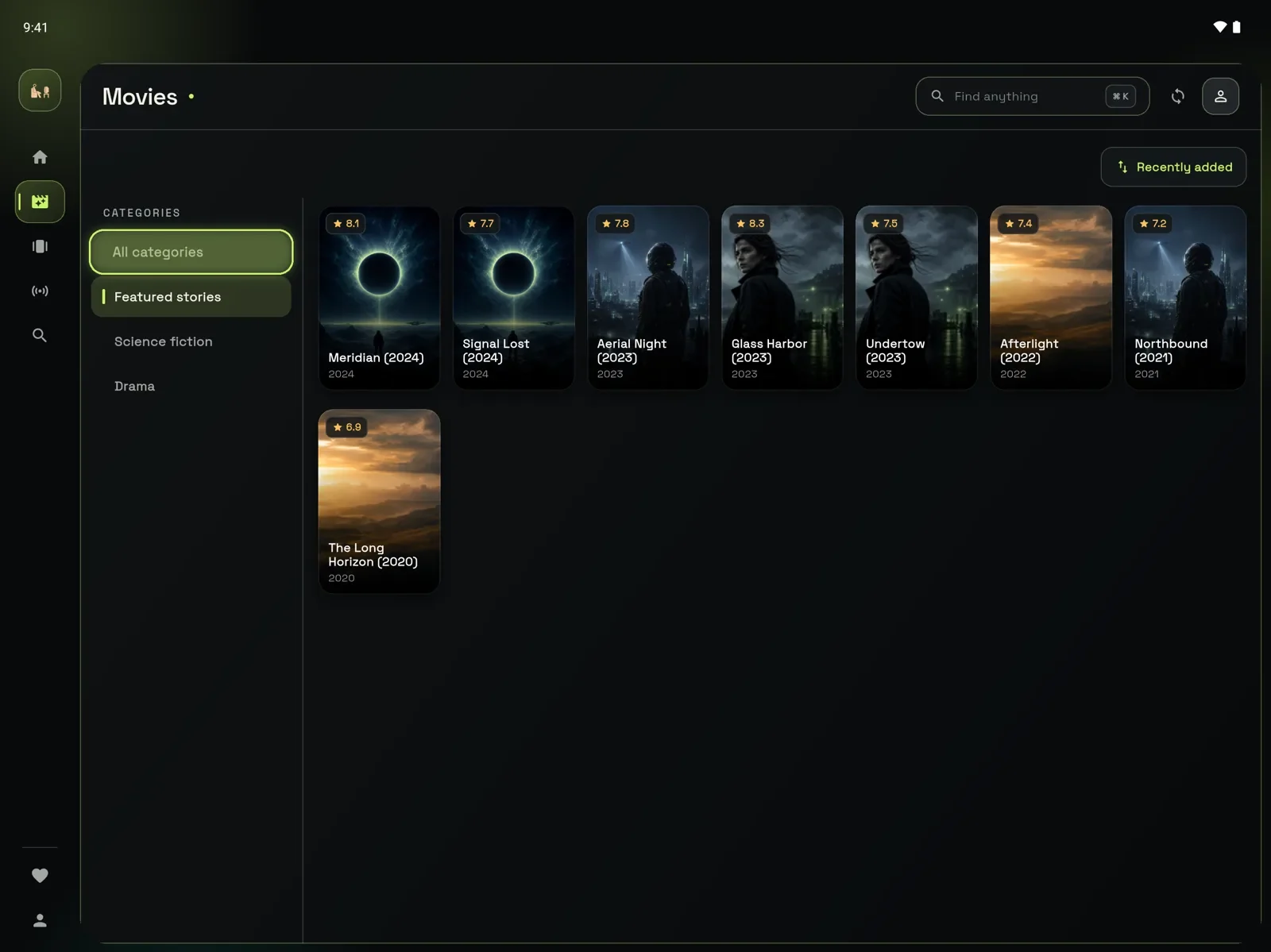
Once the Xtream player has your details, GoTo Player turns your subscription into a clean library, built for remotes, mouse and touch alike:
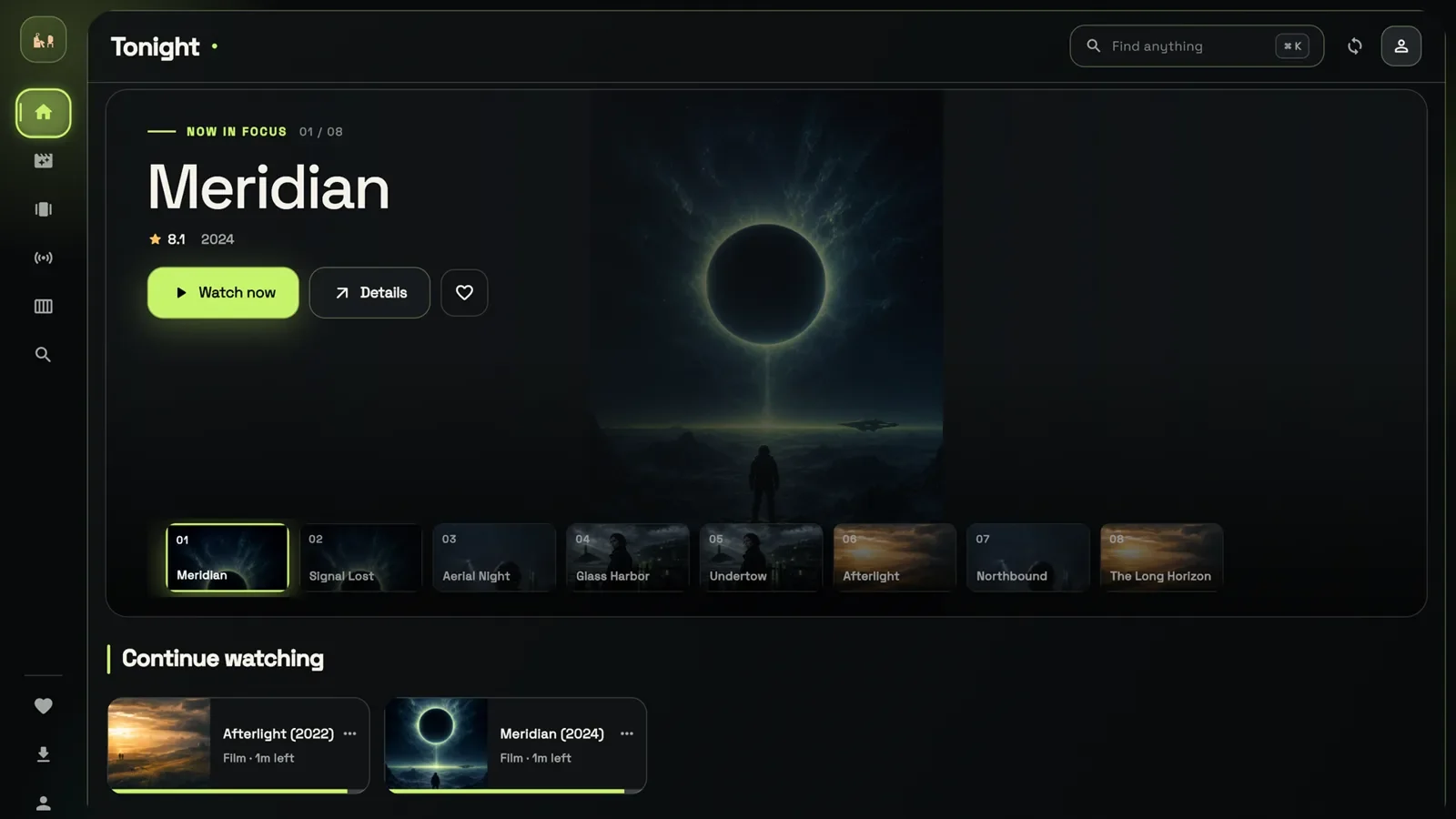
- Continue Watching picks up films and episodes where you stopped.
- My List and favourites keep what you love close.
- Fast search across live TV, movies and series.
- Live TV with a TV guide (EPG) shows what is on now and next.
- Series by season, with every episode in order.
- Audio tracks and subtitles, with size and sync controls.
- Offline downloads on Android phones and tablets and on Windows, where your content rights allow it. They are not on TVs or iPhone.
- Picture-in-picture on Android, plus full-screen playback.
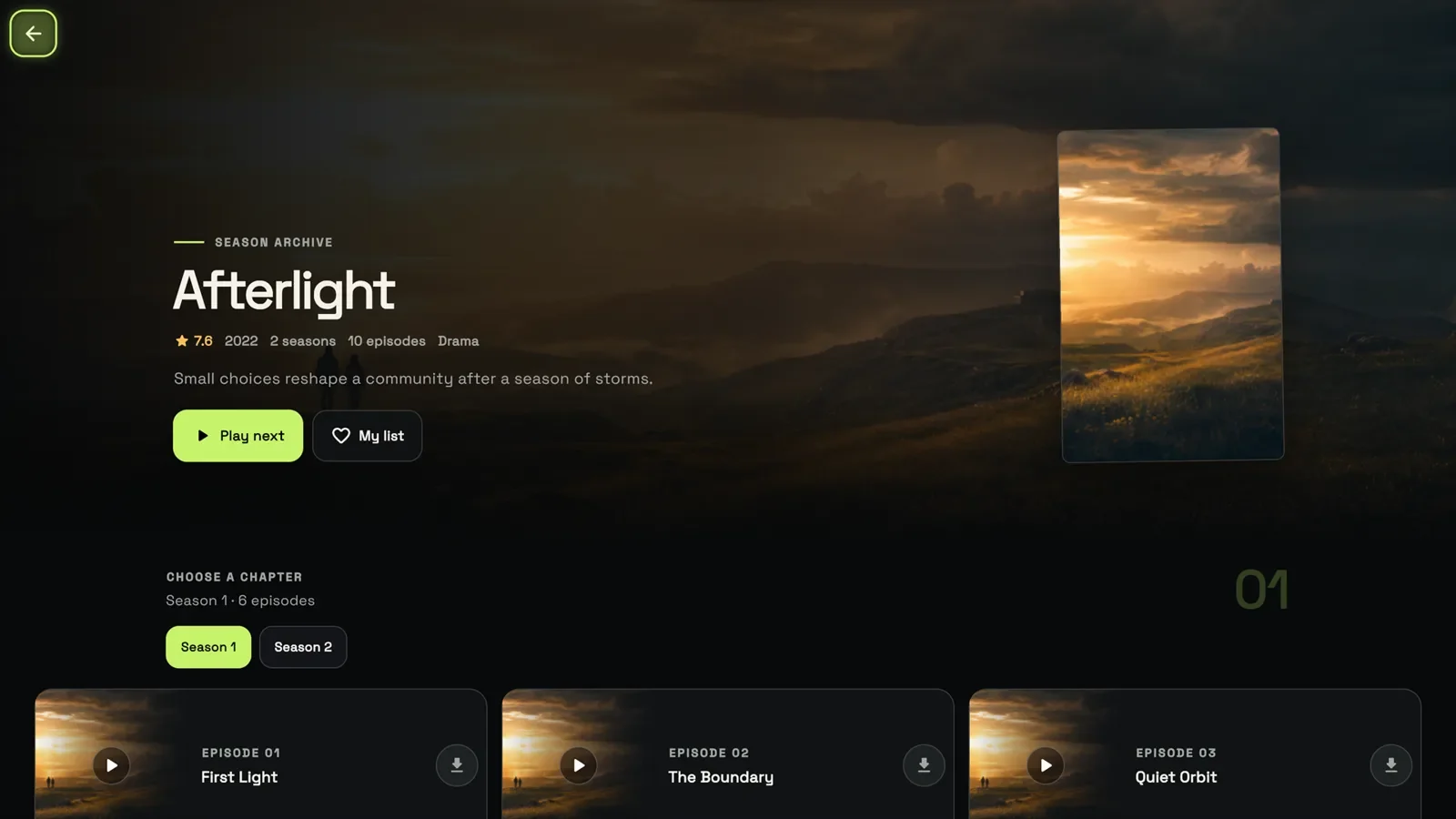
The pictures show the built-in demo library with invented titles. Your own library shows whatever your provider includes.
The Best Xtream Player for Each Device
One free Xtream player covers most homes. This is where GoTo Player runs today and how to install it:
On a PC, our free IPTV player for Windows guide walks through the install. You can also go straight to GoTo Player in the Microsoft Store and log in with the same three details. Wherever it runs, it works as an Xtream Codes player and as an M3U player.
Other well-known apps accept Xtream Codes too: TiviMate, a TV-focused player for Android TV and Fire TV, and IPTV Smarters Pro, which runs on many devices. For a wider comparison, read our best IPTV player guide.
Is It Safe to Enter Your Xtream Login in a Player?
Your Xtream Codes open your subscription, so treat them like any other password. Five simple rules keep them safe:
- Install from a trusted source: an app store, the developer’s own website or a published Downloader code.
- Avoid modified copies of apps from mirror sites.
- Never post your login in groups, comments or screenshots.
- Stick to one player you trust rather than testing many unknown apps.
- Ask your provider for a new password if you think someone else has yours.
Encrypted on your device: GoTo Player stores logins encrypted and sends them only to the service you add.
No ads and no tracking of what you watch.
Store versions collect no data. The direct APK sends anonymous counts (daily opens, crash types) that you can switch off in Profile, under Anonymous usage stats.
Xtream Login Failed? 8 Fixes That Work
When an Xtream player refuses your login, work down this list. Start with the first three: they are the usual suspects.
Using IPTV Smarters? Our failed to authorize guide covers that exact error. If the login works but the picture pauses, follow the IPTV buffering fix guide and test your speed on Speedtest.
GoToIPTV Customers: Where to Find Your Xtream Codes
If you have a GoToIPTV plan, your Xtream Codes are ready for any Xtream player:
- 1
Open the email we sent when your plan started. It lists the server URL, username and password.
- 2
Or open My Account on gotoiptv.com to see the same details.
- 3
Install GoTo Player and log in with your provider details.
- 4
On a TV, use the QR code to type the details on your phone.
Need help? Message us on WhatsApp at +1 (917) 924-8236 and we will check your login with you, step by step.
Xtream Player Words, Explained Simply
New to IPTV logins? These are the words you will meet in any Xtream player:
Server URL (host, DNS, portal)
The address of your provider’s server, including http:// and usually a port.
Port
The number after the colon in the server URL, such as 8080. Keep the one your provider gives you.
Username and password
Your personal login. Usually case-sensitive, so type capitals exactly as written.
Connection (line)
One screen playing at a time. A two-line plan lets two screens play together.
EPG
Electronic programme guide: the TV guide that shows what is on now and next.
VOD
Video on demand: films and series you start whenever you like.
More GoTo Player Guides
Everything about GoTo Player, our recommended free player: install guides for each device, plus help with playlists and logins.
Xtream Player FAQ
What is an Xtream player?
An Xtream player, also called an Xtream Codes player, is an IPTV app that signs in with Xtream Codes: the server URL, username and password from your provider. It then loads live TV, the TV guide, movies and series as separate menus. GoTo Player is a free Xtream player with no ads.
What are Xtream codes?
The three login details from your IPTV provider: a server URL (with http:// and usually a port), a username and a password. They are also called an Xtream login, an Xtream Codes login or a provider login.
Is Xtream Codes the same as M3U?
No. Both come from your provider, but Xtream Codes are three separate details, while an M3U playlist is one long link. If your M3U link contains get.php, the server URL, username and password are inside it: our M3U player guide explains both.
What is the best Xtream player for Firestick?
Choose an Xtream player built for the remote with a clear TV guide. GoTo Player is free, has no ads and installs with Downloader code 1129312. TiviMate and IPTV Smarters Pro are other popular choices.
What is the best Xtream player for Windows?
GoTo Player is a free Xtream player in the Microsoft Store and accepts the same three details. Our free IPTV player for Windows guide shows the install step by step.
What is the best Xtream player for Android?
On phones and tablets with Android 7.0 or newer, GoTo Player installs from gotoplayer.app/apk, and its Google Play version is in closed testing. On Android phones and tablets you also get picture-in-picture and offline downloads.
Is there a free Xtream IPTV player?
Yes. GoTo Player is a free Xtream IPTV player with no ads on Fire TV, Android TV, Google TV, Android phones and tablets, and Windows. It is a player only: the channels come from your own provider.
How do I find the server URL, username and password?
In the welcome email or customer area from your IPTV provider. GoToIPTV customers find them in their email and in My Account on gotoiptv.com.
Why does my Xtream login say failed or invalid?
Usually a typo, a hidden space, a wrong server URL or port, or a subscription that has ended. Check each detail, then try again. Our failed to authorize guide lists more fixes that work in any Xtream player.
Can I use one Xtream login on several devices?
You can save it on several devices, but how many can play at the same time depends on your subscription: usually one screen per line. Extra screens can stop playback or block the login until they close.
Is it safe to enter my Xtream login in a player?
Yes, in a trusted player from a trusted source. GoTo Player keeps logins encrypted on your device and sends them only to the service you add. Avoid modified copies of apps from mirror sites.
Can I type my Xtream login with my phone?
In GoTo Player on a TV, yes. Scan the QR code on the TV login screen, then type or paste the server URL, username and password on your phone. They appear on the TV, ready to use.
Get the Free Xtream Player Now
Free, no ads, built for the remote. Install GoTo Player, enter your server URL, username and password, and start watching your own subscription in minutes.
