
TiviMate Set-Up Guide: Downloader Code, Premium and Playlists
Updated
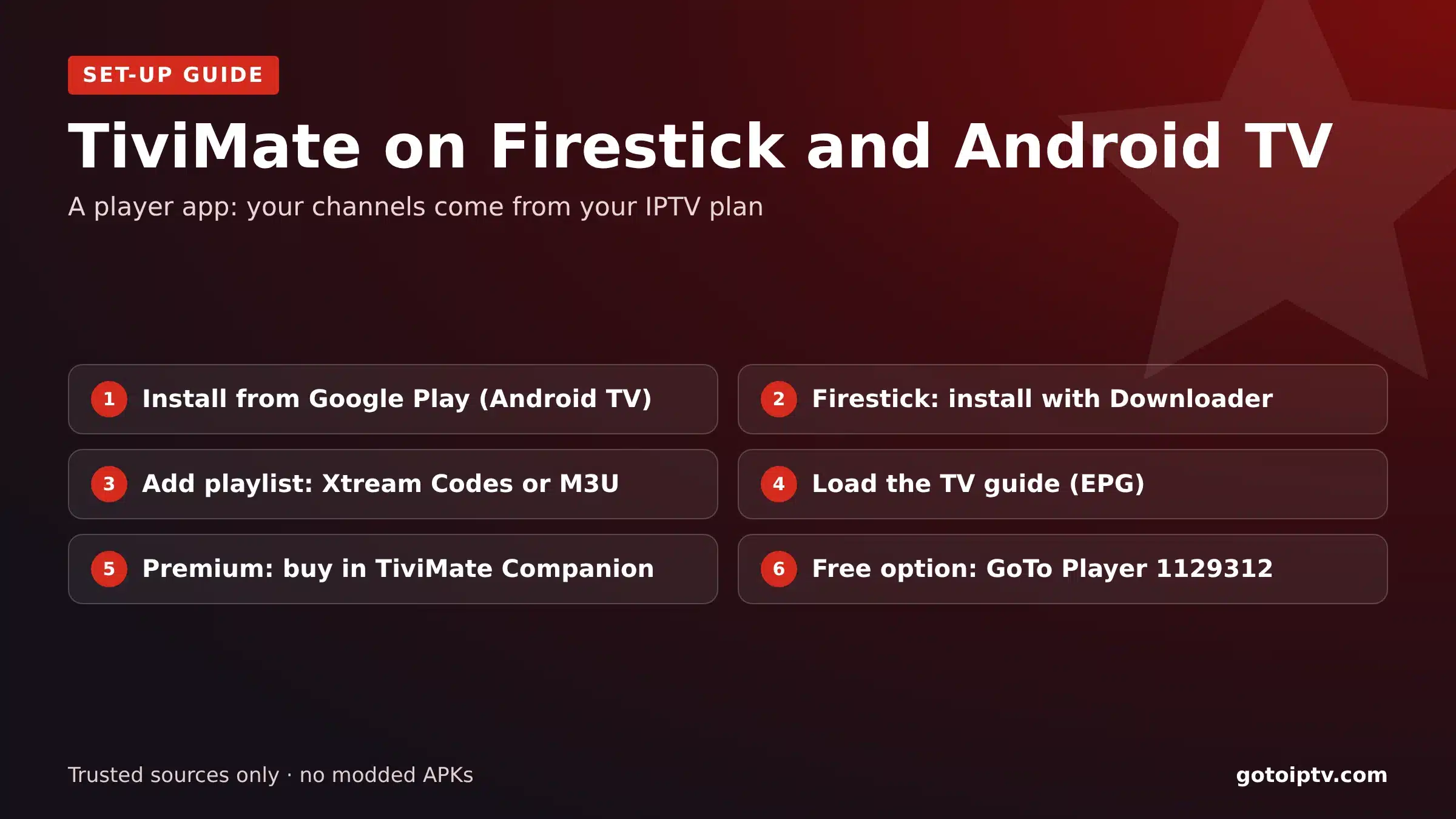
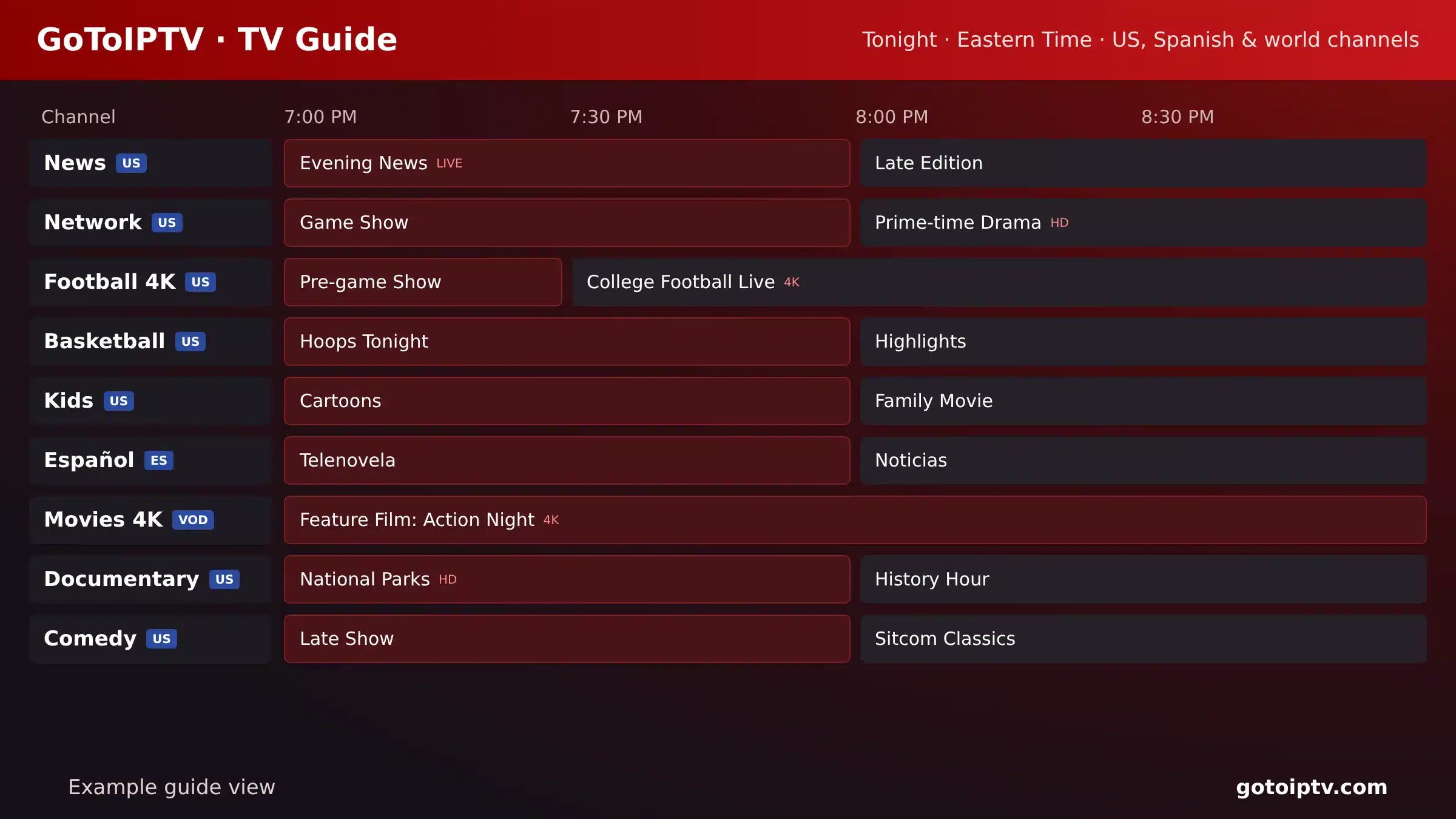
TiviMate is one of the most loved IPTV players for Android TV and Firestick, thanks to its clean TV guide and fast channel switching. This guide shows how to install it safely, the truth about Downloader codes, what Premium adds and how to add your IPTV playlist.
Remember: it is a player only. It has no channels. Your channels come from your IPTV provider, which gives you the login details.
 Android TVand Fire TVFreeor PremiumXtreamor M3U login
On This Page
What TiviMate Is (and Is Not)
It is an IPTV player for Android TV devices: Google TV, Android TV boxes, some smart TVs and Amazon Fire TV. It reads a playlist from your IPTV provider and shows it as a TV guide that looks like a cable box.
What it does: shows live channels in a full-screen guide, lets you switch channels fast, sort groups and favourites, and, with Premium, record and use catch-up.
What it does not do: it does not include channels, films or series. Without a subscription from an IPTV provider there is nothing to watch.
Made for TV: Android TV, Google TV, Fire TV.
Great guide and fast zapping.
No channels of its own.
Install only from trusted sources.
Install TiviMate on Google TV and Android TV
On Google TV and Android TV devices, the app is in Google Play. This is the simplest and safest way to install it:
- 1
Open Google Play on the TV and search “TiviMate”.
- 2
Install the IPTV player listed by its developer.
- 3
Open it and choose Add playlist.
- 4
Enter your login (see below) and let the guide load.
Device tips: IPTV on Google TV and IPTV on an Android TV box.
TiviMate Firestick Install With Downloader
The app is not in the Amazon Appstore, so on a Fire TV Stick you install it with the free Downloader app:
- 1
Install Downloader from the Amazon Appstore.
- 2
Allow unknown apps: Settings, My Fire TV, Developer Options, Install Unknown Apps, Downloader: On.
- 3
Open Downloader and type the address of the developer’s own website.
- 4
Download and install the app, then open it.
- 5
Add your playlist and wait for the guide.
Some newer Fire TV models run a system that does not allow apps from outside the Amazon Appstore. On those, use a Google TV device instead.
The Truth About the TiviMate Downloader Code
Search “TiviMate Downloader code” and you will find dozens of numbers. Here is what they are and why we do not publish one:
A Downloader code is just a short link to a file. The developer does not publish a code of its own, so the codes you see online are made by third-party sites and point to copies of the app that they host.
Some of those copies are fine. Some are old, and some are modified “unlocked” versions that break the developer’s terms or hide malware. You cannot tell from the number.
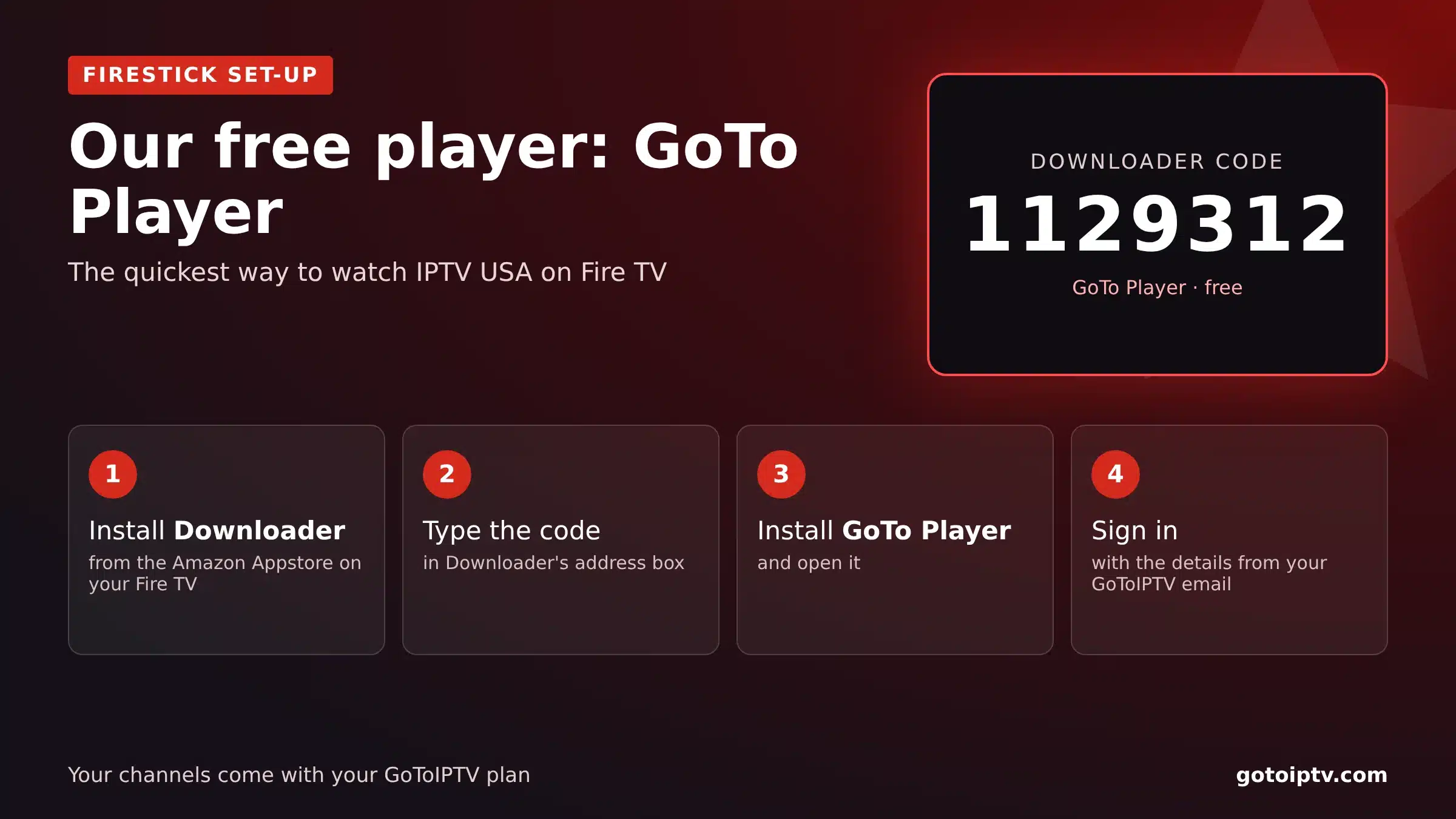
Our advice: install from Google Play on Android TV, or type the developer’s own website in Downloader on Firestick. And if you want a single, simple code, GoTo Player, our recommended free player, uses 1129312.
Random codes point to unknown copies.
“Unlocked” Premium APKs break the terms.
Google Play or the developer’s site is safest.
GoTo Player: one code, 1129312.
TiviMate Premium and TiviMate Companion
The app has a free version and a paid Premium version. You buy Premium in a separate phone app, the Companion app:
Premium is sold by the app developer, not by your IPTV provider. Paying for it does not include any channels; you still need an IPTV subscription.
Is it worth it? If you have one TV and one playlist, try the free version first. Upgrade when you want recording or several playlists.
Add Your IPTV Playlist to TiviMate (Xtream Codes or M3U)
When the app asks for a playlist, choose the login type your provider gives you:
Xtream Codes loads live TV, the TV guide and VOD automatically, so it is the best choice. GoToIPTV customers receive Xtream Codes details by email. If the login fails, the same fixes as in our failed to authorize guide apply.
TiviMate TV Guide, Favourites and Recording
Once your playlist is in, these settings make the app shine:
TV guide: Settings, TV guide, update. Set the device time zone so times match.
Favourites: long-press OK on a channel to add it.
Groups: hide the countries you never watch for a cleaner list.
Recording (Premium): pick a programme in the guide and choose Record; use a USB drive for space.
TiviMate Not Working? Quick Fixes
Most problems have simple causes:
More help: IPTV not working. Test your speed on Speedtest: about 10 Mbps per screen for HD, 25 Mbps for 4K.
A Free TiviMate Alternative: GoTo Player
Want something free and simple, with one easy code? Try GoTo Player, our recommended free player:
- 1
Install Downloader on Firestick or Android TV.
- 2
Type 1129312 and install GoTo Player.
- 3
Log in with the same Xtream Codes details.
GoTo Player is a free player app: your channels come from your IPTV plan. It is also in My Account under Downloads.
The Best Device to Buy for TiviMate
If you are buying a streaming device mainly for this player, choose one that runs Android TV or Google TV and has enough storage and memory:
Whatever you choose, plug it into the router with a cable if you can, keep at least 2 GB of free storage, and restart it once a week. Those three habits fix most freezes and slow menus.
Using It in the USA and the UK
The player works the same everywhere. Only the time zone, the channels and the rules around you change:
In the USA: set the device to your time zone (Eastern, Central, Mountain, Pacific, Alaska or Hawaii) so the guide lines up with your evening. For game days in 4K, use a cable and about 25 Mbps per screen. Plans and channels: IPTV USA.
In the UK: set the time zone to London so the guide follows GMT and BST automatically. Remember that watching live TV in any app needs a TV licence. Plans and channels: IPTV UK.
TiviMate FAQ
Is TiviMate illegal?
No. It is a legal IPTV player app. It has no channels of its own: what is legal or not depends on the IPTV service you add to it. Modified or “unlocked” copies of the app break the developer’s terms and can contain malware.
Is TiviMate still working on Firestick?
Yes, on most Fire TV devices. Some newer Fire TV models run a new system that does not allow apps from outside the Amazon Appstore, so check your model before buying a stick just for TiviMate.
How do I subscribe to TiviMate Premium?
Install the TiviMate Companion app on an Android phone, sign in or create an account, buy Premium there, then sign in to the same account inside the app on your TV.
Is there a free TiviMate?
Yes. The free version plays your playlist with a TV guide. Premium adds extras such as several playlists, recording, catch-up and more customisation.
Is TiviMate Premium worth it?
If you use one device and one playlist, the free version may be enough. If you want recording, several playlists or more control over groups and the guide, many users find Premium worth it.
What is the TiviMate Downloader code?
The developer does not publish a Downloader code. Codes shared online usually point to copies hosted by third parties. The safest way is Google Play on Android TV, or the developer’s own website on Firestick.
Can I use TiviMate on a phone or PC?
It is made for Android TV devices such as Google TV, Android TV boxes and Fire TV. On phones, the Companion app manages Premium. There is no Windows or Mac version.
How do I add my IPTV to TiviMate?
Open the app, choose Add playlist, select Xtream Codes, then enter the server URL, username and password from your provider. Or paste an M3U link if that is what you have.
Why is the TV guide empty in TiviMate?
With Xtream Codes it usually loads by itself. If not, open Settings, TV guide, and update it, or add the guide (EPG) link from your provider. Check the device time zone too.
Is there a free alternative to TiviMate?
Yes. GoTo Player is our recommended free player. On Firestick or Android TV, install it with Downloader code 1129312 and log in with the same details.
Use TiviMate With GoToIPTV
Xtream Codes login by email, 56,000+ channels, 150,000+ films and series, a full TV guide and 24/7 support. No contract.
