
Blog – iPTV Tips
IPTV on Windows PC and Mac: How to Watch IPTV on Your Computer

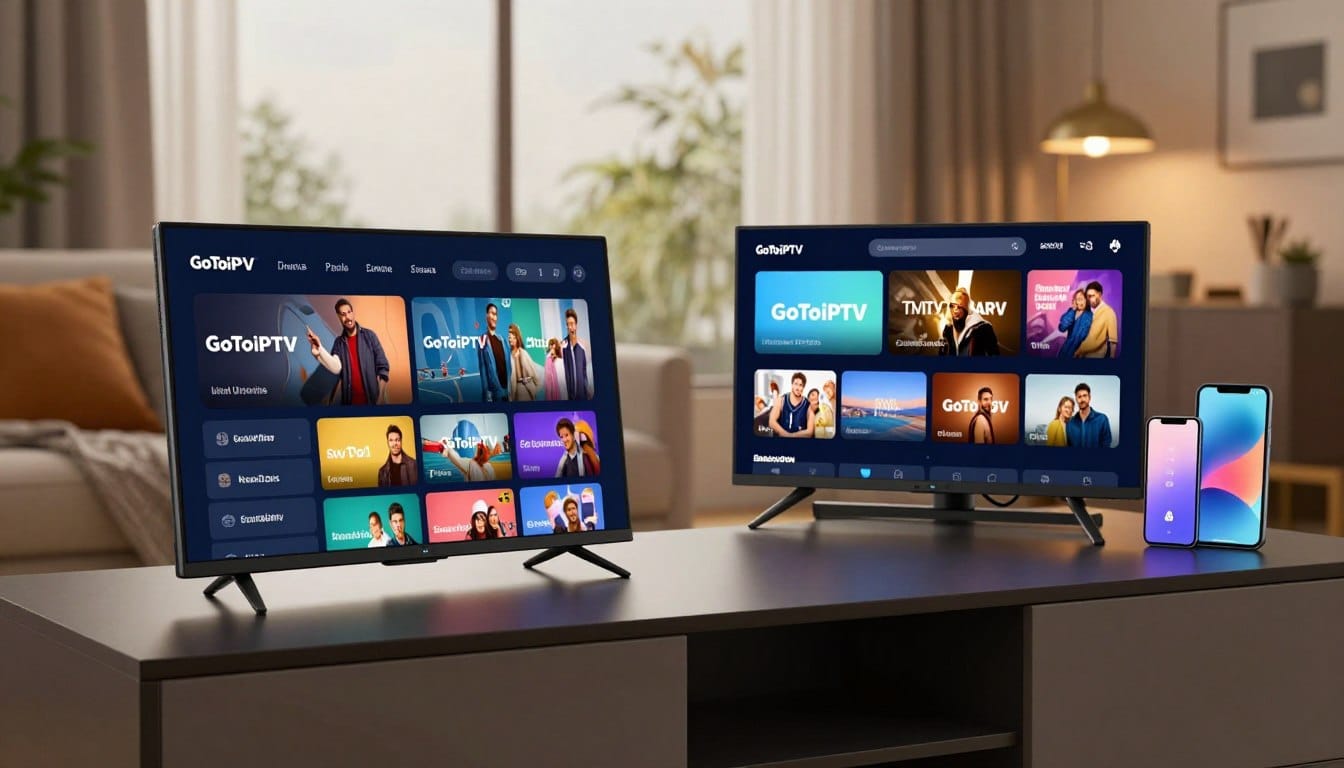
Your laptop or desktop is a great IPTV screen: big, fast and always online. This guide explains how to watch IPTV on a Windows PC or Mac, which type of player to use, and how to get a smooth picture.
What you need
- A Windows 10/11 PC or a Mac (macOS) with an up-to-date system.
- An IPTV player for desktop.
- Your GoToIPTV login details from your email (M3U link or username, password and server). New to GoToIPTV? Start with the 24-hour free trial.
- A stable connection: a wired Ethernet cable gives the best results.
Option 1: A dedicated IPTV player app (recommended)
A dedicated IPTV player gives you channel groups, a TV guide (EPG), favourites, and movies and series sections.
On Windows, open the Microsoft Store and search for “IPTV player”. On Mac, use the Mac App Store. Choose a well-reviewed, regularly updated app that supports Xtream login and M3U playlists.
Then:
- Open the app and click Add playlist / Add user.
- Choose Xtream (username, password, server) or M3U URL.
- Paste your details from the GoToIPTV email and save.
- Wait for the channel list and EPG to load, then start watching.
Option 2: VLC media player (quick and free)
VLC is free on Windows and Mac and can open an IPTV playlist:
- Install VLC from the official website, videolan.org.
- Open Media → Open Network Stream (Windows) or File → Open Network (Mac).
- Paste your M3U playlist link and click Play.
- Open the playlist view (Ctrl+L / Cmd+L) to browse channels.
VLC is perfect for a quick test, but it has no proper TV guide, so a dedicated player is nicer for daily use.
Get the best picture on your computer
- Use Ethernet instead of Wi-Fi when you can.
- Close heavy downloads and cloud sync while you stream.
- Turn on hardware acceleration in your player settings.
- For an external monitor or TV, use HDMI and set your display to its native resolution.
- If you see stutters, follow our IPTV buffering fix guide.
Watching on a second monitor or your TV
- Second monitor: drag the player window to your second screen and use full-screen mode there, while you work on the first screen.
- TV via HDMI: connect your laptop to the TV with an HDMI cable and choose “Duplicate” or “Extend” in display settings.
- Wireless: on Mac, use AirPlay to an Apple TV; on Windows, use “Cast” (Win + K) to a compatible TV or adapter.
Useful player features to turn on
- Favourites for quick access to your top channels.
- EPG auto-update so the TV guide stays current.
- Parental controls / PIN if children use the computer.
- Catch-up (where available) to watch shows you missed.
- Multi-view in some players, to watch two channels side by side (needs a multi-line plan for separate streams).
Keep your computer safe
- Download players only from the Microsoft Store, the Mac App Store or the developer’s official website.
- Never share your GoToIPTV login publicly.
- Keep your system and antivirus up to date.
Mac tips
- On a MacBook, plug in the charger. Low-power mode can reduce video performance.
- AirPlay from your Mac to an Apple TV puts the picture on your big screen. Our Apple TV guide explains the Apple TV app setup.
Windows tips
- Keep your graphics drivers updated.
- If a player is blocked by Windows Defender SmartScreen, it probably did not come from the Microsoft Store. Prefer store apps or the developer’s official website.
Frequently asked questions
What is the best IPTV player for Windows?
The best one is the one you find easy to use. Look for Xtream login, EPG, favourites and regular updates. Try one or two during your free trial.
Can I watch on my PC and TV at the same time?
Yes, with a 2-line or 3-line plan. A 1-line plan is for one screen at a time.
Do I need a VPN on my computer?
It is optional. A VPN adds privacy and can help if your internet provider slows down video at busy times. GoToIPTV customers can add Surfshark VPN.
Start watching on your computer
Get your free 24-hour IPTV trial, test it on your PC or Mac, then pick your plan.
One thought on “IPTV on Windows PC and Mac: How to Watch IPTV on Your Computer”