Blog – iPTV Tips
IPTV on LG Smart TV: A Simple Setup Guide

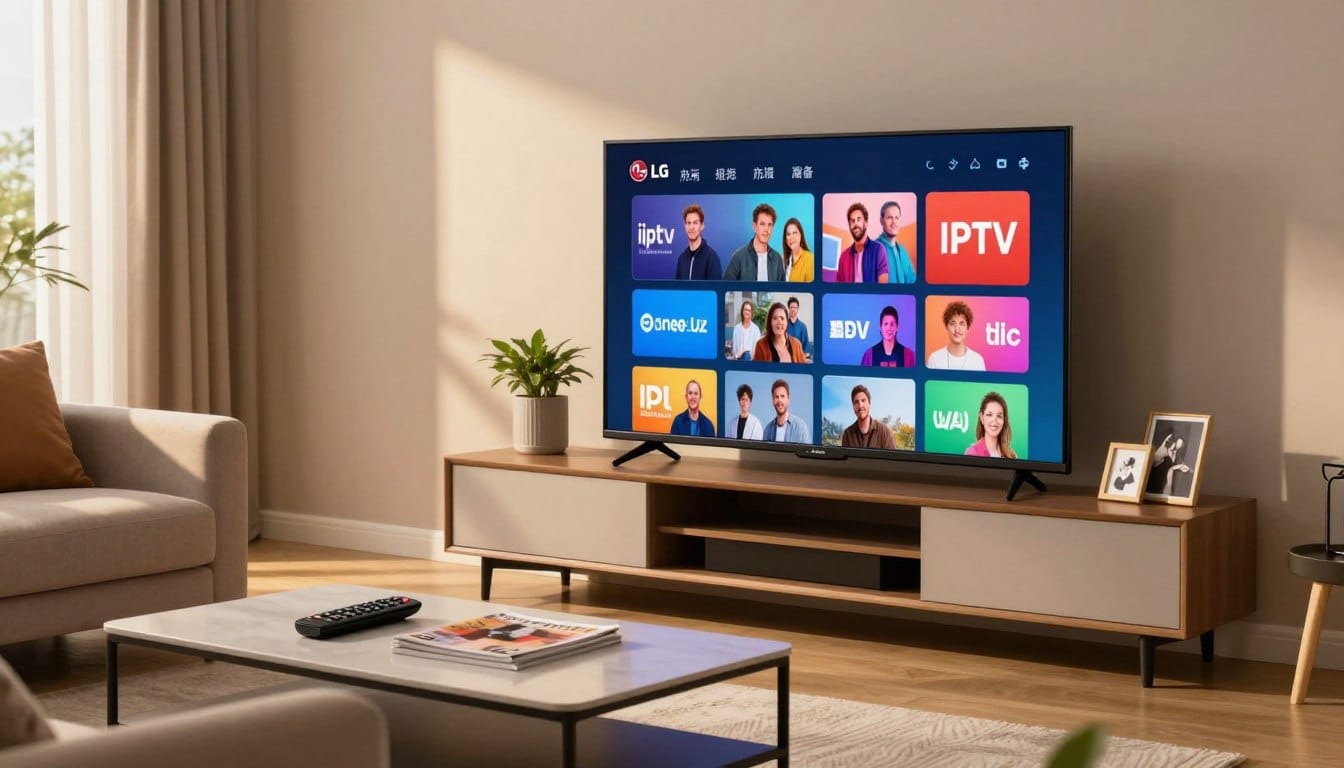
Setting up your digital media player is easier than you think. This guide helps you navigate the process for your specific display. We focus on the IPTV on LG Smart TV platform to ensure you get the best performance possible.
Before you begin, confirm your model and software version. Some regions have limited app access, so verify your store settings first. You might need to pay for a third-party player to handle your playlist effectively.
We will cover testing your stream and provide solutions if your hardware is older. Follow these steps carefully to enjoy a seamless viewing experience. Let’s get your device ready for high-quality streaming today.
Key Takeaways
- Verify your specific model and webOS version before starting.
- Check regional app availability in your local store.
- Expect to pay a small fee for reliable third-party player software.
- Always test your playlist or login credentials after installation.
- Use fallback methods if your current hardware does not support the app.
Check Your LG TV, webOS Version, and Region Before You Start
A smooth experience depends on knowing exactly what your LG Smart TV can handle before you begin. Taking a few minutes to verify your system details ensures that your lg tv iptv setup goes off without a hitch.
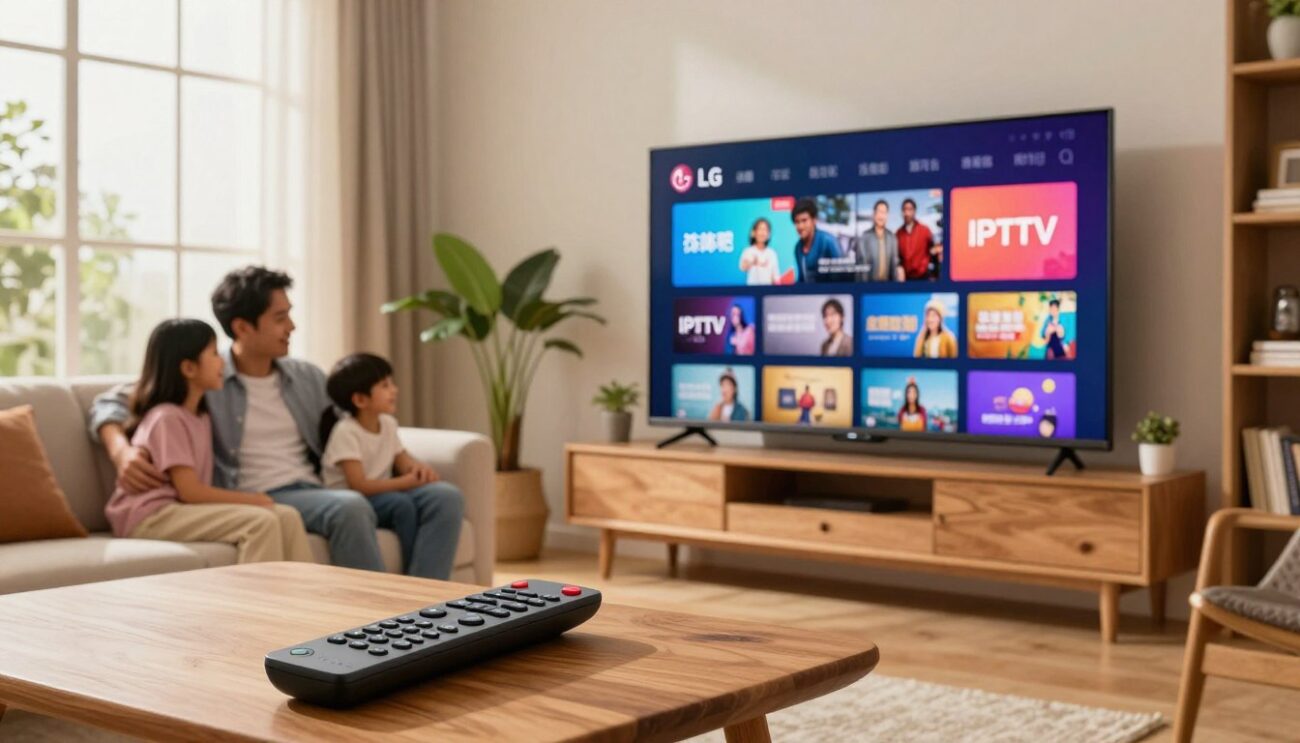
Identify your LG TV model and webOS version
Find the model number in Settings and on the TV label
You can easily find your model number by navigating to the General menu in your TV settings. Look for the About This TV section to see the specific model code.
If you cannot access the menu, check the physical sticker on the back of your television. This label provides the exact model number, which is vital for checking compatibility.
Check the webOS version on LG OLED C4, LG QNED90T, and older models
Different versions of webOS support different applications. Newer models like the LG OLED C4 or the LG QNED90T run the latest software, while older units might be limited.
Check your version under the Support tab in your settings menu. Knowing your version helps you determine if your device can run the specific software you need for your iptv on lg smart tv journey.
Confirm that the IPTV app is available in your U.S. LG Content Store
Search the LG Content Store by the exact app name and developer
Open the LG Content Store from your home dashboard and use the search bar. Type the name of your preferred player exactly as it appears on the developer’s official website.
Check whether availability changes by country, TV model, or webOS version
Keep in mind that app availability is often restricted by your region. A service available in the U.S. might not appear in other countries due to licensing agreements.
| Feature | Requirement | Action |
|---|---|---|
| Model Compatibility | webOS 5.0+ | Check Settings |
| Regional Access | U.S. Store | Verify Location |
| App Support | Developer Docs | Confirm Version |
Prepare the information you need for setup
Have your M3U playlist URL or Xtream Codes login ready
Before you start the actual installation, gather your credentials. You will typically need either an M3U playlist URL or your specific Xtream Codes username and password.
Confirm that your IPTV service is legal and supports use on LG webOS
Always ensure your streaming service is legitimate. Using unauthorized services can lead to security risks or poor performance on your lg tv iptv setup.
Review LG support pages and the chosen app developer’s current instructions
Finally, visit the official support pages for both LG and your chosen app. Developers often update their installation guides to match the latest webOS updates, so staying informed is key to a successful iptv on lg smart tv experience.
How to Set Up iptv on lg smart tv From the LG Content Store
Once you have verified your device, it is time to dive into the LG Content Store to find your player. Setting up lg webos iptv requires a few specific steps to ensure your connection remains stable and secure.
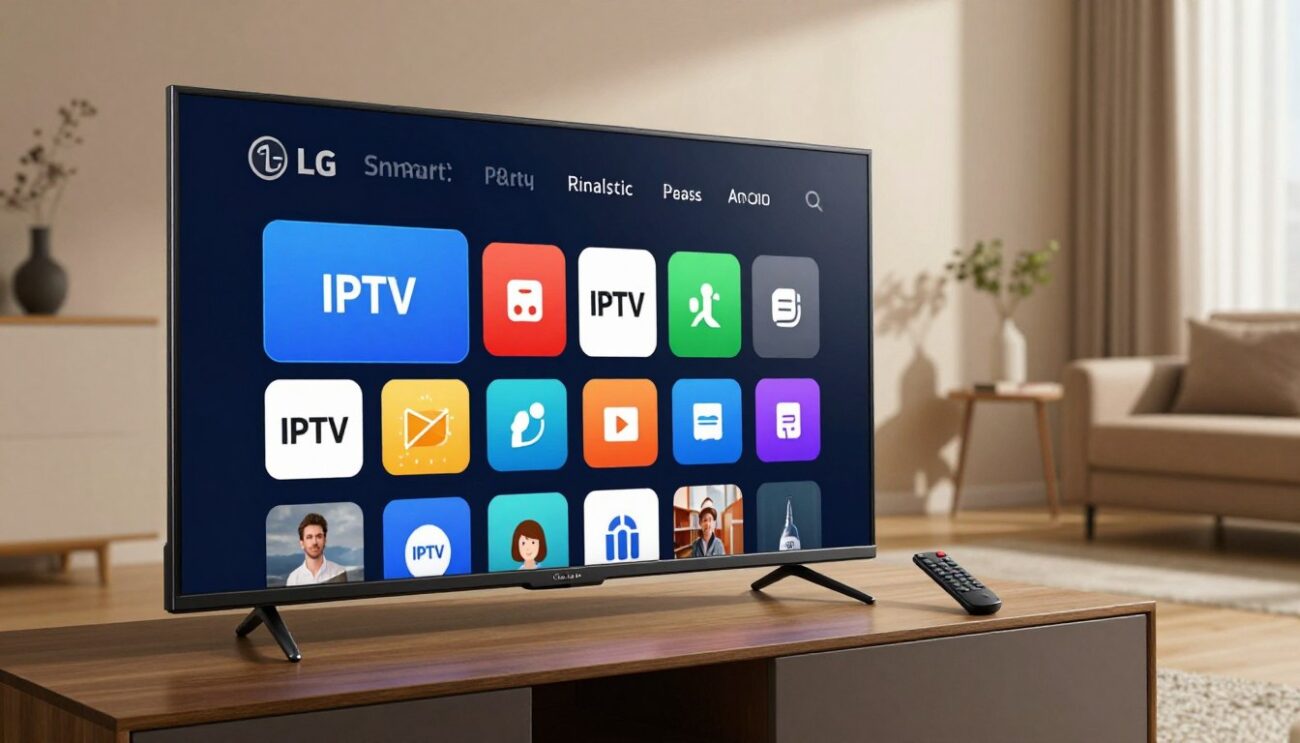
Install the IPTV app through LG webOS
Open Home, select Apps or LG Content Store, and search for the app
Press the Home button on your remote to access the main dashboard. Navigate to the LG Content Store or the Apps icon to browse available software. Use the search bar to look for reputable players that support your specific needs.
Check the developer name, ratings, update date, and supported webOS versions
Before downloading, take a moment to verify the app details. Always check the developer name and recent user ratings to ensure the software is legitimate and well-maintained. Confirm that the app supports your current webOS version to avoid compatibility issues.
Select Install, open the app, and allow only the permissions it needs
Click the Install button to begin the download. Once finished, launch the application and carefully review the permission requests. Only grant access to features that are strictly necessary for the app to function correctly.
Enter an M3U playlist or Xtream Codes account
Choose the correct login method offered by the app
Most applications provide multiple ways to connect your service. You will typically see options for M3U playlist URLs or Xtream Codes API credentials.
Paste the M3U URL carefully or enter the Xtream Codes server, username, and password
If you choose the M3U method, ensure you type the URL exactly as provided by your service. For Xtream Codes, you must input the server address, your unique username, and your password without any typos.
Use the app’s device pairing page when typing long details with the LG Magic Remote is difficult
Typing long strings with a remote can be frustrating. Many modern apps offer a device pairing page where you can enter your credentials via a web browser on your smartphone or computer instead.
Understand app costs and separate player fees
Distinguish between the IPTV service subscription and the LG webOS app fee
It is important to remember that your streaming service subscription is separate from the app itself. Some developers charge a one-time fee or a recurring subscription to use their specific player interface on iptv on lg smart tv.
Check whether the app offers a free trial, one-time license, or recurring payment
Look for clear pricing models before committing. Many apps provide a free trial period, while others may require a lifetime license or a monthly fee to unlock full functionality.
Look for separate charges for premium playback features, external players, or multiple devices
Some apps hide advanced features behind a paywall. Be aware that you might encounter extra costs for:
- Multi-screen or multi-device support.
- Advanced electronic program guide (EPG) customization.
- Integration with external video players.
Save the playlist and wait for the channel guide to load
Refresh the playlist if channels or electronic program guide data do not appear
After saving your credentials, the app will attempt to fetch your channel list. If the guide remains empty, use the refresh button within the app settings to force a data update.
Do not share playlist URLs, passwords, or activation codes publicly
Your security is paramount. Never share your private M3U links or login credentials on public forums or social media, as this can lead to your account being blocked or compromised.
Test Playback and Fix the Most Common LG webOS Problems
Now that the app is installed, let’s dive into testing your setup to ensure a smooth experience. Completing a proper lg tv iptv setup requires a bit of patience, but these steps will help you verify that everything is running exactly as it should.
Run a complete playback check
Test a live channel, an HD channel, subtitles, audio tracks, and the program guide
Start by opening a few different channels to see how they perform. Check that your HD streams load quickly and that the electronic program guide displays the correct schedule for your region.
Check buffering on both Wi-Fi and wired Ethernet when available
If you notice stuttering, try switching between your wireless and wired connections. A stable connection is essential for high-quality streaming on your LG device.
Verify that the picture fills the screen without unusual cropping or stretching
Ensure the aspect ratio looks natural. If the image appears cut off, check your TV’s display settings to ensure it is set to “Original” or “16:9.”
Resolve playlist, login, and loading errors
Recheck capitalization, spaces, URL characters, server addresses, and account expiration
Most login issues stem from simple typos. Double-check your M3U link or Xtream Codes credentials, as even a single missing character can prevent the app from connecting.
Remove and re-add an outdated playlist instead of repeatedly refreshing it
If your channels are not updating, do not just hit refresh. Delete the old playlist entirely and add it again to clear out any cached data that might be causing conflicts.
Restart the app, restart the LG TV, and install available webOS updates
Sometimes, a simple power cycle fixes everything. Turn your TV off, unplug it for a minute, and check the LG settings menu to ensure your webOS software is fully updated.
Improve streaming performance on your home network
Use 5 GHz Wi-Fi near the router or Ethernet for a more stable connection
Streaming iptv on lg smart tv platforms works best with a strong signal. If you are using Wi-Fi, stay close to your router or use an Ethernet cable for the most reliable results.
Pause large downloads and check whether other devices are using the connection
High-bandwidth activities like gaming or downloading large files on other devices can cause buffering. Clear your network traffic to give your TV the bandwidth it needs.
Compare the app’s playback results with the service provider’s supported device list
If you still face issues, check if your specific provider officially supports LG webOS. Some services work better on external hardware like an Android box or Fire Stick.
Capture real screenshots for troubleshooting
Save screenshots of the LG model and webOS version screens
If you need to contact support, having the right data is key. Take clear photos of your TV’s “About” screen so the support team knows exactly which hardware you are using.
Capture the app’s login method, playlist status, error message, and playback screen
Documenting the exact error message helps technicians identify the problem faster. Be specific with your screenshots to show exactly where the process fails.
Hide passwords, playlist URLs, payment details, and personal account information before sharing images
Always protect your privacy by blurring out sensitive details. Never share your private M3U links or account passwords in public forums or with unverified support contacts.
Use Verified Sources and a Fallback When Your LG Model Is Unsupported
Getting the best experience with an iptv app lg requires knowing exactly when to pivot to a different solution. While many users enjoy the convenience of native apps, hardware limitations can sometimes get in the way of a smooth stream.
Verify menus and compatibility against current official instructions
Use LG Electronics support pages for webOS menus, software updates, and model compatibility
Always start by checking the official LG support website for your specific model. They provide the most accurate details regarding your current webOS version and available software updates.
Use the chosen IPTV app developer’s current help pages for playlist formats and account activation
The developer of your chosen application is your best resource for technical specifics. They often publish guides on supported M3U playlist formats and the correct steps for account activation.
Check the IPTV provider’s official support page for supported apps, devices, and connection limits
Your service provider knows their system best. Visit their help center to confirm which devices they officially support and to understand your specific connection limits.
Recognize when native LG webOS setup will not work
Watch for missing apps, unsupported webOS versions, expired app support, or incompatible playlist formats
Sometimes, the app you want simply won’t appear in the store. This usually happens if your webOS version is outdated or if the developer has ended support for older LG hardware.
Confirm that a playback problem is not caused by the provider before replacing the TV
Before you assume your TV is the problem, check if the service provider is experiencing an outage. Never rush to replace your hardware until you have ruled out server-side issues.
Choose a practical fallback for unsupported LG TVs
Use an Amazon Fire TV Stick 4K, Roku Streaming Stick 4K, or Google TV Streamer with a compatible app
If your TV cannot handle the software, an external streaming device is a fantastic, low-cost fix. These devices often offer better compatibility for iptv on lg smart tv setups.
Connect the external streaming device through HDMI and switch the LG TV to that input
Simply plug the device into an open HDMI port on your television. Use your LG remote to switch the input source to that specific HDMI channel.
Install the same provider-supported app and re-enter the playlist on the external device
Once connected, download your preferred app from the device’s native store. You can then re-enter your credentials and enjoy a much more stable streaming environment.
| Device | Best For | Ease of Use |
|---|---|---|
| Fire TV Stick 4K | Wide App Support | High |
| Roku Stick 4K | Simple Interface | Very High |
| Google TV Streamer | Smart Integration | High |
Protect your account and streaming setup
Download apps only from official stores or the developer’s verified instructions
Security is vital when setting up your home entertainment. Only download software from trusted, official sources to keep your personal data safe.
Avoid unknown APK files, unofficial playlist sellers, and services that promise unauthorized channels
Steer clear of “sideloaded” APK files or sellers who promise access to unauthorized content. These sources often carry security risks that can compromise your network and your privacy.
Conclusion
Setting up your entertainment hub requires attention to detail regarding your specific LG webOS version and regional store settings. You now possess the knowledge to navigate the installation of an iptv app lg with confidence.
Always verify your model compatibility before committing to any subscription service. Keeping your playlist URLs and login credentials secure remains a top priority for your digital safety.
If you encounter persistent playback issues, document them with clear screenshots to assist support teams. A quick playback check often reveals simple network bottlenecks that you can resolve at home.
Some older hardware might struggle with modern streaming demands. Using a reliable external device like an Amazon Fire Stick or Roku provides a practical fallback when your native system cannot run your preferred iptv on lg smart tv setup.
Do you have a favorite streaming configuration that works perfectly on your display? Share your experiences with other users to help them optimize their own home theater setups.
FAQ
How do I begin the lg tv iptv setup on my television?
To start your lg tv iptv setup, press the Home button on your LG Magic Remote and navigate to the LG Content Store or the Apps menu. Use the search function to find a compatible iptv app lg supports, such as IPTV Smarters Pro, Nanomid, or Bay IPTV. Once you’ve selected a highly-rated app, click install and wait for it to appear on your lg webos iptv dashboard.
How can I check if my LG TV model and webOS version are compatible?
You can find your specific details by navigating to Settings > General > About This TV. Whether you own a high-end LG OLED C4, an LG QNED90T, or an older LED model, you’ll need to ensure your webOS version is up to date. Most modern apps require at least webOS 3.0 or higher to function correctly. If you don’t see the app you need in the U.S. LG Content Store, it may be due to regional restrictions or an outdated operating system.
What is the difference between M3U playlists and Xtream Codes?
These are the two most common ways to link your service to your lg webos iptv. An M3U playlist is a long URL that contains the entire channel list, while Xtream Codes involve a server URL, a username, and a password. Because typing long strings of text with an on-screen keyboard is frustrating, many apps provide a device pairing code that lets you enter your credentials on a smartphone or laptop instead.
Why am I being asked to pay for an app if I already have a subscription?
It is common to encounter separate player fees. Your IPTV service provider gives you the content, but the iptv app lg developer provides the interface. Some apps offer a 7-day free trial followed by a one-time activation fee or a small yearly subscription. Always check the app description in the LG Content Store to see if a separate license is required for premium features like EPG (Electronic Program Guide) or 4K playback.
What should I do if the stream is buffering or the channels won’t load?
First, run a playback check by testing both live and HD channels. If you experience lag, try switching from Wi-Fi to a wired Ethernet connection for more stability. If the app won’t load at all, verify that your M3U URL is typed correctly and hasn’t expired. You can also try restarting your LG TV or checking for a webOS software update in the settings menu to resolve compatibility glitches.
What is my fallback option if my LG TV doesn’t support the latest IPTV apps?
If your LG Smart TV is an older model or the LG Content Store doesn’t have the specific app you want, the best fallback is an external streaming device. You can plug an Amazon Fire TV Stick 4K, Roku Streaming Stick 4K, or Google TV Streamer into an empty HDMI port. These devices often have broader app support and can handle the lg tv iptv setup process through their own dedicated stores while still utilizing your LG’s excellent display.
How can I keep my IPTV setup secure on webOS?
You should only download apps from the official LG Content Store and avoid any “unofficial” installation methods that ask you to bypass webOS security. Never share your Xtream Codes or M3U links publicly, as this can lead to your account being stolen or banned. Additionally, verify that your service provider is a reputable source and stay away from unknown APK files that aren’t verified by LG Electronics.