Blog – iPTV Tips
IPTV on Samsung Smart TV: Setup and Compatibility

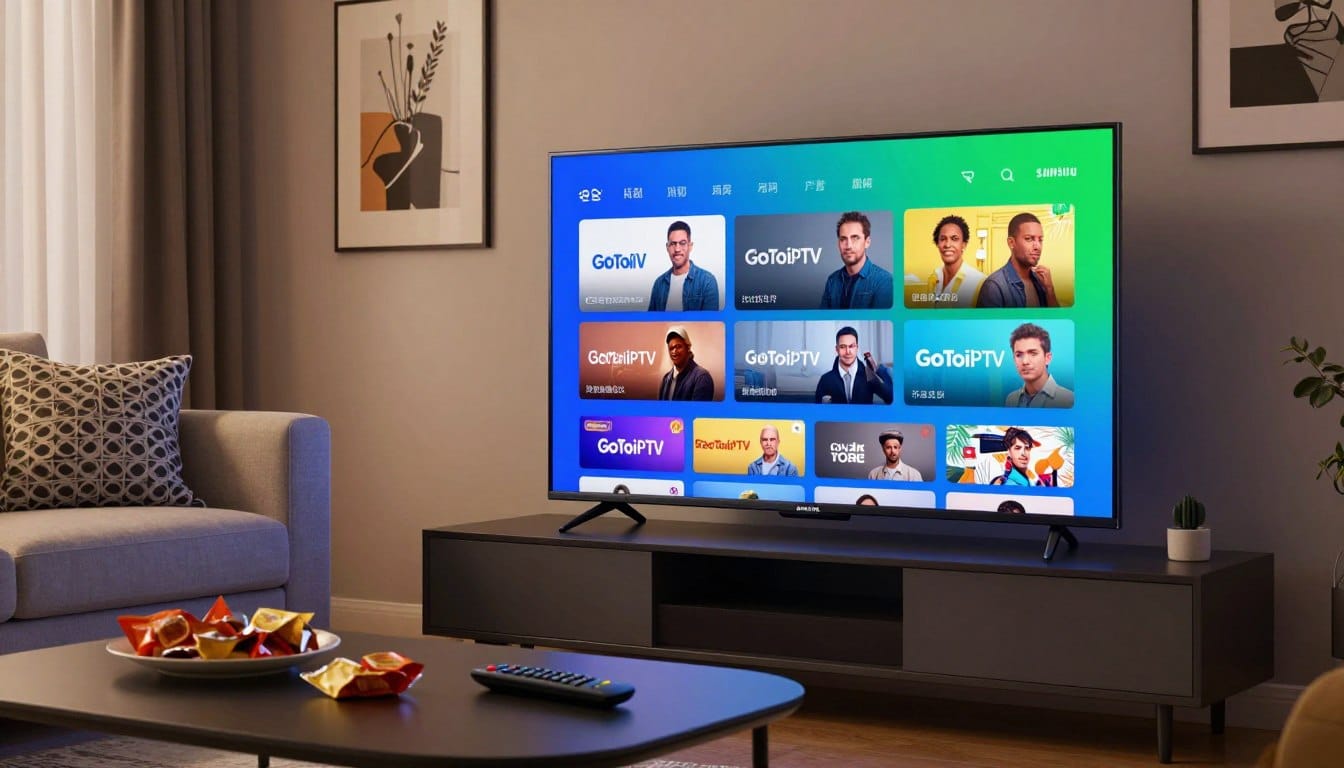
Getting your favorite digital channels starts with understanding your hardware. Before your samsung tv iptv setup, check your model year and regional app store availability. Checking official documentation is a smart move that can prevent frustration.
Successfully configuring iptv on samsung smart tv units takes two steps. First, activate the application, then link your provider subscription. Afterward, enter your playlist, restart the interface, and run a quick playback test.
If your hardware feels limited, external streaming devices offer a reliable alternative. They often provide better compatibility and a smoother media experience.
Key Takeaways
- Confirm your device model year and regional store settings before downloading apps.
- Always distinguish between activating the software and logging into your service provider.
- Input your playlist carefully to ensure the stream loads correctly.
- Restart the application after configuration to finalize the connection.
- Consider external streaming hardware if your display lacks native app support.
iptv on samsung smart tv: What to Check Before Setup
Before setup, check a few technical details about your television. Ready hardware saves time and prevents frustration later. With iptv on samsung smart tv, success depends on your device’s capabilities.
Confirm the Samsung TV model, model year, and Tizen version
Find the exact model details in the TV’s existing system information
Open the “Support” menu in your TV settings to find the model number. Select “About This TV” to view the model code and current Tizen OS version. Always write these down before installing software.
Why a Tizen TV model year does not guarantee app support
A newer screen does not mean every app will work. App access may depend on regional store rules and your samsung tizen iptv hardware. Some older models lack the processing power needed for modern streaming players.
Use a legitimate IPTV provider and provider-supplied access details
Distinguish a playlist, portal URL, username, password, and activation code
Your provider usually sends specific credentials. Learn the difference between these items to avoid login errors.
| Credential Type | Purpose | Format Example |
|---|---|---|
| Playlist URL | Loads channel lists | http://provider.com/get.php? |
| Portal URL | Connects to middleware | http://portal.provider.com/c/ |
| Login Details | User authentication | Username and Password |
| Activation Code | Device authorization | Alphanumeric string |
Check whether the provider supports Samsung Smart TV devices
Not every service works well on Tizen. Ask your provider whether it supports Samsung devices for a smoother experience.
Prepare the information needed for testing
Keep the playlist or login details available without altering the provider’s format
When entering credentials, do not change the formatting from your service. Copy and paste them exactly to prevent authentication failures. Even one typo can stop the app from connecting to the server.
Check the internet connection before installing an app
A stable network supports high-quality streaming. Run a speed test in your TV browser to check whether your connection supports live content. An unstable connection can cause playback issues with your samsung tizen iptv application.
Samsung Tizen Compatibility and Regional App-Store Differences
When setting up an iptv on samsung smart tv, your television model affects what you can install. Samsung uses Tizen, its own operating system, to control how software works with your hardware.
How Samsung Tizen compatibility affects IPTV apps
Understand the difference between a Samsung TV app and a web-based player
It is important to know the difference between a native app and a web-based player. A native app is made for Tizen, so it offers better performance and remote control support. A web-based player runs through the TV’s browser, which can feel clunky and less reliable for daily streaming.
Why older Tizen model years may have fewer current app choices
Older televisions may lose support for newer software updates as technology advances. If your TV is several years old, the Samsung App Store may not show newer versions of your favorite streaming tools. Modern apps often need more hardware than older Tizen versions can provide.
Check the Samsung App Store on the specific television
Search for the exact IPTV player name on the TV
To find an iptv app samsung users can trust, use your TV’s built-in search. Open the “Apps” section and enter the player’s name. If it does not appear, it likely does not support your device.
Do not assume an app listed for one Samsung TV is available on another
Do not assume your TV has an app just because a friend has it. Different model years and hardware can create different app store listings. Always check availability on your own screen.
Account for United States and regional app availability
Explain how the Samsung account region and TV market can affect app listings
Your Samsung account region affects the apps shown in the store. TVs bought in the United States use an app store made for the US market. Changing regions to reach other markets is not recommended and may cause serious compatibility issues.
Use Samsung Support documentation for the TV’s market and model year
For accurate information, visit the official Samsung Support website. Enter your model number to see which features and apps support your region. This documentation provides the best way to confirm your TV’s abilities.
What to do when a preferred player is unavailable
Choose a player that is officially listed for the television’s region
If your preferred player is missing, choose an alternative listed in your store. Many trusted options support samsung tizen iptv setups and are vetted by Samsung. Official apps help protect your data and provide stable streaming.
Avoid unofficial APK installation methods that Samsung Tizen does not support
Some online guides suggest ways to “sideload” or install unofficial APK files. Please avoid these methods entirely. Samsung Tizen is a closed system, so unsupported software may cause errors or void your warranty.
How to Verify an IPTV Player Before Installing It
A few minutes of checking can prevent hours of troubleshooting. Before you use an iptv app samsung, confirm it supports your exact TV model.
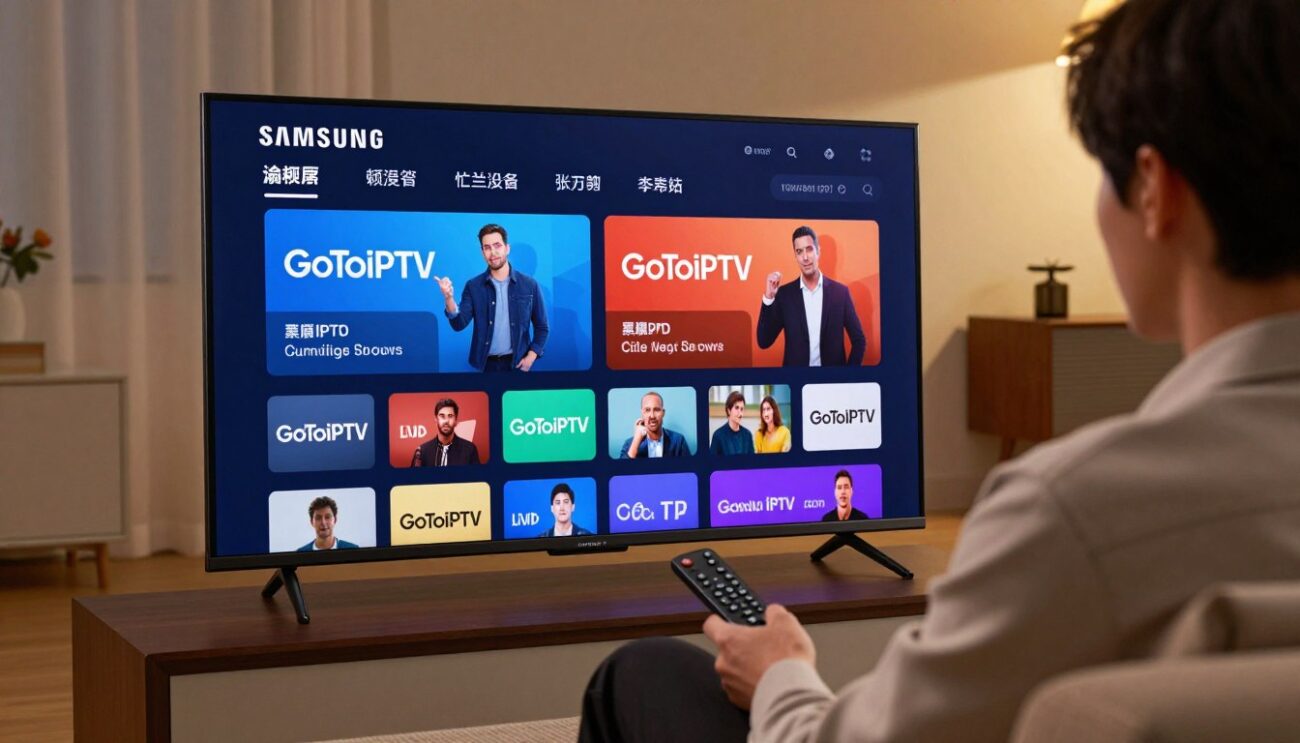
Check the player’s official compatibility documentation
Confirm Samsung Smart TV and Tizen support on the developer’s website
Start with the developer’s official website. Look for clear Tizen OS support statements. This confirms the app suits your television.
Compare the documented model-year requirements with the exact Samsung TV
Open your TV’s settings to find its exact model year. Compare it with the developer’s supported years. This can prevent crashes or launch failures.
Cross-check the player in Samsung’s official app listing
Verify the app name, developer name, and current availability
Search for the player in the Samsung App Store on your TV. Make sure the developer name matches the official website. This helps you avoid unofficial clones that could risk your security.
Check the listing’s region, supported devices, and latest update information
Some apps have regional limits. Confirm the app works in your country. Check the “last updated” date to see whether the developer maintains it.
Review official setup and activation instructions
Identify whether the player uses a playlist URL, M3U file, Xtream Codes, or portal login
Players use different input methods. Check whether yours needs an M3U file, Xtream Codes, or a portal login. This helps you prepare the right provider credentials.
Confirm whether the player requires a separate device activation fee
Some developers charge a one-time fee to activate an app on one device. Check the official site for a device activation fee before starting.
Separate documented facts from provider claims
Use Samsung Support for TV and Tizen compatibility questions
Contact Samsung Support about your TV’s software version. Samsung Support is the only source that can confirm whether your hardware supports certain app features.
Use the player developer’s official documentation for app behavior
The developer is the best source for information about app functions. Use its guides to learn interface navigation and playback settings.
Use the IPTV provider for playlist, account, and service details
Your provider manages the content. Contact them if channels are missing or your subscription is inactive, not the app developer.
| Verification Step | Source of Truth | Action Required |
|---|---|---|
| Tizen Compatibility | Developer Website | Match model year |
| App Availability | Samsung App Store | Confirm region |
| Activation Fees | Developer Documentation | Check for one-time costs |
| Service Access | IPTV Provider | Verify M3U or Portal login |
Follow this checklist to set up iptv on samsung smart tv with fewer problems. Keep these sources separate, so you know whom to contact when something goes wrong.
Samsung TV IPTV Setup: Install, Activate, and Add the Playlist
After checking your hardware, install the software needed for your content. A proper samsung tv iptv setup helps your TV connect with the provider.
Install the compatible player from the Samsung App Store
Open the app store available on the Samsung TV
Use your remote to open the home screen and select the “Apps” icon. This official gateway provides software for your television.
Search for the verified player and install the official listing
Use the search bar to find your chosen iptv app samsung. Select the developer’s official version for better security and compatibility.
Open the player and record any device ID or activation code it displays
Launch the app after installation. Many players show a unique device ID or activation code. carefully record it for later steps.
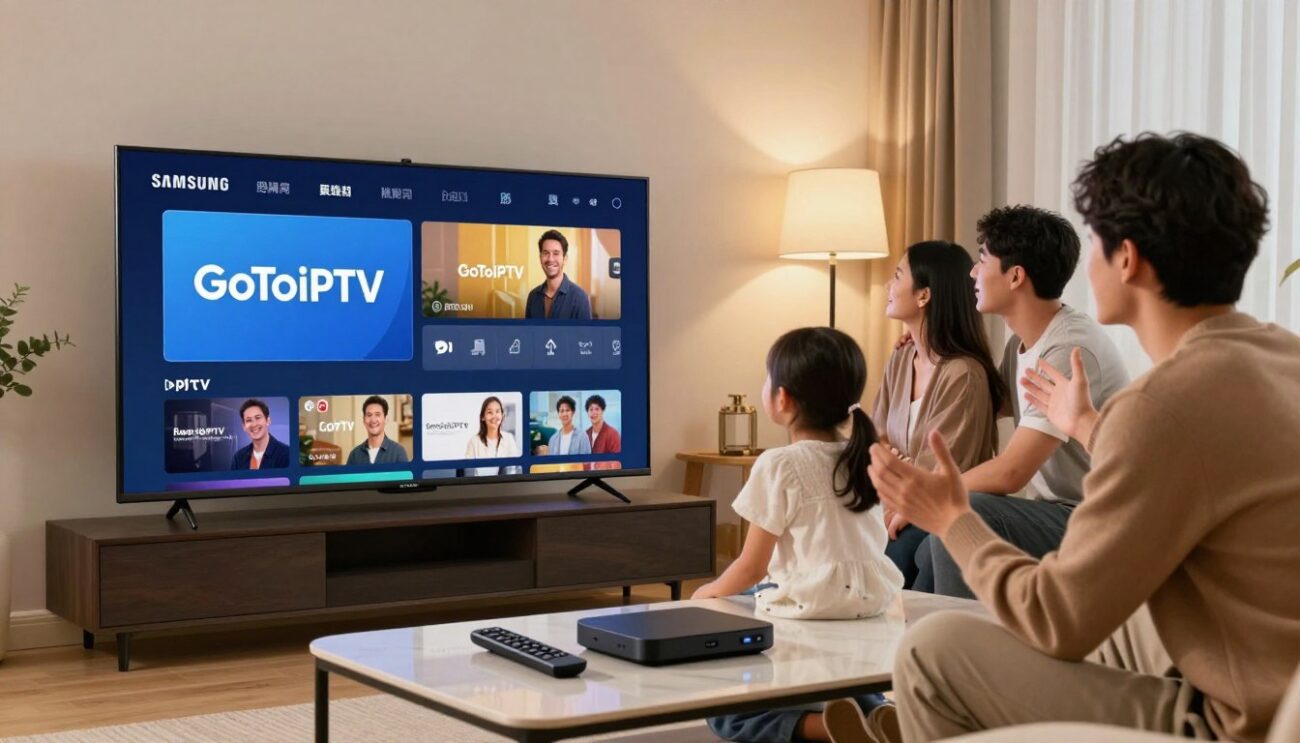
Complete app activation separately from subscription activation
App activation may unlock the player itself or connect it to a paid license
Some developers charge a one-time fee to unlock the software’s full features. This app license does not provide media content.
Subscription activation belongs to the IPTV provider and controls service access
Your provider manages your service subscription. It unlocks the channels and movies you want to watch.
Do not treat an app license as proof that an IPTV subscription is active
Paying for an app does not mean your service is ready. Check your subscription through the provider’s official portal.
Add the provider-supplied playlist or login
Choose the input method supported by the installed player
Most players accept a URL or direct login. Check the settings menu in the iptv on samsung smart tv interface for the preferred method.
Enter the provider’s playlist URL, portal address, or account credentials exactly
Enter your information carefully. A small typo or capitalization change can stop the connection from working.
Do not replace the provider’s server address with an unverified source
Use only the details from your service. Unverified server addresses can cause connection errors or security risks.
Save the connection and allow the player to load its categories
Wait for channels, movies, or program data to finish loading
After saving your credentials, the app needs time to sync with the server. Wait until the progress bar finishes so the data indexes correctly.
Record the provider’s support contact if the playlist fails to load
If loading stops, keep your provider’s support information nearby. It can help resolve server-side problems quickly.
Reopen the app before testing playback
Exit the player completely using the TV’s available controls
Do not return only to the home screen. Press the “Exit” or “Back” button until the TV closes the app.
Launch the player again so it reloads the saved playlist
Restarting the app refreshes the connection. This step supports smooth playback with iptv on samsung smart tv.
| Step | Action | Importance |
|---|---|---|
| 1 | Install App | High |
| 2 | Activate License | Medium |
| 3 | Input Credentials | Critical |
| 4 | Restart App | High |
Test IPTV Playback and Fix Common Samsung Tizen Problems
After setup, test your system to make sure everything runs smoothly on your screen. A reliable samsung tv iptv setup needs more than a connection. It also needs a careful check for stable streaming.
Test more than one channel or stream
Do not judge the whole service by one stream. Check different parts of the interface to measure its performance.
Try a live channel, a different category, and any available program guide
Test several live channels from different categories. Check whether loading times stay consistent. If supported, confirm that the electronic program guide loads correctly and that the samsung tizen iptv interface connects with your provider’s server.
Check whether audio, video, captions, and channel changes work correctly
Change channels to check whether transitions stay quick. Make sure the audio matches the video and captions appear correctly. These checks confirm that your iptv on samsung smart tv experience works properly.
Identify whether the problem is the TV, app, network, or provider
When problems appear, find the cause first. Check whether the issue involves your TV, app, network, or provider.
Use another legal streaming app to check whether the TV is online
If your stream fails, open a trusted legal app, such as Netflix or YouTube. If those apps work, your TV is online, so the IPTV player or provider may cause the problem.
Compare failures across several channels instead of judging the service by one stream
One dead link does not mean your whole subscription has failed. If one channel fails, the source may have a temporary issue. If every channel fails, the problem is more serious.
Ask the provider to confirm playlist status when every channel fails
If every channel fails, contact your provider. They can check whether your playlist is active or their servers need maintenance.
Handle app, playlist, and activation errors
Technical errors often come from typing mistakes or account problems. Check each possible cause to save time and avoid frustration.
Recheck the playlist URL and credentials without changing their capitalization
Check your login details carefully. Many systems are case-sensitive, so one incorrect capital letter can stop your samsung tv iptv setup from working.
Confirm that the app license is active when the player shows an activation screen
Some players need a separate license or activation key for full features. If an activation screen appears, check that your license is valid and entered correctly.
Contact the provider separately when the subscription or playlist is inactive
If your credentials work but the service stays blocked, your subscription may have expired. Contact your provider to check your account before blaming the app.
Use only documented Samsung troubleshooting steps
When troubleshooting iptv on samsung smart tv, use official methods to protect your device. Avoid shortcuts that could harm your television.
Follow Samsung Support guidance for app updates, network checks, and TV software
Check for official firmware updates in the TV settings menu. For ongoing network problems, unplug the TV for sixty seconds, then reconnect it. This standard power cycle can clear temporary glitches.
Do not invent hidden menus or apply unsupported firmware changes
Do not open hidden service menus or install unofficial firmware for streaming problems. These actions may void your warranty or damage your device. Follow Samsung’s official support documentation instead.
Using an External Streaming Device When the Samsung App Is Not Supported
When the native Tizen interface falls short, external hardware offers a reliable solution. If you cannot find the iptv app samsung users often rely on, a dedicated streaming device helps.
When an external device is a practical alternative
Use a supported streaming device when the required player is absent from Samsung Tizen
Sometimes, the software you need is unavailable in the native store. A separate streaming box bypasses these limits without replacing your television.
Confirm that the device and IPTV player officially support the provider’s playlist format
Before buying, check that your hardware and player software work together. Both must support your service’s playlist format for a smooth samsung tv iptv setup experience.
Connect and configure the external device without changing the TV’s Tizen software
Connect the device through an available HDMI port and select the matching input
Plug your streaming device into an open HDMI port on the television. Then use your remote to choose the matching input and start setup.
Install the player from the device’s official app store
After connecting, open the device’s built-in app store and download your chosen player. This keeps your original TV software untouched and adds the needed features.
Add the same provider-supplied playlist only when the provider permits that device
Check your service terms before adding a playlist. Proceed only when your provider clearly permits external streaming hardware for your account.
Keep activation steps separate on the external device
Activate the player license according to the player developer’s instructions
Remember, the player and content subscription are separate. First, activate the player license by following the developer’s instructions.
Activate or renew the IPTV subscription through the provider separately
After the player is ready, activate your subscription through the provider’s official portal. This separation keeps your iptv on samsung smart tv setup organized and functional.
Verify device support before buying
Check official documentation for Amazon Fire TV, Roku, Apple TV, or Google TV support
Before buying hardware, read official support documents for Amazon Fire TV, Roku, Apple TV, or Google TV. This confirms that your chosen device meets your specific requirements.
Confirm availability in the United States and compatibility with the TV’s HDMI connection
Finally, confirm that the device is sold in the United States and matches your television’s HDMI standards. These checks support a seamless transition to your new streaming setup.
Conclusion
Setting up iptv on samsung smart tv requires careful attention to your model year and regional app store settings. You get the best results by checking each player against official developer documentation before installation.
Keep app activation steps separate from subscription details for a smoother setup. Enter your provider-supplied playlist accurately for consistent performance. Reopen your chosen application and test multiple streams to confirm everything works as expected.
The samsung tizen iptv ecosystem offers flexibility when you follow documented installation paths. If your television lacks native support for a preferred player, consider a reliable external streaming device. This approach keeps your hardware stable without risky firmware changes or unsupported software modifications.
Follow official troubleshooting steps to maintain a secure, high-quality viewing environment. Contact your service provider if persistent playback errors occur. These guidelines help keep your entertainment setup reliable for years.
FAQ
How can I check if my Samsung TV is compatible with a specific IPTV app?
Open Settings to find the Model Code and Software Version, which show your Samsung Tizen version. A newer model may not offer every iptv app samsung provides in your region. Search the official Samsung App Store on your TV for apps available in your market.
Is there a difference between activating the app and my IPTV subscription?
Yes. Activating an app, such as Set IPTV or Net IPTV, usually only unlocks the player on Samsung Tizen. It requires a one-time software license or fee. Your provider supplies the IPTV subscription, channels, and content, so you need an active subscription and working app.
Why am I unable to find a popular IPTV player in my Samsung App Store?
Regional restrictions or your TV’s model year usually explain this problem. Samsung manages its app store by market, such as the United States, and Tizen version. A missing app may lack regional certification. Avoid trying to “sideload” APK files; Samsung Tizen does not support them, and security may suffer.
What is the most reliable way to handle a samsung tv iptv setup?
Start by downloading a verified player from the official store, open it, and photograph its MAC address or Device ID. Enter these details on the developer’s website with your provider’s M3U playlist URL or Xtream Codes login. Save the details, fully exit the app, and reopen it on your Samsung Smart TV to refresh the channel list.
What should I do if my playlist isn’t loading or the screen is black?
First, test your internet connection by opening another app, such as YouTube or Netflix. If those apps work, the playlist URL or provider likely causes the problem. Check your login for typos, especially capitalization. If it still fails, contact your IPTV provider about your subscription and samsung tizen iptv support.
Can I use an external device if my Samsung TV doesn’t support the app I want?
Absolutely. If your TV uses an older Tizen version or has a limited store, connect a streaming device through HDMI. Amazon Fire TV, Roku, Apple TV, and Google TV offer their own stores with more players. Set up the app on that device instead of your TV’s built-in software.
Do I need to change any hidden system menus to get IPTV working?
No; follow documented setup steps from Samsung Support and the app developer. Changing “hidden” service menus or installing unofficial firmware can void your warranty or brick your Samsung Smart TV. If standard installation fails, use an external device instead of risking your hardware.