Free IPTV Player for Windows 11 and 10: GoTo Player
Updated
Looking for a free IPTV player for Windows that feels like a real TV app? GoTo Player, our recommended free player, is in the Microsoft Store for Windows 11 and Windows 10. Add your own provider login or M3U playlist, browse live TV with a TV guide, find films and series in a tidy library, and pick up where you left off. No ads, and no tracking of what you watch.
Important: GoTo Player is a player only. It does not include, sell or host any channels, films or series. You add your own authorized source, such as your GoToIPTV subscription.
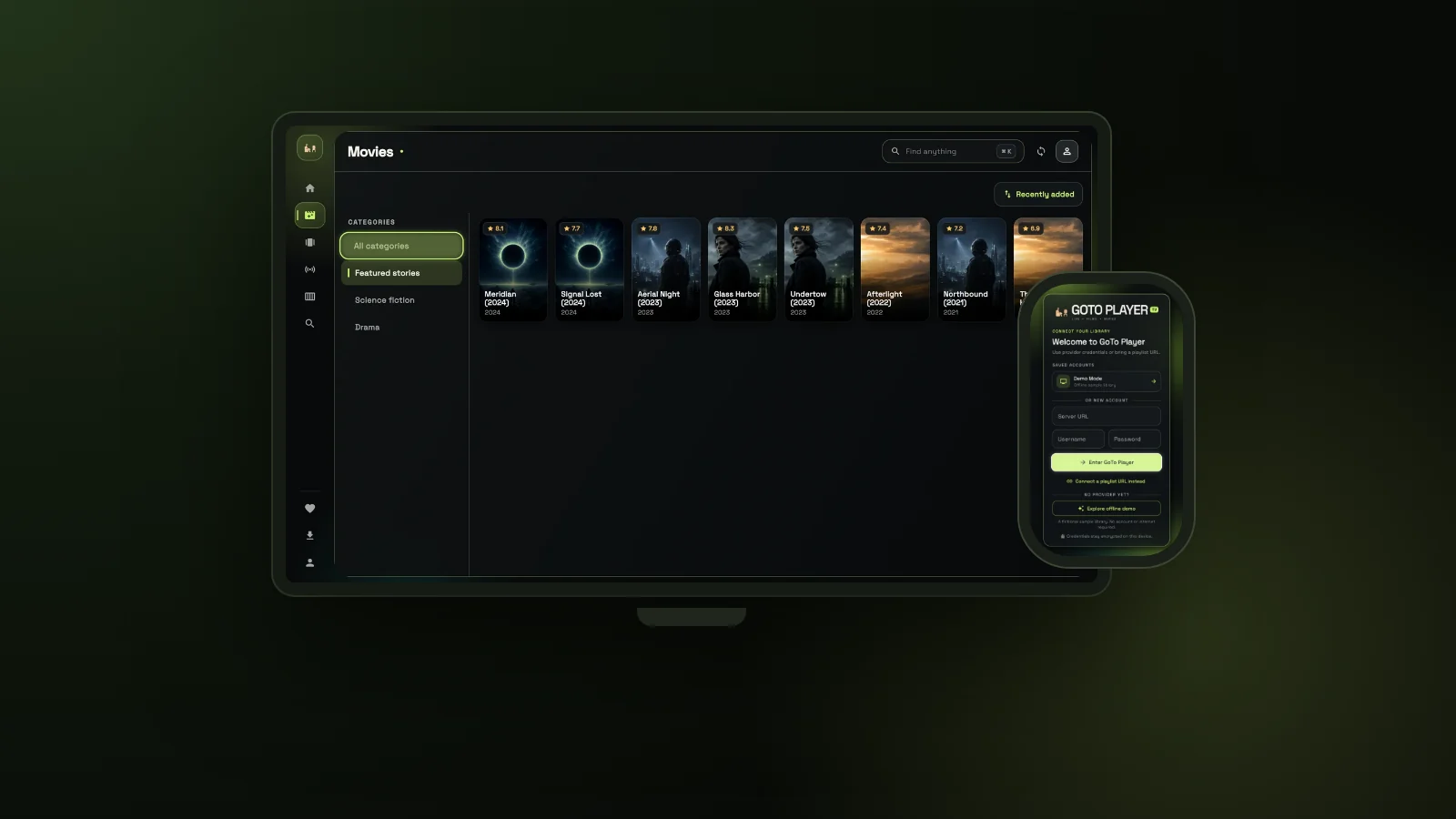 FreeMicrosoft StoreWin 11 and 1064-bit PCsNo adsno tracking
On This Page
What Makes the Best IPTV Player for Windows?
An IPTV player for Windows (some people say an IPTV player for PC) is a program that plays TV, films and series from a source you add. It has nothing to watch on its own, so what matters is how well it presents your source. A good one passes six checks:
- A real TV layout: a TV guide (EPG) for live channels and a library for films and series, not just a long list of links.
- Both login types: an Xtream-style provider login (server URL, username, password) and M3U playlist links.
- Made for a PC: fast search, full-screen playback with keyboard shortcuts, and a layout that suits a mouse.
- Safe to install: from the Microsoft Store or the developer, never from a download site you have never heard of.
- Private: no adverts, no tracking of what you watch, logins kept encrypted on your PC.
- Really free: no locked basic features and no subscription for the player itself.
Windows already plays video files well, so the hard part is everything around the stream: the guide, the library, resume and subtitles. That is where a dedicated IPTV player for Windows earns its place on your PC. If IPTV itself is new to you, start with what IPTV is and how it works.
GoTo Player: A Free IPTV Player for Windows in the Microsoft Store
GoTo Player is the free IPTV player we recommend to GoToIPTV customers, and anyone can use it with their own source. On Windows it comes straight from the Microsoft Store.
Because it installs from the Microsoft Store, this IPTV player for Windows sets itself up like any other Windows app: a Start menu entry, updates through the Store and a clean uninstall from Settings. There is no installer to hunt for and nothing to unzip.
The Windows version has the same library as the TV and phone versions: live TV with a TV guide, films, series with seasons and episodes, Continue Watching, My List and favourites, and fast search across everything. It adds what a PC does best: a big window, full-screen playback with keyboard shortcuts, and offline downloads.
How to Install GoTo Player on Windows 11 and 10
Installing this IPTV player for Windows takes about a minute on a normal broadband connection:
- 1
Open the Microsoft Store page for GoTo Player, or open the Store app and search “GoTo Player”.
- 2
Click Get (or Install). The download is about 47 MB.
- 3
Open GoTo Player from the Start menu, and pin it to the taskbar if you like.
- 4
Choose how to connect: your provider login, an M3U playlist link, or the built-in demo.
- 5
Start watching in a window or in full screen.
Not sure your PC qualifies? Open Settings, System, About. You need Windows 10 version 1809 (build 17763) or newer and a 64-bit system type. Most PCs bought in recent years already meet both, and every Windows 11 PC does.
Add Your Source: Provider Login or M3U Playlist
GoTo Player plays your source; it never supplies one. You can add it in one of two ways, and you can save more than one:
Provider login. Most IPTV services, GoToIPTV included, give you a server URL, a username and a password. This loads live TV, the guide, films and series together, so it is usually the best choice. Our Xtream player guide explains each field and the small mistakes that cause a refused login.
M3U playlist. Some providers give you a single playlist link instead. Paste it and GoTo Player builds your channel list from it. See our M3U player guide for what an M3U link is and how to check one.
GoToIPTV customers find their login details in the welcome email and in My Account.
Inside the IPTV Player for Windows: A Quick Tour
These screenshots come from GoTo Player’s built-in demo, so the films and channels you see are invented. With your own source, your own line-up appears in the same places.
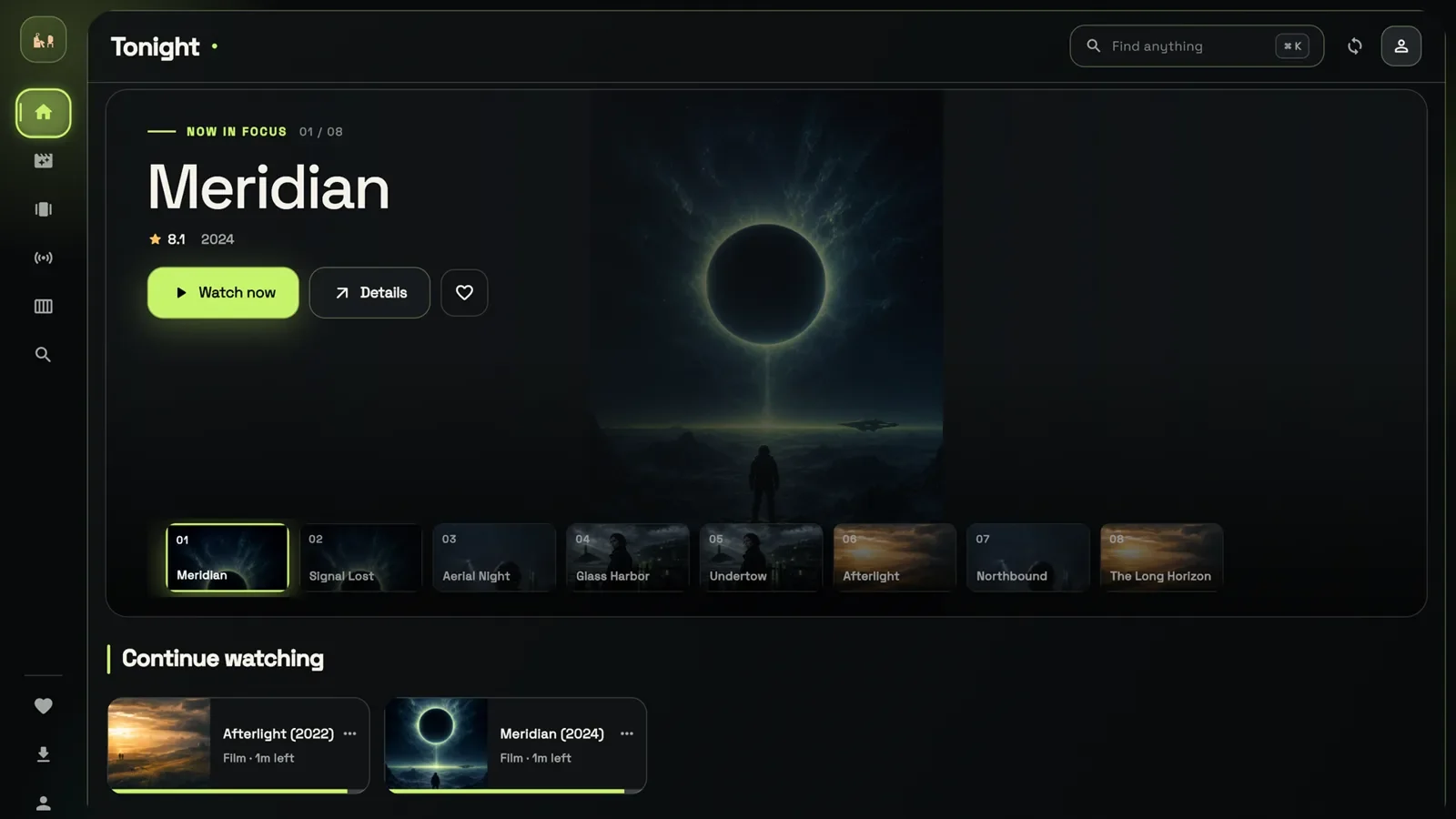
Home: tonight at a glance
When you open the IPTV player for Windows, the home screen shows a large “Now in focus” banner that you can step through, with Watch now, Details and a heart for your favourites. Below it, Continue watching shows what you started, with a progress bar, so one click takes you back to the right minute.
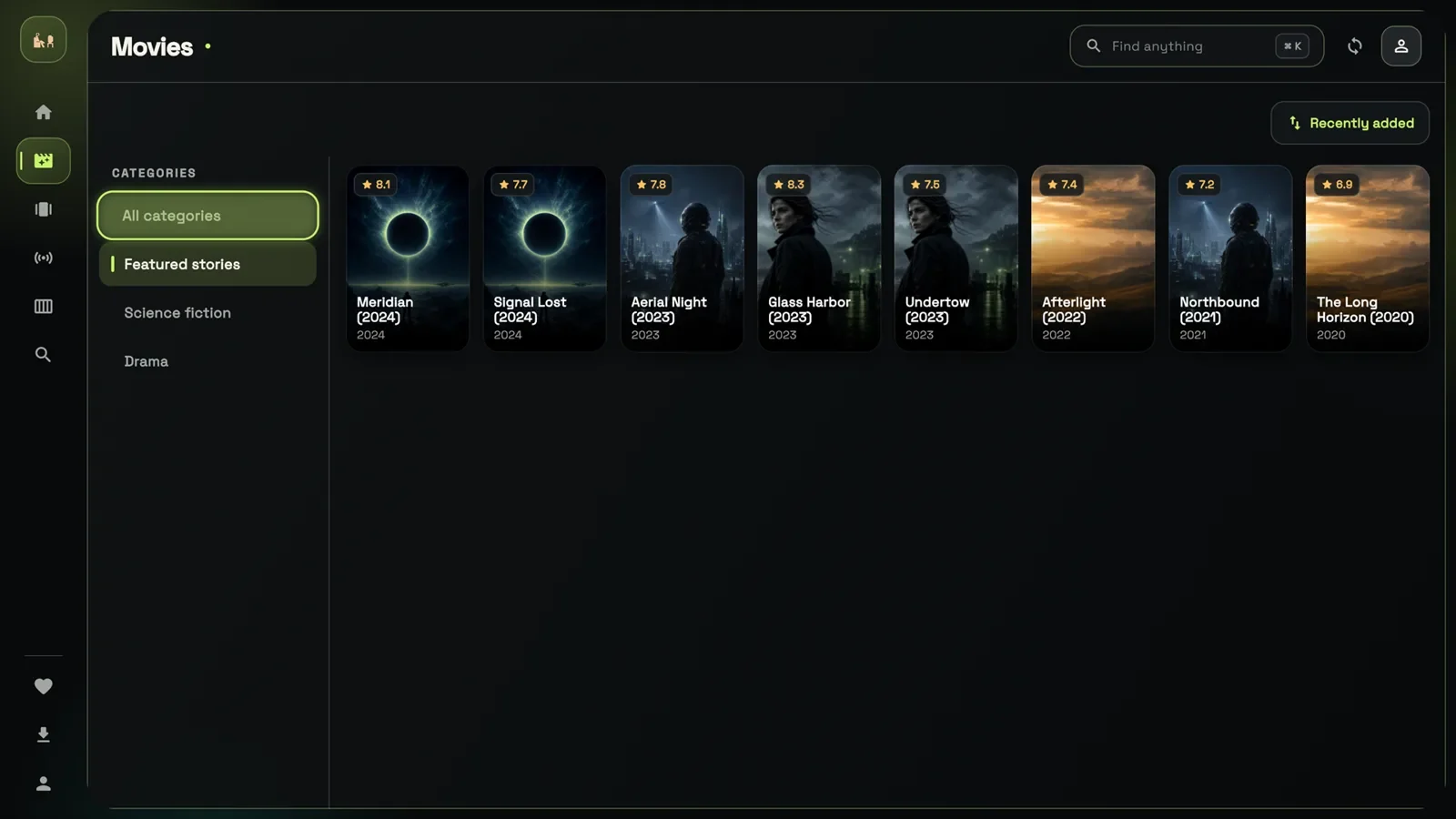
Films sorted by category
The Movies screen lists categories on the left and posters on the right, each with its rating and year. A Recently added button re-sorts the grid so new arrivals come first, which is handy when your provider adds films every week.
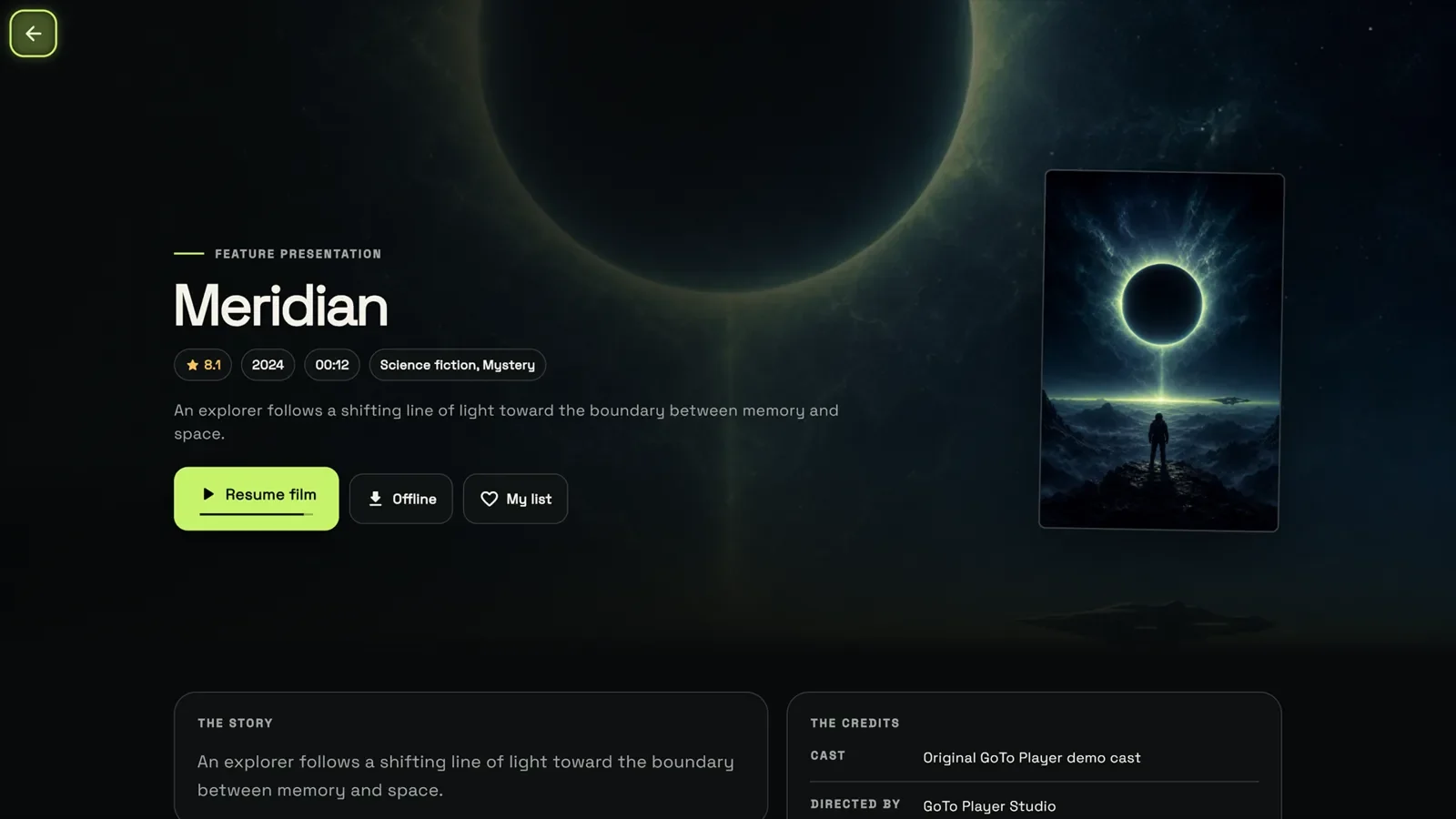
A proper page for every film
Open a title to see its story, rating, year, running time and genres. Resume film carries on where you stopped, Offline saves it to your PC, and My list keeps it for later.
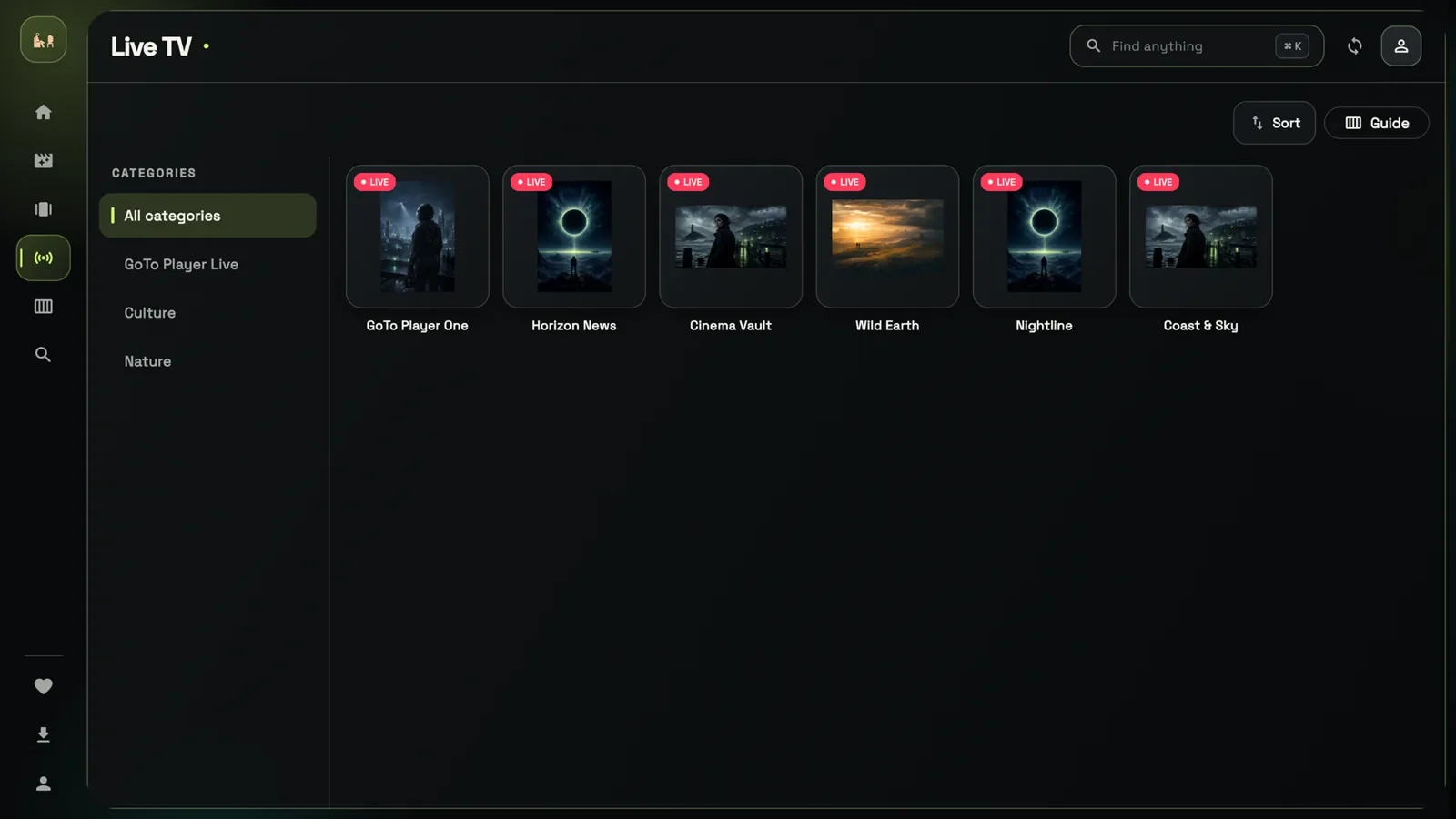
Live TV with a TV guide
Live channels sit in categories, each tile marked LIVE. Sort reorders the list, and the Guide button opens the TV guide (EPG), so you can see what is on now and next using the programme data from your source.
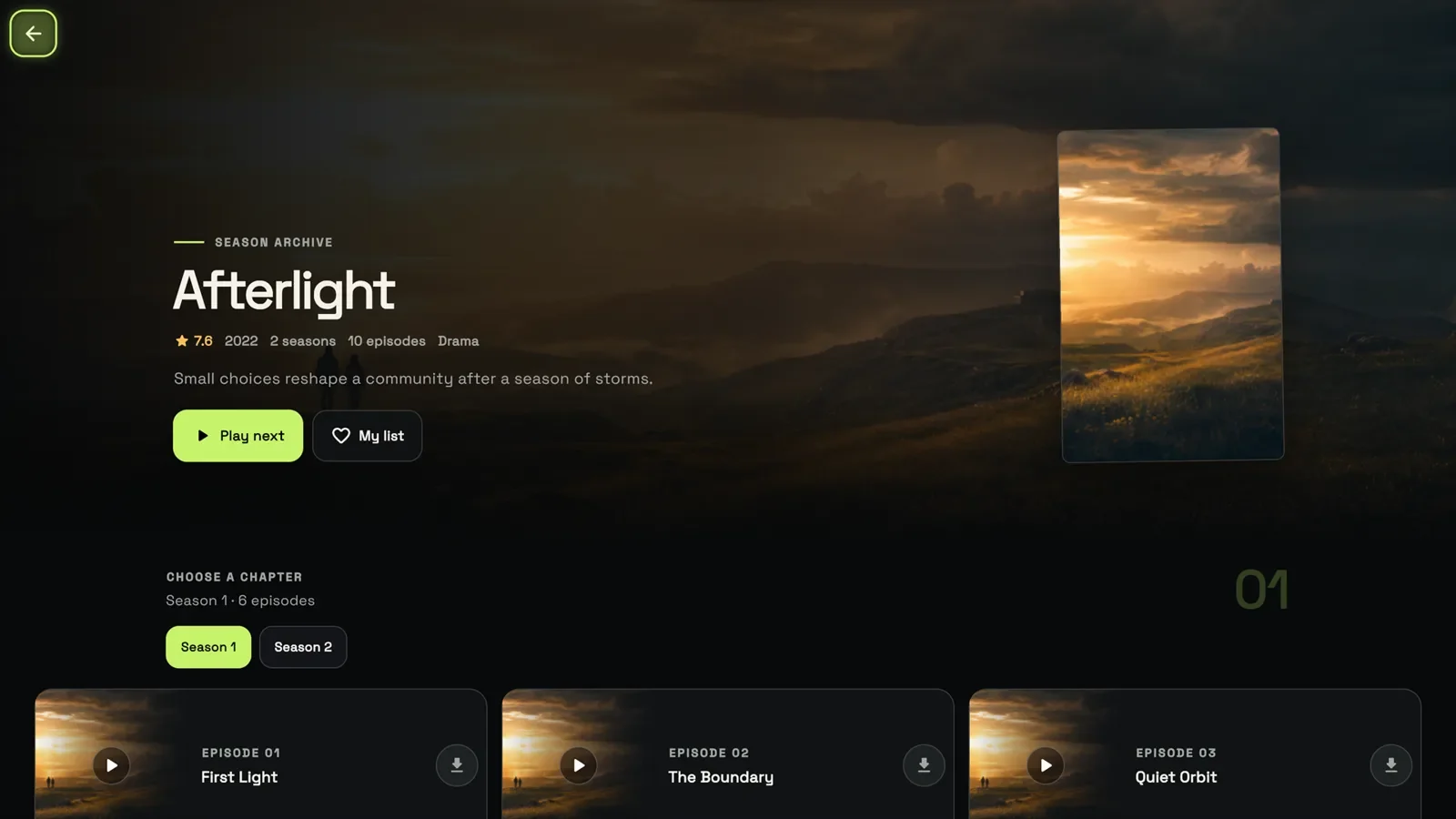
Series by season and episode
Series get their own page with the number of seasons and episodes, a Play next button and a season picker. Every episode has its own play button and a download button, so you can save a few episodes before a trip.
Offline Downloads on Windows
Offline viewing is one thing that sets this IPTV player for Windows apart from TV-only apps: it can save films and episodes to watch without an internet connection.
- Where it works: on Windows and on Android phones and tablets. Not on TV devices, and not in the coming iPhone version.
- How: press Offline on a film page, or the download button next to an episode.
- Rights first: saving works where your content rights allow it, so some titles may not offer it.
- Space: films take room on your drive, so check your free space before saving a whole season.
Saved titles are perfect for flights, trains and holiday homes with weak Wi-Fi. Save them over your home connection, then watch anywhere without using data.
Because they sit on your PC, saved titles also play smoothly when your home network is busy in the evening.
Keyboard, Mouse and Full-Screen Viewing
A PC is not a TV, and this IPTV player for Windows is designed with that in mind. It is built for mouse, keyboard and remote control alike.
Mouse and keyboard first, with a layout that also works with a remote.
Full-screen playback with keyboard shortcuts.
Fast search across live TV, films and series.
Subtitles and audio tracks, with subtitle size and sync controls.
Tip: if the subtitles on one film drift out of time, use the sync control instead of restarting the film. If a film offers several languages, switch the audio track from the player.
Profiles for Everyone at Home
One PC, several viewers? GoTo Player keeps everyone’s viewing apart.
Create several viewer profiles, each with its own My List and its own watch history. Your partner’s half-watched series will not push your film out of Continue Watching, and the children get a list of their own.
You can also save more than one account, for example two providers, and pick the one you want on the welcome screen.
Watch on the TV: PC to TV With HDMI
A laptop running GoTo Player and one HDMI cable put your IPTV on the living-room TV in a couple of minutes:
- 1
Connect an HDMI cable from the PC to the TV. USB-C laptops may need an adapter.
- 2
Pick the HDMI input on the TV with its remote.
- 3
Press Windows + P and choose Duplicate or Second screen only.
- 4
Check the sound: if it stays on the PC, choose the TV as the output in the Windows sound settings.
- 5
Open GoTo Player in full screen and sit back.
Wireless screen mirroring (Windows + K) works with many TVs too, but a cable is steadier for live TV. Watching on the TV every night? A Fire TV or Google TV stick runs GoTo Player directly, with no PC needed.
Other IPTV Player for Windows Options: VLC and Kodi
GoTo Player is not the only free IPTV player for Windows. Two well-known free programs can also play IPTV, with different trade-offs:
VLC is a superb general media player, and it will open an M3U playlist as a list of streams, which is fine for testing a link. It is not designed as a TV app, so there is no programme grid and no film library.
Kodi with the PVR IPTV Simple Client add-on is powerful and free, but you add the playlist and the guide data by hand in the add-on settings. Great for tinkerers, more work for everyone else.
Comparing players for every device? Read our best IPTV player guide.
Is There an IPTV Player for Mac Too?
Not from GoTo Player yet. This IPTV player for Windows runs on Windows PCs only, and there is no macOS version today.
On a Mac, you can still play IPTV with a general media player such as VLC, or put a TV device on your TV instead: a Fire TV Stick or a Google TV device runs GoTo Player with Downloader code 1129312. Our guides to the IPTV player for Firestick and the IPTV player for Android TV show every step.
For every Mac and PC option in one place, see IPTV on PC and Mac. iPhone and iPad owners: the iOS version of GoTo Player is coming soon.
IPTV Player for Windows Not Working? Quick Fixes
Most problems come from the source, the network or Windows itself, not from the IPTV player for PC you chose. Work through these in order:
Still refused? Our failed to authorize guide covers every login error, and it applies to any player. For picture problems, test the PC on Speedtest (about 10 Mbps per screen for HD, 25 Mbps for 4K) and follow our IPTV buffering fixes. Questions about the app itself: [email protected].
Private by Design on Your PC
A free IPTV player for Windows should not pay for itself with your data. GoTo Player keeps it simple:
No ads and no advertising.
No tracking of what you watch.
Encrypted logins, stored on your PC only.
No data collected by the Microsoft Store version.
Your logins go only to the service you add, nowhere else. The direct-download Android version can send anonymous counts, such as daily opens and crash types, and you can switch that off in its Profile screen; the Microsoft Store version on Windows collects no data at all. Read the privacy policy on gotoplayer.app.
Use GoTo Player With GoToIPTV
GoTo Player plays; your IPTV subscription provides what you watch. If you need a source, GoToIPTV plans log straight in to GoTo Player with the details we email you.
More GoTo Player Guides
Using GoTo Player on another screen, or with a different kind of login? Start with the GoTo Player overview or pick a guide:
IPTV Player for Windows FAQ
What is the best free IPTV player for Windows?
The best IPTV player for Windows gives you a TV guide, a film and series library and both login types, with no ads. GoTo Player, our recommended free player, does all of that and installs from the Microsoft Store. VLC and Kodi are free too, but they are general media programs rather than TV apps.
Is there a free IPTV player for Windows 11?
Yes. GoTo Player is free in the Microsoft Store. It runs on Windows 11, and on Windows 10 version 1809 (build 17763) or newer, on 64-bit PCs.
Does GoTo Player work on Windows 10?
Yes, on Windows 10 version 1809 (build 17763) or newer with a 64-bit system. You can check both in Settings, System, About.
How do I watch IPTV on my PC?
Install an IPTV player for PC. On Windows 11 and 10, GoTo Player is a free IPTV player for Windows from the Microsoft Store. Open it and add the login from your IPTV provider (server URL, username and password) or an M3U playlist link. Live TV, the TV guide, films and series then load in the app.
Can VLC play IPTV?
Yes. VLC can open an M3U playlist link and play the streams in it. It has no TV guide grid and no film and series library, so most people use VLC for a quick test and a dedicated IPTV player for everyday viewing.
Is there an IPTV player for Mac?
GoTo Player has no Mac version today. On a Mac you can use VLC, or connect a Fire TV or Google TV device to your TV and install GoTo Player there with Downloader code 1129312. The iPhone and iPad version is coming soon.
Can I download films to watch offline on Windows?
Yes. GoTo Player for Windows can save films and episodes for offline viewing where your content rights allow it. Press Offline on a film page, or the download button next to an episode.
How do I put IPTV from my PC on my TV?
Connect the PC to the TV with an HDMI cable, choose that HDMI input on the TV, press Windows + P and pick Duplicate or Second screen only. Then play GoTo Player in full screen. If the sound stays on the PC, choose the TV in the Windows sound settings.
Does GoTo Player include channels?
No. GoTo Player is a player only. It does not include, sell or host any channels, films or series. You add your own authorized source, such as a GoToIPTV subscription.
Is GoTo Player safe to install on Windows?
Yes. It comes from the Microsoft Store, shows no ads, keeps your logins encrypted on your PC and sends them only to the service you add. The Microsoft Store version collects no data.
Can I use an M3U playlist on Windows?
Yes. When you add a source in GoTo Player, choose to connect a playlist link and paste the M3U address from your provider. Our M3U player guide explains the format.
Do I need a VPN to use an IPTV player for Windows?
No. GoTo Player works without a VPN. Some people use one for privacy; it does not change what is legal to watch.
Get the Free IPTV Player for Windows
Free, no ads, about 47 MB. Install the IPTV player for Windows from the Microsoft Store, add your provider login or M3U link, and start watching on your PC tonight. Every other screen is covered on our free IPTV player page.
