Blog – iPTV Tips
IPTV on Android TV Box: Setup Guide and Best Settings (2026)

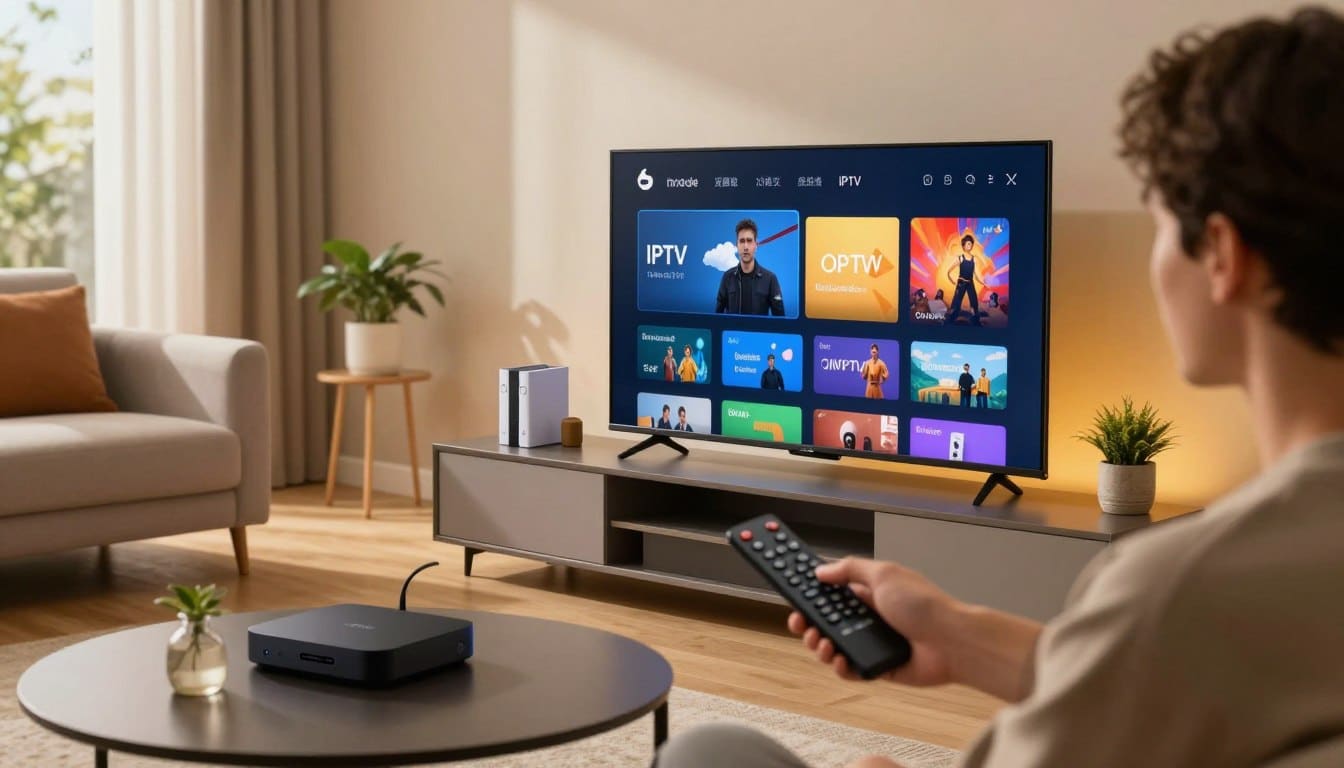
An Android TV box is one of the most flexible ways to watch IPTV. It connects to any TV with HDMI, supports many player apps and is easy to update. This guide shows you how to set up IPTV on an Android TV box and which settings give you the smoothest picture.
Android TV box vs Google TV vs Firestick
- Android TV / Google TV boxes (for example Nvidia Shield, Xiaomi Mi Box, Chromecast with Google TV, Formuler models) use the Google Play Store.
- Firestick / Fire TV uses Amazon’s Appstore. See our Firestick guide.
- Generic Android boxes run a phone-style version of Android. They work, but certified Android TV devices usually get better updates and support.
For Google TV specifically, also read IPTV on Google TV.
What you need
- An Android TV box connected to your TV and the internet (Ethernet recommended).
- An IPTV player app from the Google Play Store.
- Your GoToIPTV login details from your email, or start with the 24-hour free trial.
Step 1: Update your box
Go to Settings → Device Preferences → About → System update and install any updates. Then update your apps in the Play Store. Updated boxes are more stable and more secure.
Step 2: Install an IPTV player
Open the Google Play Store, search for “IPTV player” and choose a well-reviewed, regularly updated app that supports Xtream login, M3U playlists and EPG. Hot Player is a popular, simple option. See also how to install Hot Player on Firestick and Google TV.
Avoid “APK” downloads from unknown websites. Installing apps from unofficial sources can put your device and data at risk.
Step 3: Add your GoToIPTV account
- Open the player and choose Add playlist / Login.
- Pick Xtream (username, password, server URL) or M3U URL, as in your email.
- Enter the details carefully (a phone keyboard app or a USB keyboard makes this easier).
- Save and let the channels, movies, series and TV guide load.
Step 4: Best settings for a smooth picture
- Video player / decoder: if a channel freezes, switch between hardware and software decoding in the app settings.
- Buffer size: set a medium or large buffer if your connection varies.
- Display: under Settings → Display & Sound, set the resolution to match your TV (4K on 4K TVs) and turn on match frame rate if available.
- Restart weekly: a quick restart clears memory on low-cost boxes.
How to choose a good Android TV box (checklist)
- Certified Android TV or Google TV: gets regular security updates and the full Play Store.
- RAM and storage: at least 2 GB RAM and 8 GB storage; 3–4 GB RAM is better for 4K.
- Connectivity: an Ethernet port or Wi-Fi 5/6 for stable streams.
- 4K, HDR and Dolby support if you have a 4K TV.
- A remote with a voice button makes searching much faster.
- Avoid “fully loaded” boxes sold with pre-installed apps; they often come with security risks and no updates.
Keep your box fast over time
- Uninstall apps you do not use and keep at least 1 GB of free storage.
- Turn off auto-play previews on the home screen if your box feels slow.
- Restart the box once a week.
- Update the player app whenever an update is available.
Fixing common problems
- Buffering or freezing: use Ethernet, restart the router and see our full IPTV buffering fix guide.
- Channels missing: refresh the playlist in the app settings.
- TV guide empty: update the EPG and check the box’s time zone.
- Box running slow: clear the app cache (Settings → Apps → your player → Clear cache) and uninstall apps you do not use.
Frequently asked questions
Which Android TV box is best for IPTV?
A certified Android TV or Google TV device with at least 2 GB RAM, Ethernet or Wi-Fi 5/6, and regular updates gives the best experience.
Can I use the same account on two boxes?
At the same time, you need a 2-line or 3-line plan. A 1-line plan works on one screen at a time.
Does GoToIPTV work in 4K on Android TV?
Yes, on 4K boxes and TVs, where 4K content is available and your internet is fast enough (25 Mbps or more).
Ready to try?
Start with the free 24-hour trial, then pick the best-value 12-month plan.