
IPTV Smarters “Failed to Authorize”: 7 Fixes That Work
Updated
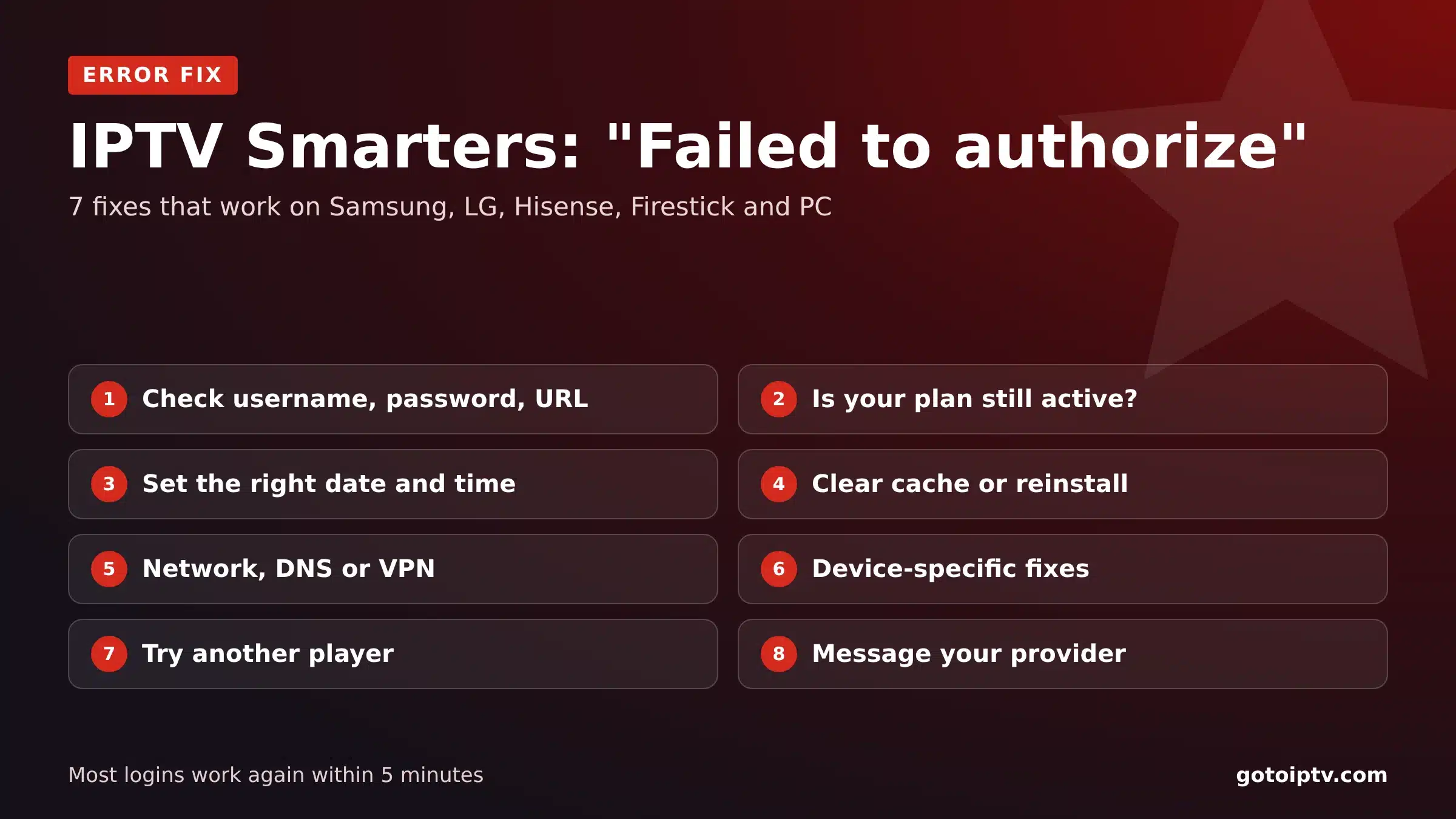
Seeing IPTV Smarters failed to authorize when you try to log in? You are not alone: it is the most common IPTV Smarters Pro error on Samsung, LG and Hisense TVs, Firesticks and phones. The good news is that most cases are fixed in under five minutes.
To fix IPTV Smarters failed to authorize, work through the seven fixes below in order. Each one takes a minute or two, and they start with the causes we see most often in our own support chats.
 7 fixesin order5 minfor most casesAny deviceTV, stick, phone, PC
On This Page
What “IPTV Smarters Failed to Authorize” Means
IPTV Smarters Pro is a player: it has no channels of its own. When you log in, it sends your username, password and server address to your IPTV provider’s server. “Failed to authorize” means that server said no, or never answered.
In short: the IPTV Smarters failed to authorize message is almost never a problem with the app itself. It means one of these five things: the login details are wrong, the subscription is not active, the device clock is wrong, old data is stuck in the app, or the network is blocking the server.
That is why reinstalling the app on its own rarely helps. Fix the cause and the login works again straight away.
Wrong details: a typo, an extra space or the wrong server URL.
Plan ended: the line has expired or is not activated yet.
Wrong clock: date or time far off on the device.
Network block: DNS, VPN or the internet provider.
Fix 1: Check Your Login Details (Username, Password, Server URL)
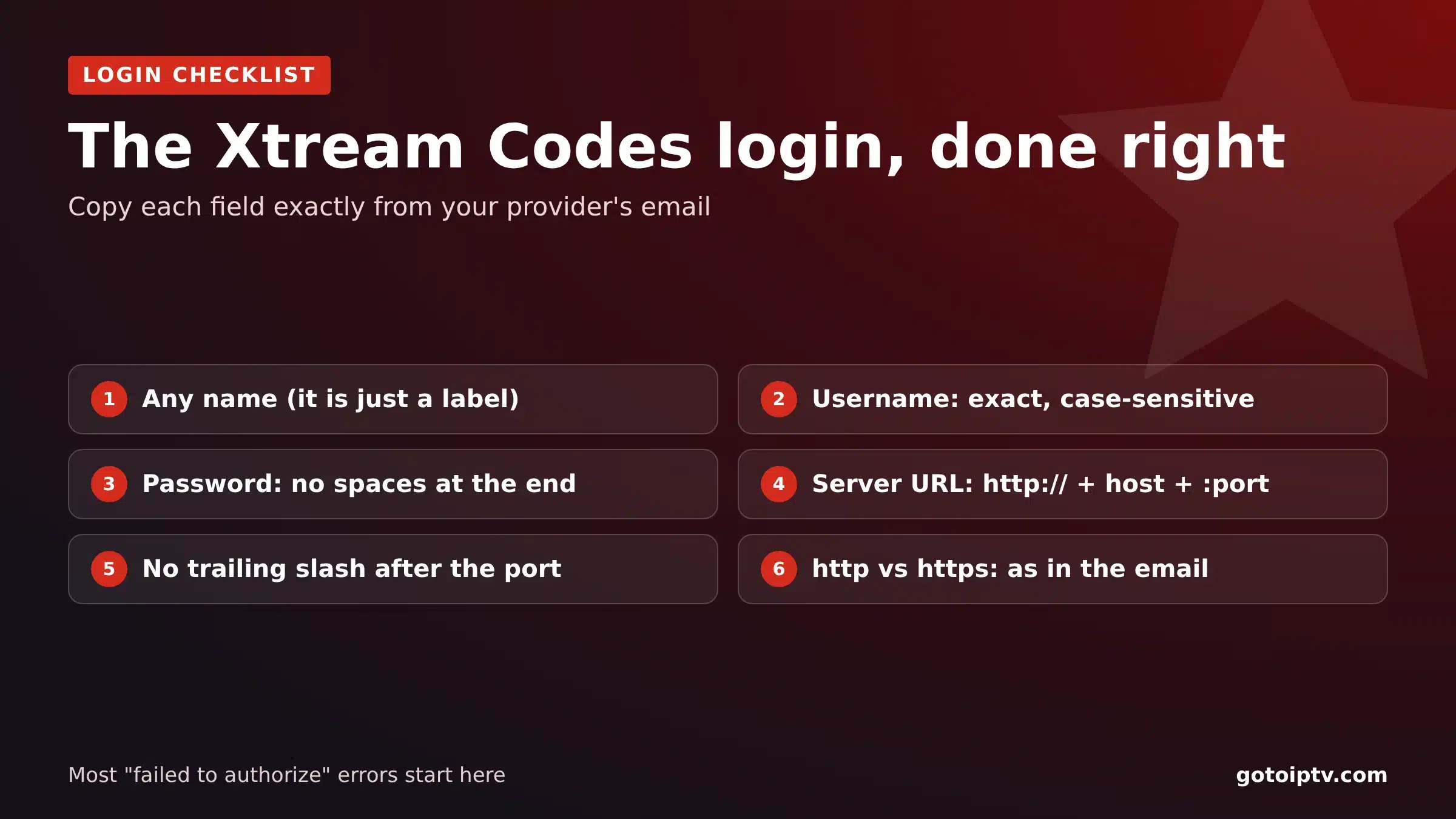
Nine times out of ten, failed to authorize IPTV Smarters errors come from a small typo. Delete the playlist in the app and add it again, slowly, using the Xtream Codes login:
- Username and password are case-sensitive. “John123” is not “john123”.
- No spaces. Copy-paste often adds a space at the end. Delete it.
- Server URL must start with
http://(orhttps://if your email says so) and usually ends with a port, for example:8080. - No slash after the port, and no extra words such as “/get.php”.
- Use the newest email. Providers sometimes change the server address; old details stop working.
Fix 2: Is Your Subscription Still Active?
An expired line gives exactly the same IPTV Smarters failed to authorize error as a wrong password, so an expired plan is the second most common cause of IPTV Smarters failed to authorize. Check before you change anything else:
- 1
Check the end date in your provider’s account area or in its last email.
- 2
New order? Activation can take a few minutes after the payment is confirmed.
- 3
Renewed recently? Some providers send new login details after a renewal. Use the newest ones.
GoToIPTV customers can see their plan status and end date any time in My Account with “Reveal My Subscription”, and renew on the renewal page while keeping the same login.
Fix 3: Set the Right Date and Time
Secure logins rely on the device clock. If your TV or Firestick thinks it is 2019 after a power cut, the server can refuse the login and you get IPTV Smarters failed to authorize.
Samsung: Settings, General, System Manager, Time, Clock Mode: Auto.
LG: Settings, General, System, Time and Date: Set Automatically.
Firestick: Settings, Preferences, Time Zone, then restart.
Phones and PCs: date and time set to automatic.
Fix 4: Clear the Cache or Reinstall IPTV Smarters
Old data stuck in the app can keep showing IPTV Smarters failed to authorize even after you fix the details. Clear it, in this order:
- 1
Firestick and Android TV: Settings, Applications, Manage Installed Applications, IPTV Smarters, Clear cache. Then Clear data if needed.
- 2
Samsung and LG: delete the app, turn the TV off at the wall for one minute, install it again.
- 3
Phones: delete and reinstall the app from the app store.
- 4
Add the playlist again with fresh details from Fix 1.
Fix 5: Network, DNS or VPN
Sometimes IPTV Smarters failed to authorize is a network problem: your network stops the app from reaching the server at all, so IPTV Smarters Pro is not working even with perfect details.
- Restart the router and the device. It clears most short network faults.
- VPN on? Turn it off and try again, or pick another VPN server.
- Change DNS on the device or router to a public DNS (for example 1.1.1.1 or 8.8.8.8). Some internet providers block certain servers at DNS level.
- Try mobile data from a phone hotspot. If it works there, the problem is your home network, not the app.
Speed matters too: you need about 10 Mbps per screen for HD and 25 Mbps for 4K. Test on Speedtest from the device you watch on. If streams start but keep freezing, see our IPTV not working guide.
Fix 6: Device-Specific Fixes (Samsung, LG, Hisense, Firestick, PC)
IPTV Smarters failed to authorize errors look the same everywhere, but each platform has its own quirks. Find yours:
Samsung (Tizen)
Update the app in Apps. Set the clock to Auto. Cold-start the TV (unplug for one minute). Re-add the playlist.
LG (webOS)
Update webOS and the app, set the time automatically, then reinstall the app if the error stays.
Hisense (VIDAA)
“Authorization failed for above host” usually means a wrong server URL or port. Re-type it with http:// and the port.
Firestick and Android TV
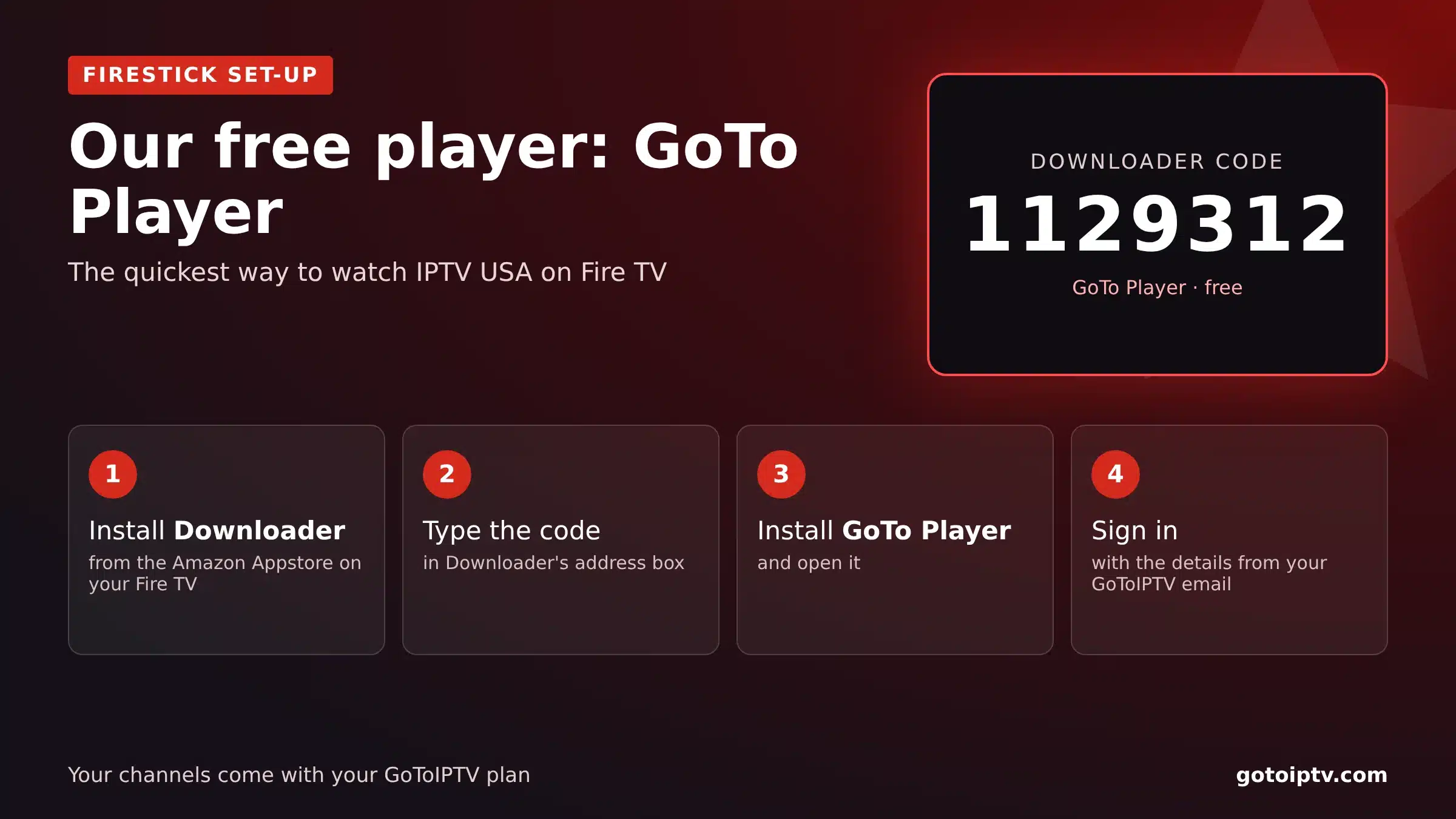
Clear cache, update the app, check the date and time. Or install GoTo Player with Downloader code 1129312.
Windows PC and Mac
Allow the app through the firewall, turn off any VPN or proxy, and use the latest app version.
Fix 7: Try Another Player (GoTo Player, Free)
If IPTV Smarters failed to authorize again on one device, test the same login in a second player. If it works there, the problem was the app, not your subscription.
- 1
Install Downloader from your device’s app store.
- 2
Type the code 1129312 and install GoTo Player, our recommended free player.
- 3
Sign in with the same username, password and server.
- 4
Watch. If it plays, your details are fine.
GoTo Player is a free player app: your channels come from your IPTV plan. It also works with TiviMate-style Xtream Codes logins on Android TV and Google TV.
IPTV Smarters Failed to Authorize: The 60-Second Checklist
In a hurry? Go down this list. Most people fix IPTV Smarters failed to authorize at step 1 or 2:
How to Stop IPTV Smarters Failed to Authorize Coming Back
Once it works again, a few habits keep the IPTV Smarters failed to authorize message away for good:
Renew before the end date. An expired plan is the most common cause of the error coming back.
Save the newest login email. If your provider changes the server, update the playlist the same day.
One screen per line. If family members share one login on two TVs, add a second line instead.
Keep the router and TV updated, and restart them once a week.
Use a VPN server that works with your provider, or turn the VPN off for IPTV.
Keep a second player installed, such as GoTo Player, so one app problem never stops your evening.
When to Contact Your IPTV Provider
If you have tried all seven fixes and you still get IPTV Smarters failed to authorize, the problem is on the server side and only your provider can check it. Send them:
- The exact error message (a photo of the screen helps).
- Your device and app version.
- Whether it works on mobile data or another device.
- Your username, but never your password in a public place.
We Fix It With You, Step by Step
Message us on WhatsApp at +1 (917) 924-8236 or email [email protected], any day. Most login problems are solved in a few minutes, on Samsung, LG, Hisense, Firestick or PC.
IPTV Smarters Failed to Authorize: FAQ
Why does IPTV Smarters say “authorization failed”?
The app could not log in to your provider’s server. The usual causes are a typo in the username, password or server URL, an expired or inactive subscription, the wrong date and time on the device, or a network that blocks the server.
Why am I unable to connect to IPTV?
Check, in this order: your internet connection, your login details, whether your plan is still active, the date and time on your device, and whether the same line is already playing on another screen. Then restart the device and router.
How do I fix IPTV Smarters on a Samsung TV?
Delete the playlist, add it again with the details copied exactly, check the TV’s date and time (Settings, General, Time), update the app, then turn the TV off at the wall for one minute. If it still fails, try another player app.
How do I fix “failed to authorize” on Firestick?
Re-enter the login details, clear the app cache (Settings, Applications, Manage Installed Applications, IPTV Smarters, Clear cache), set the date and time to automatic and restart the Firestick. Or install GoTo Player with Downloader code 1129312.
What does “Authorization failed for above host” mean on Hisense?
The TV reached the server address but the login was refused. Check the server URL, including http:// and the port, and the username and password. It can also mean the subscription has ended.
Has IPTV Smarters Pro been shut down?
App-store availability for IPTV players changes from time to time, and old versions can stop working after updates. If you cannot install or update it on your device, use another player that supports the Xtream Codes login.
Is IPTV Smarters Pro the same as my IPTV subscription?
No. IPTV Smarters Pro is only a player app. Your channels come from your provider, which sends you the login details. If those details are wrong or expired, the app shows “failed to authorize”.
Can a VPN cause “failed to authorize”?
Yes, sometimes. Some providers block certain VPN servers, and a VPN can slow the login until it times out. Turn the VPN off and try again, or switch to a different VPN server.
How many devices can use one login?
Usually one screen at a time per line. If the same login is playing on another device, the second one may be refused. With GoToIPTV you can add screens with a multi-screen plan.
Why does IPTV Smarters failed to authorize appear only some evenings?
If the login works in the afternoon but fails at night, the server or your network is overloaded at peak time, or the same line is already playing on another screen in your home. Restart the router and check that no other device is using the login.
Does reinstalling fix IPTV Smarters failed to authorize?
Only if old data in the app is the cause. Most of the time the login details, an expired plan or the device clock is the real problem, so check Fixes 1 to 3 first and reinstall only if they are fine.
Can I fix IPTV Smarters failed to authorize on my phone first?
Yes. Add the same login in the app on your phone using mobile data. If it works there, your details and plan are fine, and the problem is your TV or your home network.
Who do I contact if nothing works?
Your IPTV provider, not the app developer: only the provider can check your line on its server. GoToIPTV customers can message us on WhatsApp at +1 (917) 924-8236 or email [email protected].
Tired of Login Errors? Try GoToIPTV
No more IPTV Smarters failed to authorize evenings: clear login details, a free recommended player, support that answers in minutes and no contract. Start with two months.
